Select the dots menu for an individual account to Edit, Delete, Visualize, or Trigger a scan for that account
Account Actions
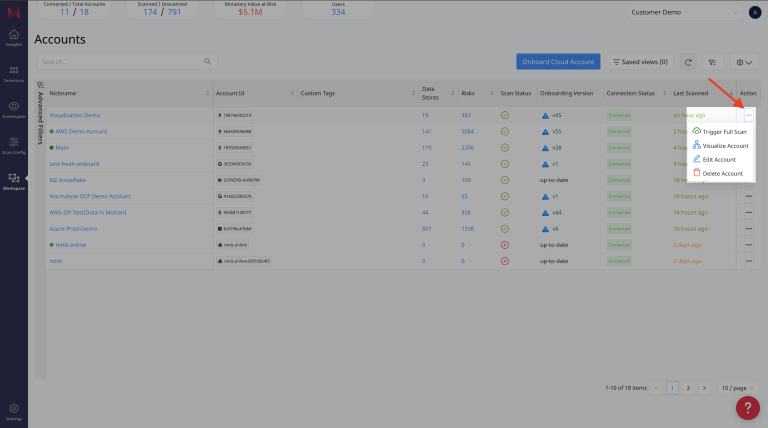
Edit Account
Each cloud provider has different options that can be updated, below we will describe the settings that are common between each provider type, and specific to each provider.
For details on creating a custom Azure Virtual Network (VNet) and subnets to support your DSPM for SaaS deployment, see Custom VNet and Subnet Configuration Guide.
Common Settings
Account Nickname
The account nickname is used within the platform to help you identify what the account is by using a friendly name that you define.
Scan Logs (Yes/No)
See Database Log Scan for details.
Enable Vulnerability Scan (Yes/No)
See Packages for details.
Environment Type
Specify an environment type to give additoinal context about an account, this can be used later, for example, to tell if an account is non-production and contains sensitive data.
Description
Provide a description of the account that provides additional context about the account, that may explain its purpose and reason for existence.
Custom Tags
Custom tags are applied to the resources that DSPM deploys within your environment. These tags are applied to all the resources that are created by DSPM. The tags are applied once the Data Scan operation is invoked for the account. For eg: the resources like AWS S3 bucket, AWS lambdas, Azure Resource Groups, Azure Storage account, etc.
The use case for the tags comes into picture when the Organization requirement enforces use of specific tags for all the resources being created by DSPM or there are AWS Service Control Policy or Azure Policy which would block data scan operation if specific resources are not tagged with specific values.
Use Case Scenario:
Azure Policy mandates that all the Resource groups being created under a Subscription should have specific set of tags. And if these are not present, then any operation under the Resource Groups will be blocked.
In this case the data scan operation would fail since the Snippet storage account creation and the Function storage account creation would not be allowed because the tags are not present on the Resource Group.
To meet this requirement, the necessary tags can be added from the Custom Tags section and updated. Once the Data Scan is triggered for this account, then these tags gets applied to all the resources that are already created by DSPM and all the subsequent ones which will be created during the course of scan operation.
The tags to be updated are in the following format:
Key,Value
For example:
Business Unit, Demo Tag
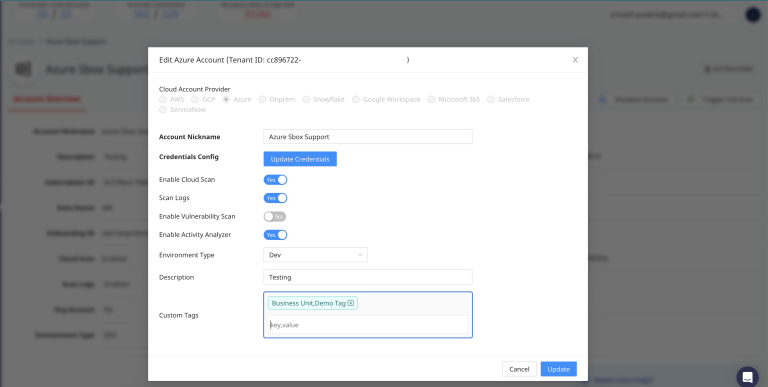
This would be then get applied on the cloud provider resource as:
Business Unit:Demo Tag

Amazon Web Services (AWS)
- Assume Role
- Toggle - Is Org Account (Yes/No)
- Toggle - Custom CloudTrail (Yes/No)
- CloudTrail Region & S3 URI
- CloudTrail Arn
- Toggle - Incremental Scan (Yes/No)
- Toggle - Enable Auto Remediation
- Snippet Storage Account
Azure
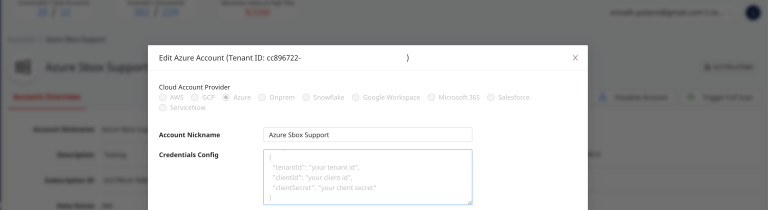
- Credentials Config
If at any point the Client Secret gets expired for any of the Azure account or is updated as part of secret rotation schedules, then changed credentials should be updated for the account from this section. The format for the values to be set here is :
{
  "clientId": "<Client-Id of the Azure application>",
  "clientSecret": "<Client Secret Value for the Client Id>",
  "tenantId": "<Tenant-Id which the subscription is part of>"
}
GCP
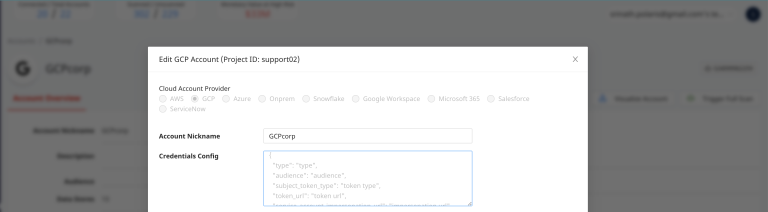
- Credentials Config
Snowflake
- Toggle - Enable Snowflake Connected App (Yes/No)
- Region - Update the region where the new secret is configured on AWS account.
- Secret ARN - Update the secret ARN for the new resource created.
Trigger Full Cloud Scan
Select the option to initiate a full Discovery Scan.
Visualize Account
Select the Visualize Account to open the Infrastructure Graph feature.
Delete Account
Select Delete Account with the red trash can icon to remove an account from this team.
A confirmation box will ask you to make sure because this cannot be undone.