Details to enable Connected Application for Snowflake Account.
Overview
Enterprises based on their security and compliance requirements might need to have results of the Data Scan Operation stored on Snowflake itself but in a separate database. To achieve this, DSPM leverages the Snowflakes’ Connected Application feature to send the data scan results metadata to Snowflake database.
More details on Snowflake Connected Application feature are available on https://www.snowflake.com/guides/connected-apps/ for reference.
This feature is applicable only for Snowflake accounts.
Snowflake Setup for Storing the Data Scan Results:
- Create a Database, Schema that will be used for storing the data scan results on Snowflake.
- The following Tables are created under the schema from Step 1 :
- Data stores - Stores the account id value for the Onboarded account on DSPM, Timestamp to store when the record is created (first instance of Data Scan Run), Timestamp to store when the record is updated (subsequent instance of Data Scan and Stores the metadata of the Data scan results (in JSON format).
- Databases - Stores the Database names along with the detected Entities, Profiles and Classification tag associated with each one of them respectively.
- Tables - Stores that Table name along with the associated Database, Schema, Type of table,Entities, Profiles and Classification tag associated with each one of them respectively.
- Columns - Stores that Column name along with the associated Database, Schema, Table, Description (if available),Entities, Profiles and Classification tag associated with each one of them respectively.
- Debug_Info - This table will capture the details for debug purposes in case of an event of app crash or any issues that the app encounter during the execution. This will be used for understanding the cause of the issue. Data from this table is not exposed on the UI of the Native App.
- Grant the privileges on the Tables to the role defined for DSPM usage.
SQL Script for setting up the aforementioned objects on the snowflake account:
// 1. Create Database and Schema:

CREATE DATABASE IF NOT EXISTS NORMALYZEAPPDATA
COMMENT = "Used for Normalyze Connected App Data Storage";

CREATE SCHEMA IF NOT EXISTS NORMALYZEAPPDATA.NORMALYZEAPPDATASCHEMA;

// 2. Create Tables:

CREATE TABLE IF NOT EXISTS NORMALYZEAPPDATA.NORMALYZEAPPDATASCHEMA.DATASTORES (
  -- Column Definition
  ACCOUNTID CHAR(100) PRIMARY KEY,
  CREATEDAT TIMESTAMP DEFAULT CURRENT_TIMESTAMP(),
  UPDATEDAT TIMESTAMP DEFAULT CURRENT_TIMESTAMP(),
  SCANRESULTS TEXT
);

CREATE TABLE IF NOT EXISTS NORMALYZEAPPDATA.NORMALYZEAPPDATASCHEMA.DATABASES (
-- Column Definition
ACCOUNTID CHAR(100) PRIMARY KEY,
CREATEDAT TIMESTAMP DEFAULT CURRENT_TIMESTAMP(),
UPDATEDAT TIMESTAMP DEFAULT CURRENT_TIMESTAMP(),
DBNAME TEXT,
SCANRESULTS TEXT,
SCANPROFILES TEXT,
DATATAGSRESULT TEXT
);

CREATE TABLE IF NOT EXISTS NORMALYZEAPPDATA.NORMALYZEAPPDATASCHEMA.TABLES (
-- Column Definition
ACCOUNTID CHAR(100) PRIMARY KEY,
CREATEDAT TIMESTAMP DEFAULT CURRENT_TIMESTAMP(),
UPDATEDAT TIMESTAMP DEFAULT CURRENT_TIMESTAMP(),
DBNAME TEXT,
TABLENAME TEXT,
SCHEMANAME TEXT,
TABLETYPE TEXT,
ROWCOUNT NUMBER,
SCANRESULTS TEXT,
SCANPROFILES TEXT,
DATATAGSRESULT TEXT
);

CREATE TABLE IF NOT EXISTS NORMALYZEAPPDATA.NORMALYZEAPPDATASCHEMA.COLUMNS (
-- Column Definition
ACCOUNTID CHAR(100) PRIMARY KEY,
CREATEDAT TIMESTAMP DEFAULT CURRENT_TIMESTAMP(),
UPDATEDAT TIMESTAMP DEFAULT CURRENT_TIMESTAMP(),
DBNAME TEXT,
TABLENAME TEXT,
COLUMNNAME TEXT,
COLUMNTYPE TEXT,
COLUMNDESCRIPTION TEXT,
SCANRESULTS TEXT,
DATATAGSRESULT TEXT
);

CREATE TABLE IF NOT EXISTS NORMALYZEAPPDATA.NORMALYZEAPPDATASCHEMA.DEBUG_INFO (
-- Column Definition
SESSION_ID VARCHAR(100) NOT NULL,
CREATED_DATE TIMESTAMP_NTZ(9) DEFAULT CURRENT_TIMESTAMP(),
APP_VERSION VARCHAR(100) NOT NULL,
APP_PATCH VARCHAR(100) NOT NULL,
STREAMLIT_VERSION VARCHAR(100) NOT NULL,
ERROR_MSG VARCHAR(16777216)
);

// 3. Grant Privileges on Database objects:

GRANT USAGE ON DATABASE NORMALYZEAPPDATA TO ROLE NORMALYZEROLE;
GRANT USAGE ON ALL SCHEMAS IN DATABASE NORMALYZEAPPDATA TO ROLE NORMALYZEROLE;
GRANT SELECT, INSERT, UPDATE, DELETE ON ALL TABLES IN DATABASE NORMALYZEAPPDATA TO ROLE NORMALYZEROLE;
This completes the set up on the Snowflake account for the Connected App requirement.
The role being granted the privileges for the objects (NORMALYZEROLE in this script) should be the same as created for the Snowflake onboarding as part of the pre-requisites.
Steps to Enable Connected App Feature on DSPM:
The functionality to use Snowflake Connected Application by DSPM can be enabled once the Snowflake Account Onboarding is completed. The steps to be done to enable it are as follows:
- From the DSPM Application navigate to Workspace - Accounts
- Select the Snowflake Account for which the feature need to be enabled.
- Select “Edit Account” from pane.
-
Toggle Enable Snowflake Connected App option to Yes ( by default this is set to No ).
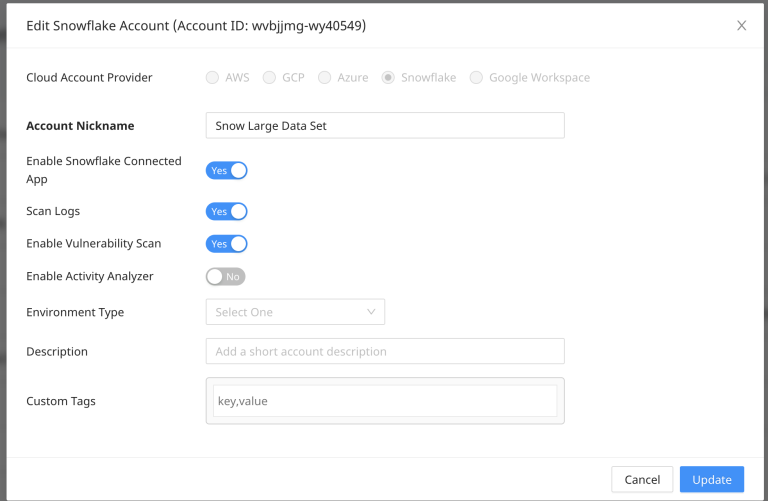
- Select Update to complete the steps.
Once the above steps are completed, DSPM will be able to send the metadata of the data scan results back to the Snowflake database.
The database objects being created are done so to ensure all the DSPM data resides in the specific entity. For this reason the Database, Schema and the Table name has to be exactly as-is provided in the script.