Approved AI Activity
Approved AI Apps highlights AI applications that are sanctioned or formally approved and the exposure.
The following widgets are available:
-
AI Risk Surface Across Approved Tools: Shows sensitive submissions and identifies where sanctioned AI apps create potential data exposure.
-
Sensitive Data Usage Risk: Lets you review the volume of sensitive prompts and file uploads and understand where approved AI apps may introduce risk.
-
Users Driving Highest Exposure Across Shadow AI Apps: Identifies the top 20 users per department with the highest number of risky prompt submissions by sensitive prompts and sensitive file uploads.
To access Approved AI Activity, from Data Security for AI app, select Dashboard and select the Approved AI Activity tab.
AI Risk Surface Across Approved Tools
This widget shows sensitive submissions and identifies where sanctioned AI apps create potential data exposure.
This widget shows the applications used, the number of prompts submitted and files uploaded, and the percentage of activity for each app.
You can use this widget to help you answer questions such as:
-
Where do approved AI applications introduce potential data exposure?
-
Which approved tools are handling the most sensitive submissions?
-
Are approved AI tools generating sensitive or regulated outputs?
-
Which user activities may require investigation or policy tuning?

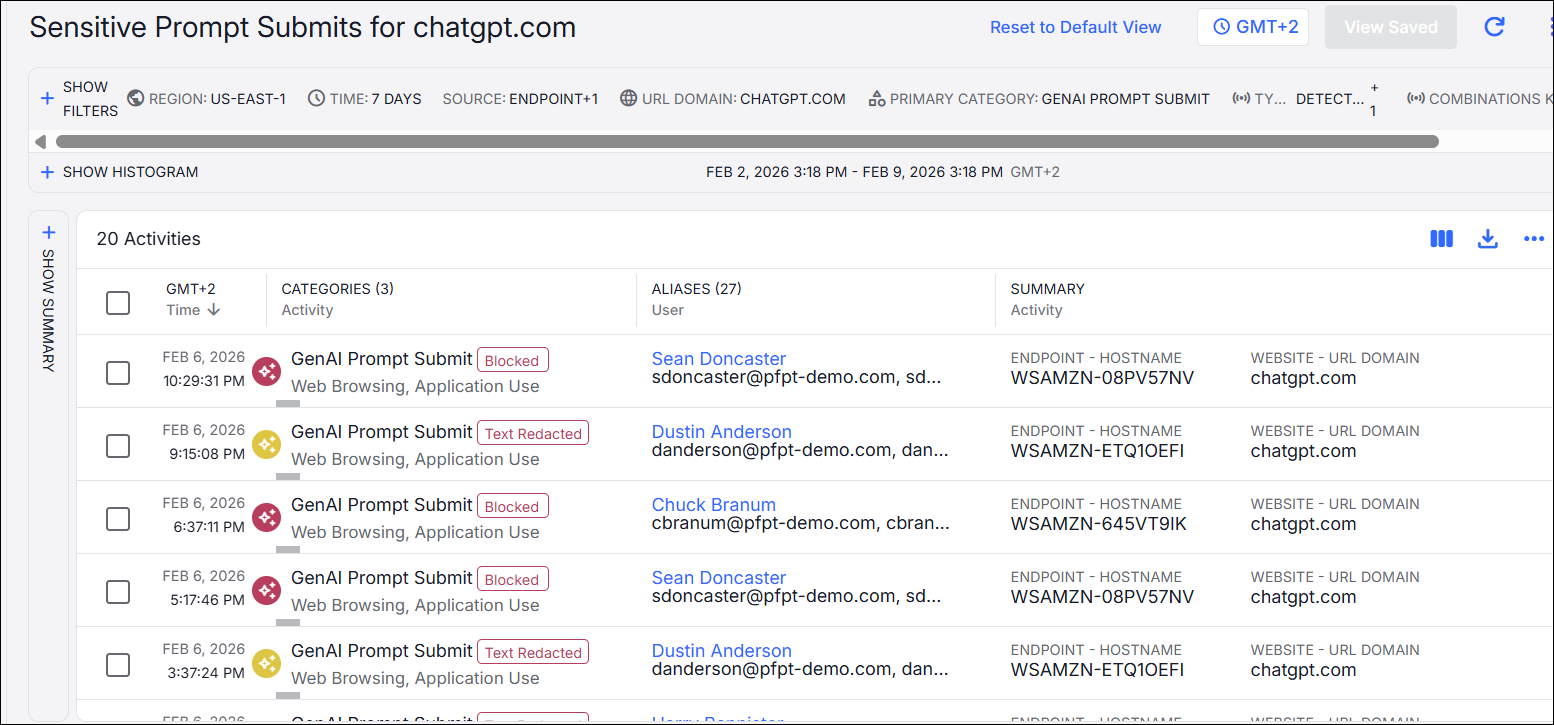
List of Sensitive Prompt Submits
Clicking on the number of applications, for example 20 ChatGPT prompts, opens the Sensitive Prompt Submits details for ChatGPT. This lets you drill down and identify the users and their activities.
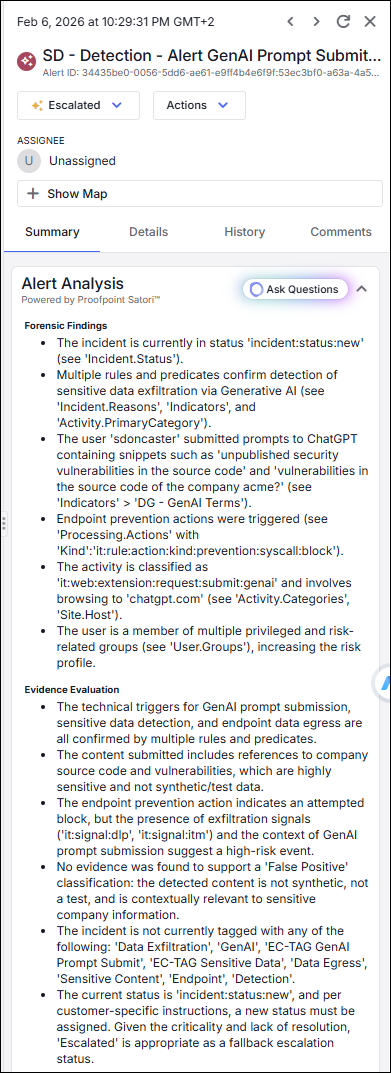
User Details and Tags
When you select a user, the details area displays. This includes the Alert Analysis that describes the Forensic Findings and Evidence Evaluation.
From the dropdown at the top of the panel, you can select the tag you want for this incident. (SeeAlerts Workflow.)
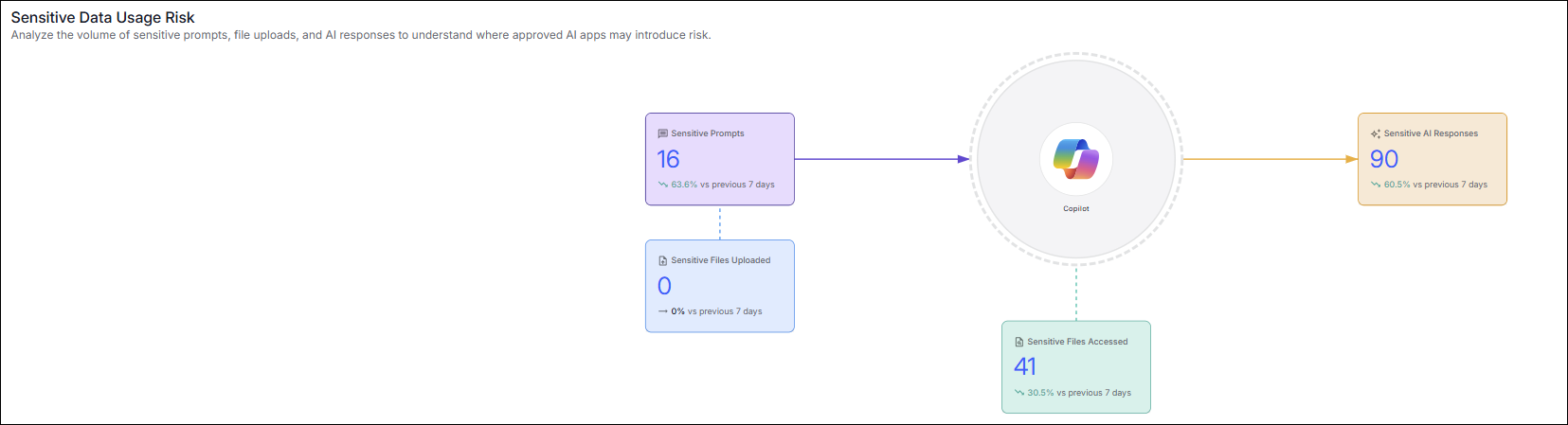
Sensitive Data Usage Risk
Sensitive Data Usage Risk lets you review the volume of sensitive prompts and file uploads and understand where approved AI apps may introduce risk.
You can use this widget to help you answer questions such as:
-
How much sensitive data is being shared with approved AI applications?
-
Which data classifications appear most frequently in AI prompts or uploads?
-
Are approved AI tools being used appropriately for sensitive workloads?
-
Where might additional controls or policy refinements be needed?
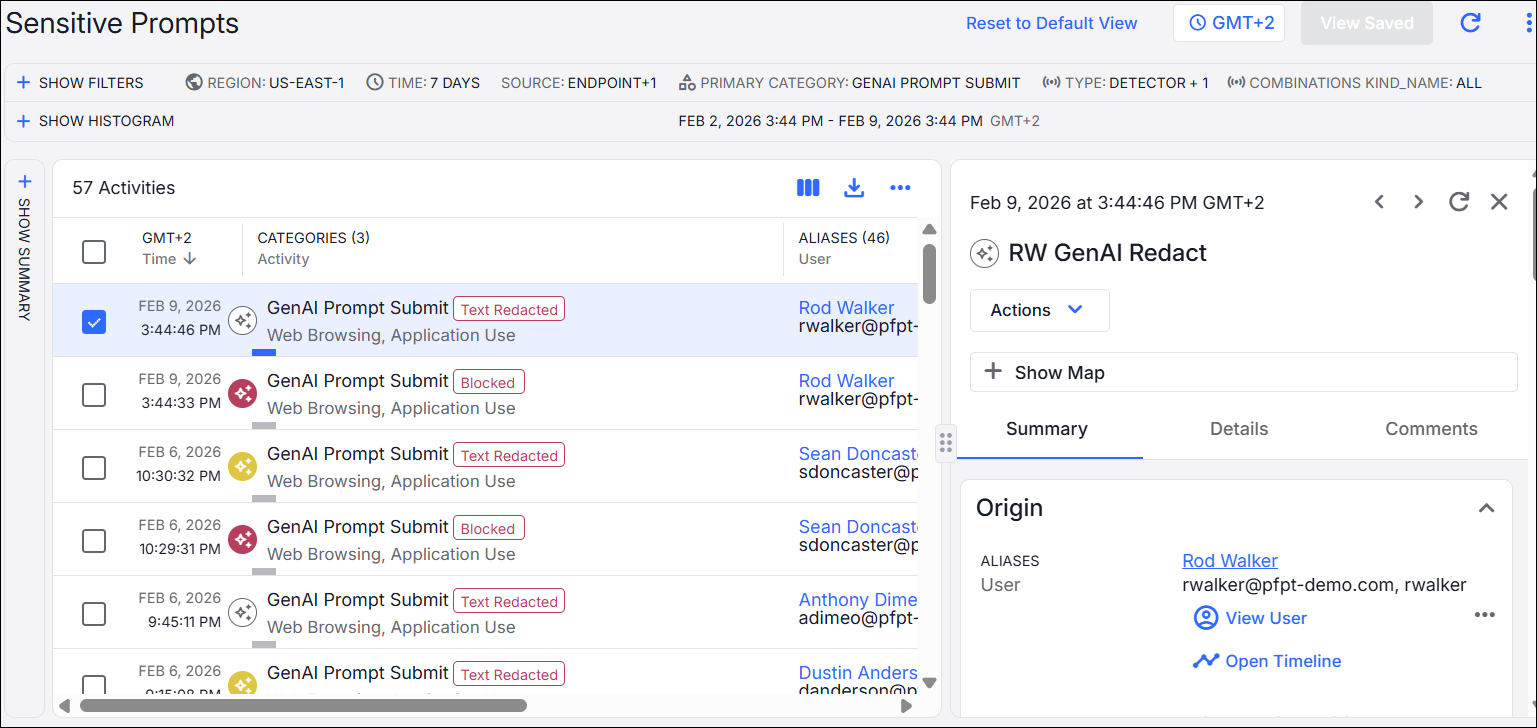
List of Sensitive Prompts
Clicking on the number of applications, for example 55, opens the Sensitive Prompts. This lets you drill down and identify the users and their activities.
Click on a specific user for more details about the activity.
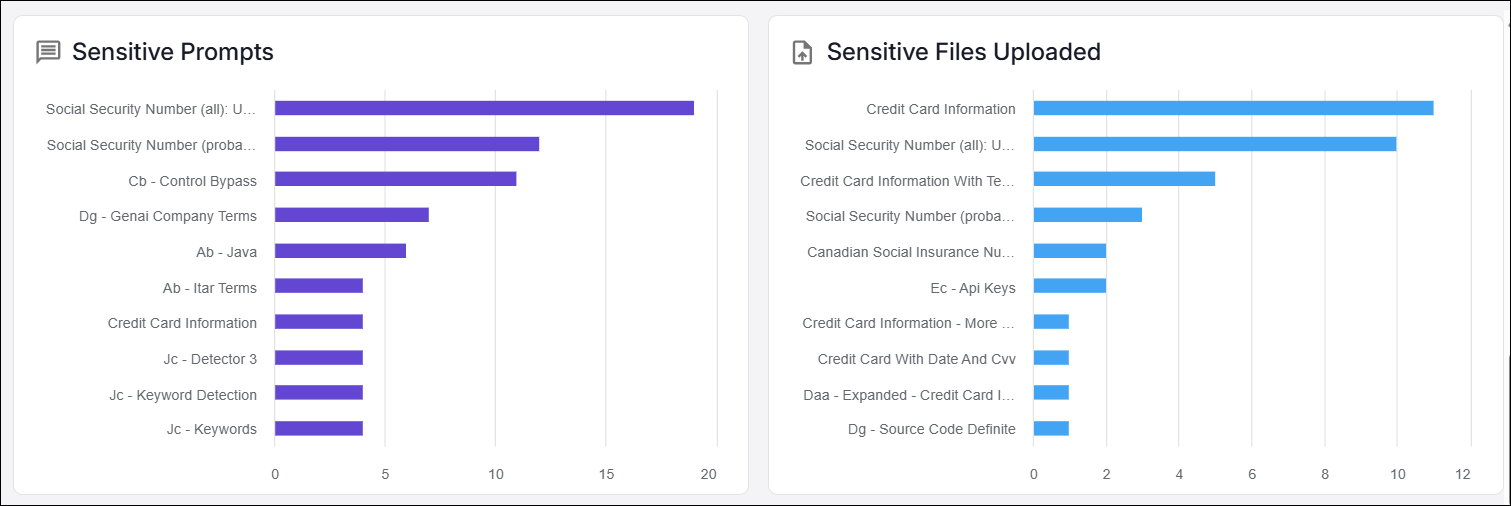
Sensitive Prompts and Sensitive File Uploads graphs show details about the activity. This information is based on the defined detectors. You can see which activities are performed the most often by Data Classification. For example, Social Security information that the user submitted at the prompt.
Users Driving Highest Exposure Across Shadow AI Apps
(By Sensitive Prompts / By Sensitive File Uploads)
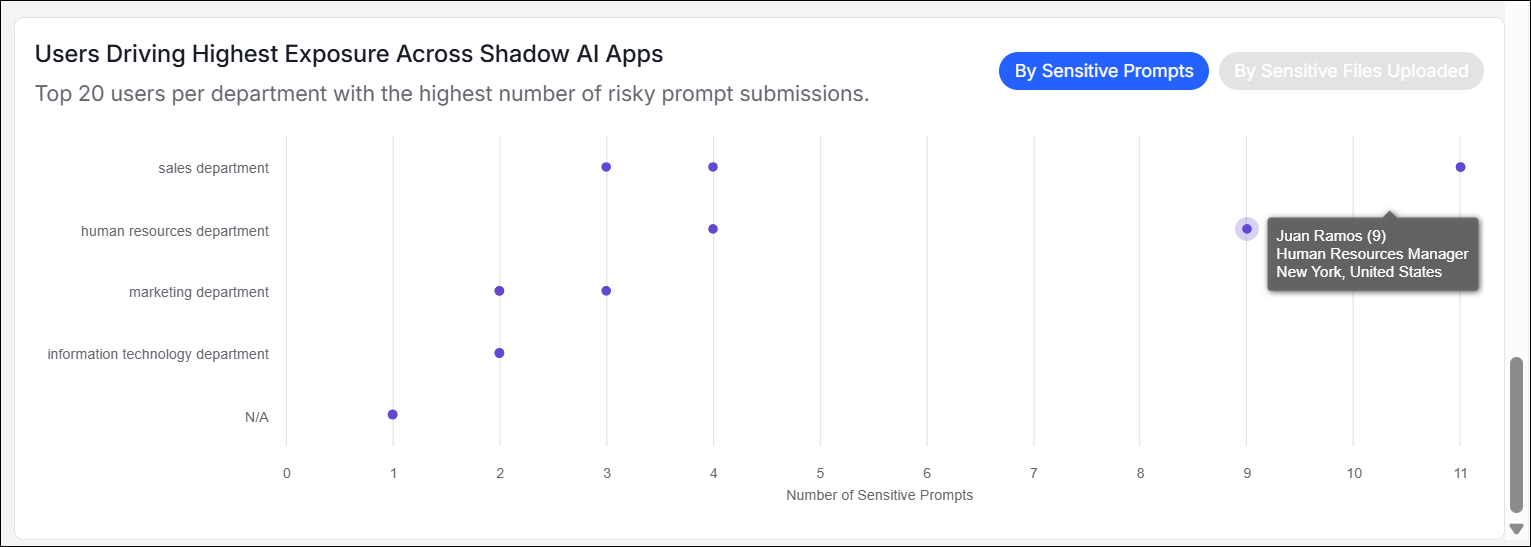
Users Driving Highest Exposure Across Shadow AI Apps widget identifies the top 20 users per department with the highest number of risky prompt submissions by sensitive prompts and sensitive file uploads. Hovering over one of the dots shows you who the user is and the number of activities.
You can use this widget to help you answer questions such as:
-
Which users are responsible for the highest sensitive data exposure via shadow AI?
-
Which departments have the most users interacting with shadow AI tools?
-
Are specific users repeatedly submitting sensitive prompts or files?
-
Which users require follow-up training, investigation, or remediation?
Related Topics: