Deploying Proofpoint ZenWeb for Mac (Intune)
This topic describes MDM deployment via Microsoft Intune for Proofpoint ZenWeb.
Prerequisites
-
Navigate to the Management Tools in Administration app > Download > Endpoints > Downloads > Download the Management Tool.
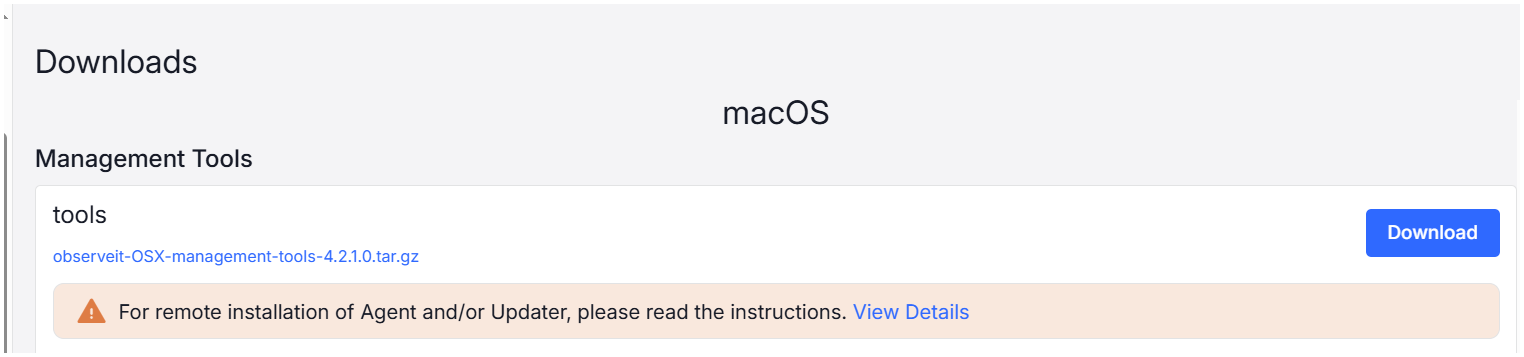
observeit-OSX-management-tools-x.x.x.x.tar.gz is downloaded and contains the two Proofpoint ZenWeb files (signed and unsigned).
-
Proofpoint DLP Browser Extension Sample Profile.signed.mobileconfig (Configuration Profile signed by Proofpoint) It is recommended that you use the signed Profile.
-
Proofpoint DLP Browser Extension Sample Profile.mobileconfig (Unsigned Configuration Profile, to be signed by customer)
-
Intune Deployment
Upload the Configuration Profile
Intune requires using the unsigned configuration profile. When the configuration profile is uploaded, Intune signs it.
Proofpoint DLP Browser Extension Sample Profile.mobileconfig: Unsigned Configuration Profile, to be signed by customer
-
Log into the Intune Admin Center.
-
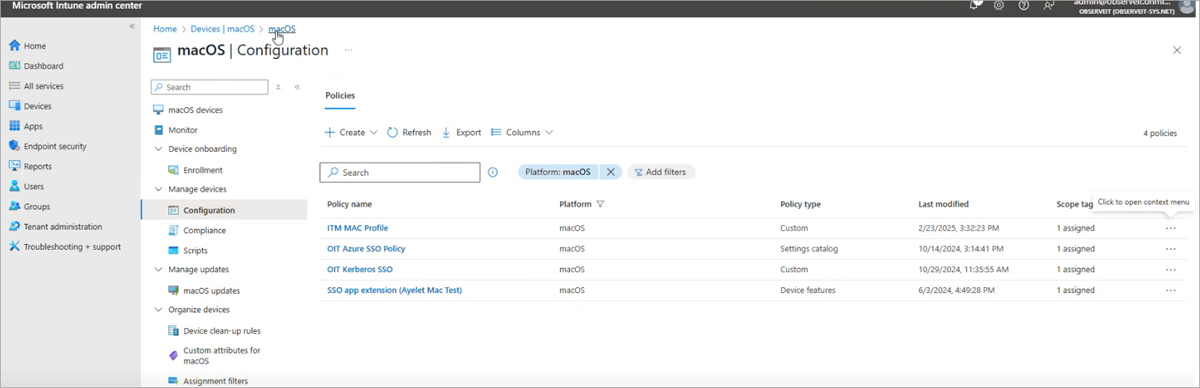
Access the Configuration page, from Intune Admin Center Home > Devices. Select MacOS.
-
From Device onboarding > Manage devices > Configurations.
-
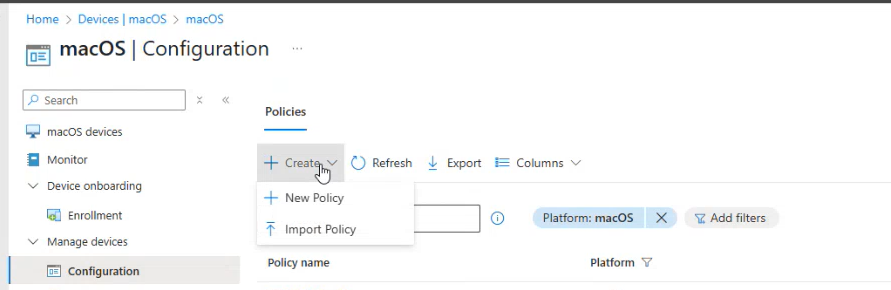
From the options at the top of the macOS | Configuration page, select Create > New Policy.
-
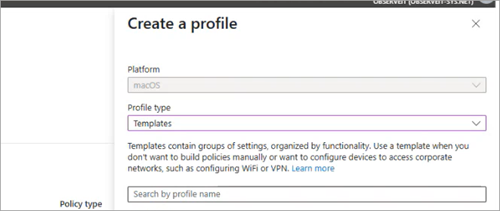
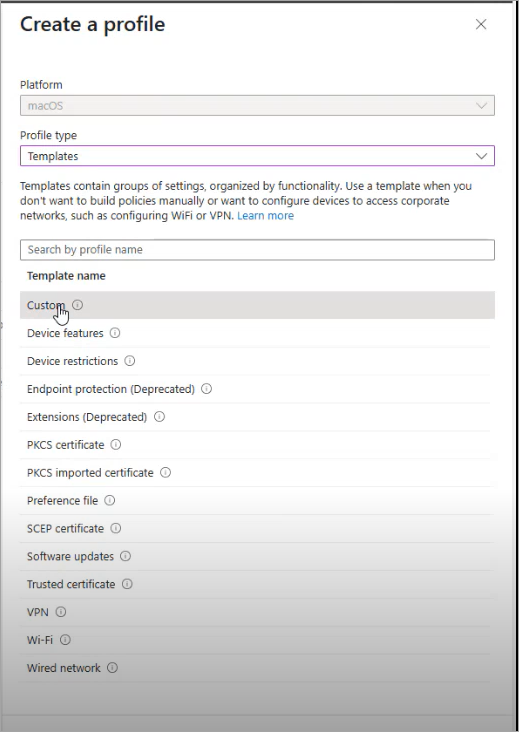
In Create a profile area, Platform is macOS and Profile type is Templates.
-
From Search by profile name, select Custom from list of Template names.
-
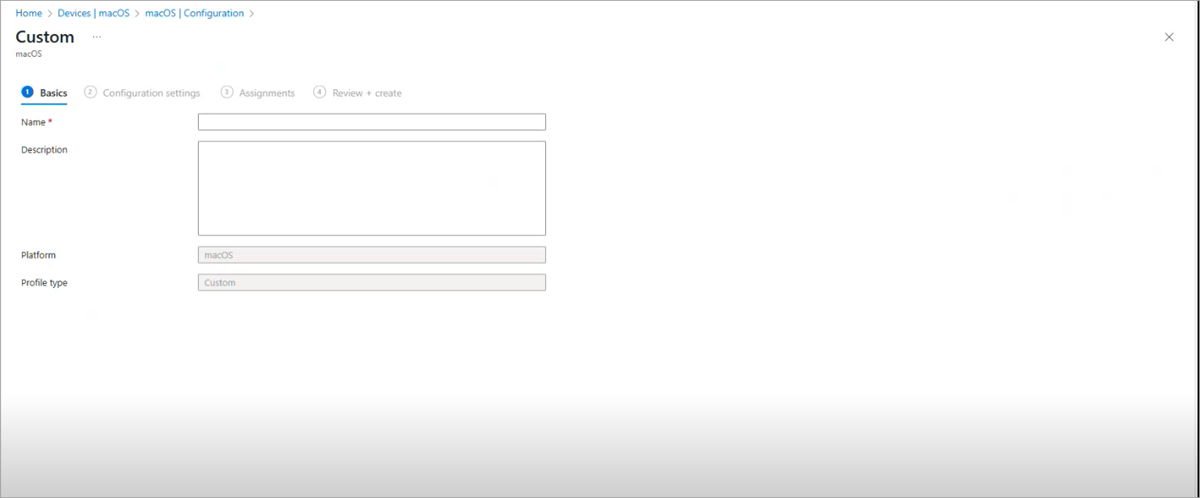
Custom Screen displays.
-
In the Basics area, provide a name and an optional description. Click Next.
-
In the Configuration settings, provide a name in the Custom configuration profile name area.
-
From Configuration profile file, browse to the Configuration Profile you downloaded. (observeit-OSX-management tools-x.x.x.x.tar.gz > Proofpoint DLP Browser Extension Sample Profile.mobileconfig)
Make sure it is the unsigned Configuration Profile.
-
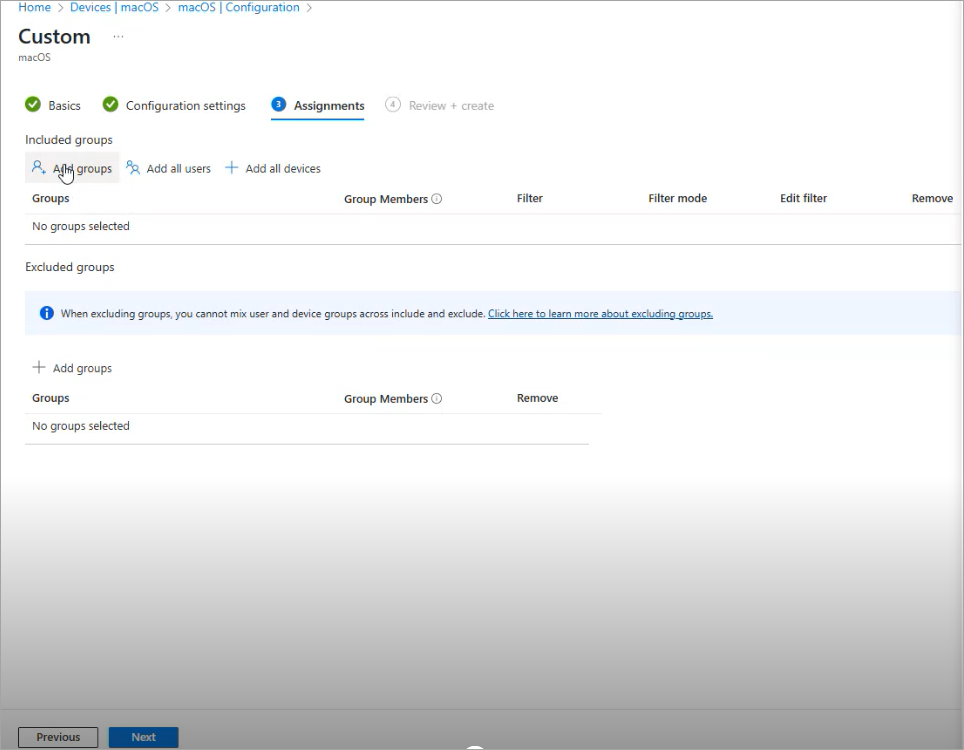
In Assignments, assign the groups to include. These are the groups you want to deploy to.
-
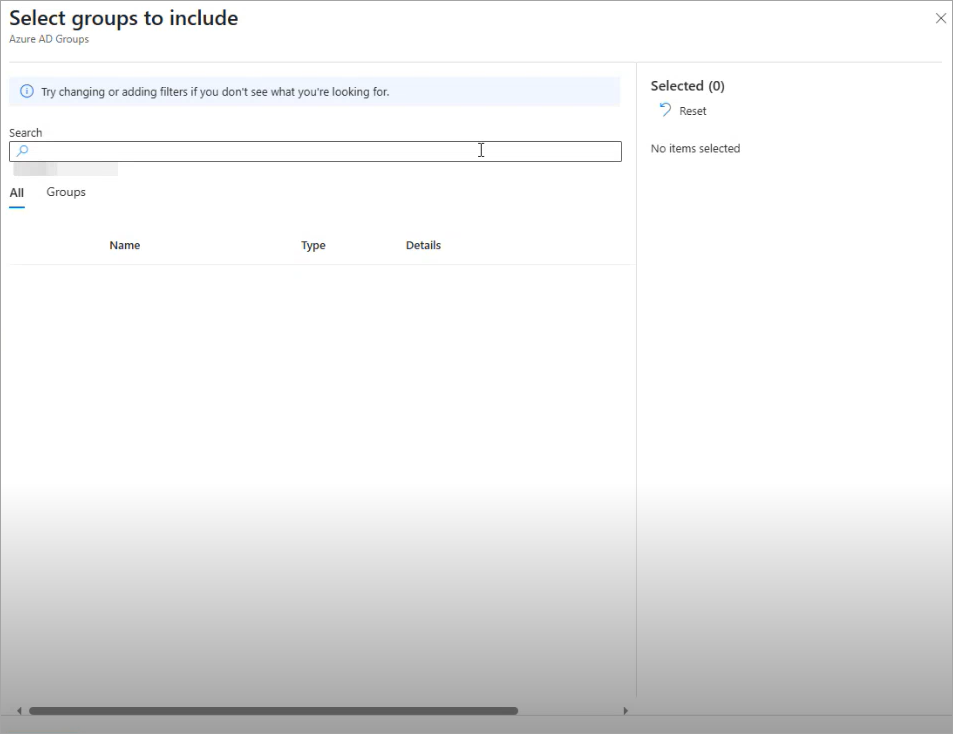
From Included groups, click Add groups. Select the groups you want to include.
-
In Review + create, click Create.
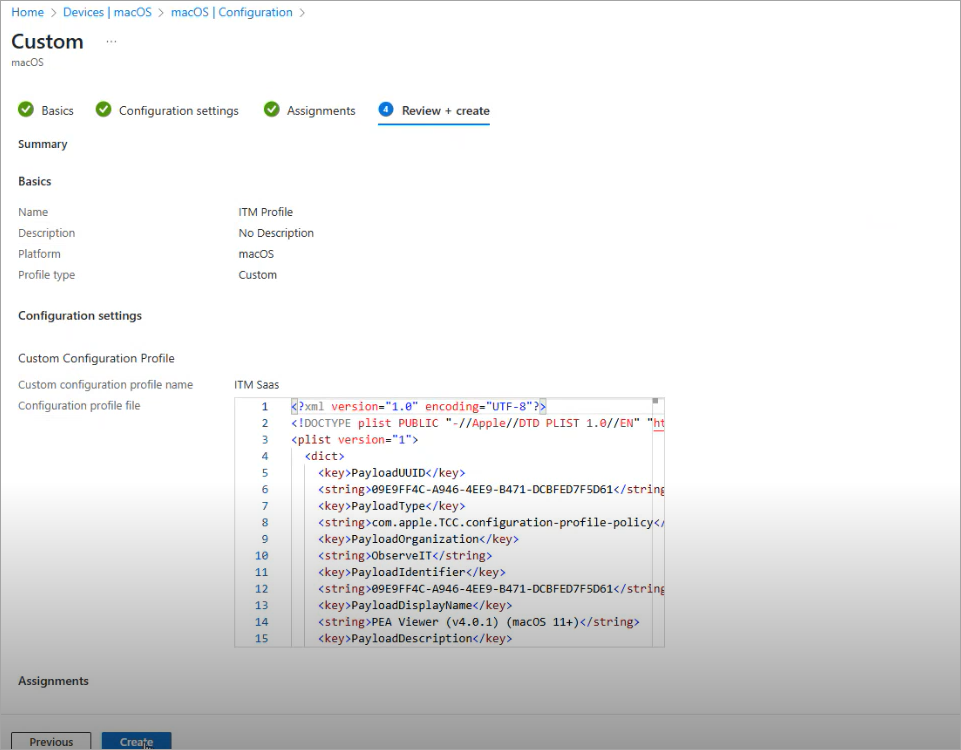
-
The Configuration Profile is now signed by Microsoft. (System Settings > Device Management)
Related Topic: