Exfiltration via AirDrop is an exit point from which data can be copied/moved. The Agent can detect exfiltration when the remote device is connected. This can include iPhone, iPad and any other Mac machine.
The Agent can detect and prevent exfiltration when the remote device is connected. This can include iPhone, iPad and any other Mac machine.
This feature is available for Mac Agents only.
Content Scanning Trigger
You can enable sending a file using AirDrop as a content scanning trigger for reporting with detection rules.
At the Realm level, you must enable Send File using AirDrop.
Agent Realm > Advanced Settings > Interaction > Scan Triggers for Detection Rules> Choose Values > Send File using AirDrop
Detect, Alert and Report on File Exfiltration to AirDrop
Detecting File Exfiltration to AirDrop Example
For detection of file sent via AirDrop use Primary Category > Send File using AirDrop.
This example detects any copy activity to a network drive.
-
From Proofpoint Data Security, select the Administration app. Select Policies > Rules > New Rule. In the Detection Rule area, select Create Rule.
-
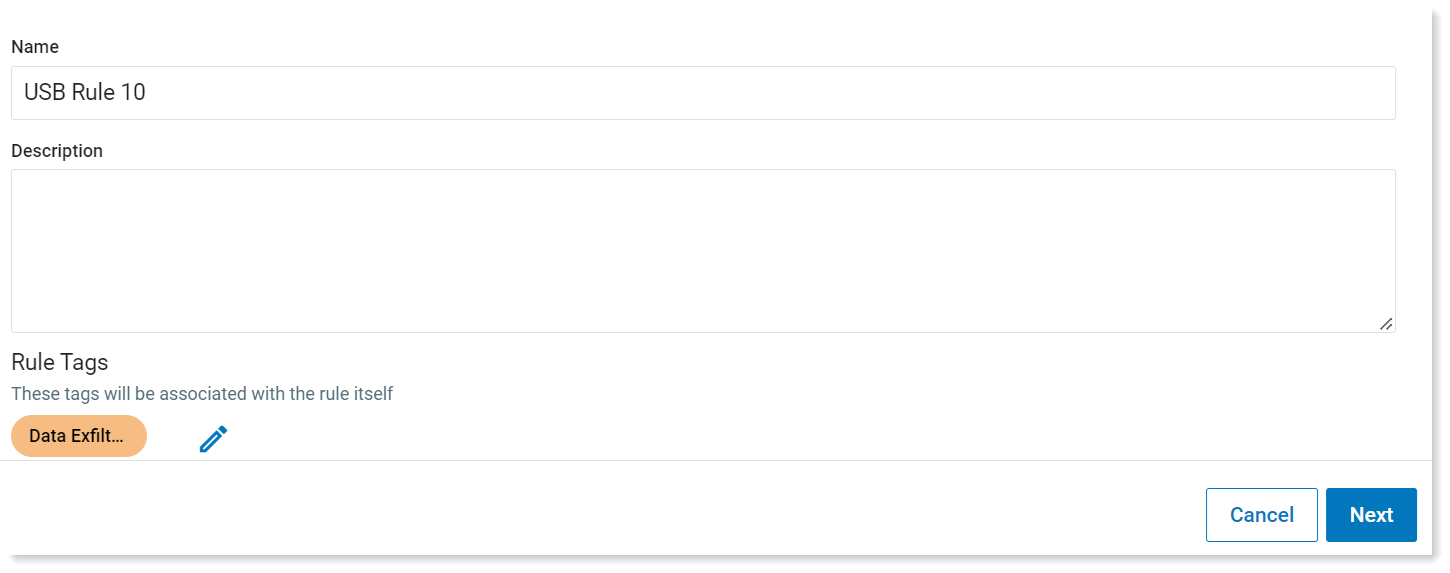
In General tab, complete the Name field and Description (optional) field.
-
In the Assignments tab, select Source Defaults you want. Click Next to continue.
-
In the Settings tab, define the new rule using if/the logic. In the If area, Select, select Select Field.
-
From the Select Field list, select Activity, then select Primary Category or Categories. Select Send File using AirDrop as the value. Click Done.
This will detect any file sent to AirDrop.
-
In Then area, define the alert and notification. (See Notification Policies.)
Prevent File Exfiltration to Airdrop
You can create prevention rules to prevent File Exfiltration to AirDrop. You can choose to block the exfiltration or prompt users for a justification.
The following conditions can be used in Prevention Rules on Send File using AirDrop:
-
Indicator/Detector Name: (Detector > Indicator/Detector Name) Selected detector value.
-
Users name: (User > User Name) Name of the monitored user
-
Group Name: (User > Group Names) Group with monitored user
-
Classification Labels: (Files/Resources > Classification Labels): MIP File Label
-
File Name: (Files/Resources > File Name): File name you want without the extension
-
Content Type: (Files/Resources > Content Type): Internally registered data type
-
Extension: (Files/Resources > Extension): File Extension
-
Resource URL: (Files/Resources > Tracking Origin Resource URL): Source URL from which text was originally copied to the clipboard (when copied from a Website)
-
Size: (Files/Resources > Size): File Size
-
Device Name: (Devices > Device Name)
-
From Proofpoint Data Security, select the Administration app. Select Endpoints > Prevention/EndpointRules.
-
Click New Rule and from the Prevention Rule area and click Create Rule and the Select Action to Perform panel displays.
-
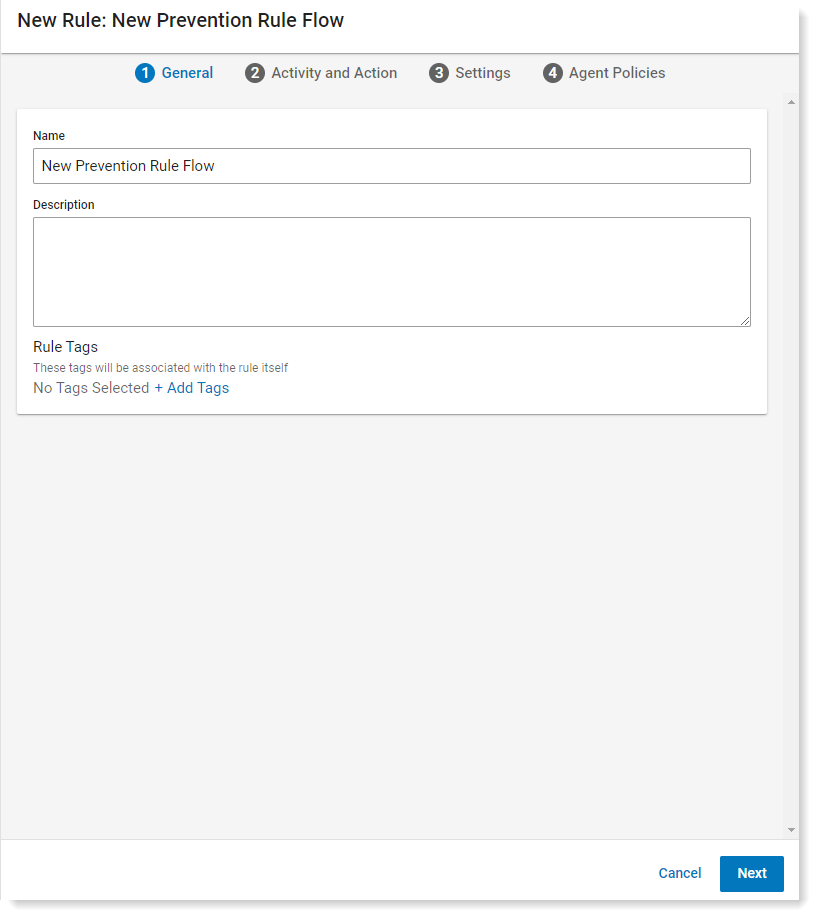
In General tab, complete the Name field and Description (optional) field.
-
Click Next to continue to the Activity and Action tab.
-
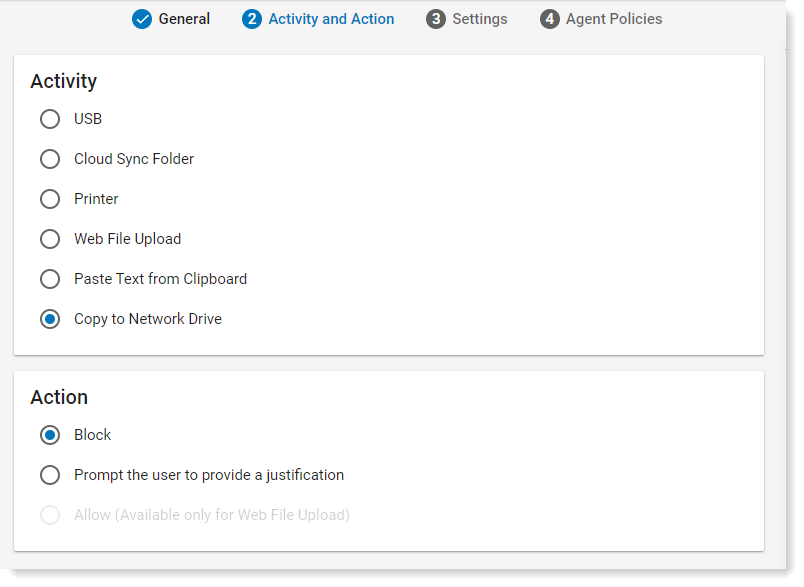
In the Activity area, select Send files using AirDrop and in the Action area, select Block or Prompt user to provide justification. Click Next.
-
In the Settings tab, in the If section, the Category is set.
Add any additional conditions.
-
In the Then area, select the action. Click Next.
-
From the Agent Policies, select the Agent Policies that the rule applies to. Click Save.
Known Issues:
With Drag & Drop file to the AirDrop window, the notification appears when the file is dropped, but not dropped on a specific device.
With Drag & Drop to the AirDrop window, the notification appears when the file is dropped on the AirDrop icon.
Monitoring File Exfiltration to AirDrop
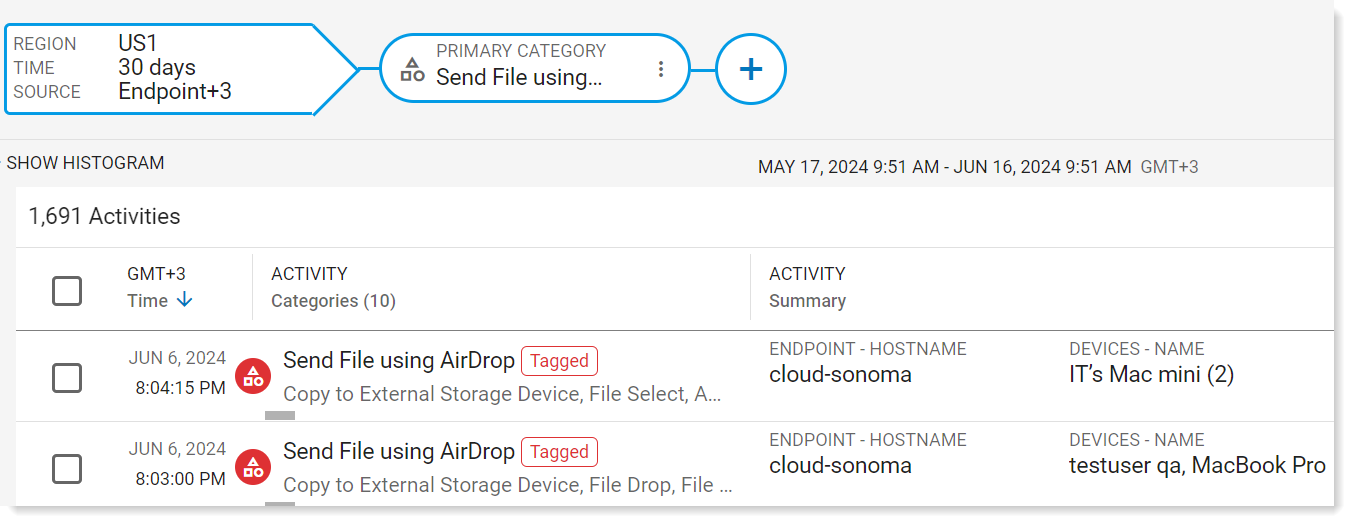
In an Exploration, select Activity > Primary Category > Send File using AirDrop.
Related Topic: