To view the new Data Store pages, click your profile icon. In the New UI section, turn on the Data Stores toggle.
The Files tab was previously called Inventory.
The Files tab allows you to understand file properties, identify potential risks, and inform data governance decisions. This tab is primarily relevant for unstructured data stores (e.g., cloud storage buckets, SharePoint sites, network shares) where data is stored in individual files.
Use this tab to manage and secure your organization’s unstructured data assets. The tab provides a comprehensive list of individual files within the data store, along with critical metadata and security-related attributes.
The Files tab provides granular visibility into your unstructured data, allowing you to:
- Identify Risky Files: Locate files with sensitive data that are overshared, improperly classified, or accessible to external parties.
- Investigate Incidents: Drill down into specific files to understand their content, access patterns, and history during security investigations.
- Remediate Issues: Take action on identified files, such as adjusting sharing permissions, applying correct classifications, or initiating deletion workflows.
- Audit and Report: Generate reports on file inventory, sensitive data distribution, and access patterns for compliance and auditing purposes.
To view the Files tab:
- Select Inventory > Data Stores.
- Select the Data Stores tab.
- Select a data store. The Overview tab opens.
- Select the Files tab.
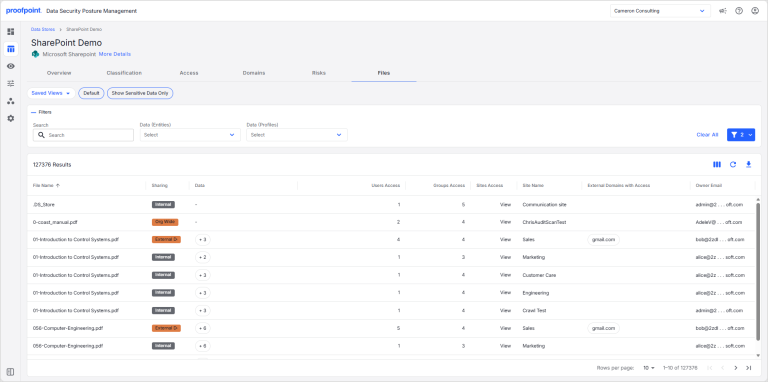
The tab lists key information for each file, including:
- File Name Name of the file.
- Sharing Sharing status of the file.
- Data Summary of the sensitive data identified within the file.
- Users Access Number of users that have access to the file.
- Groups Access Number of groups that have access to the file.
- Sites Access (SharePoint Only) Number of sites that have access to the file.
- Site Name (SharePoint only) Name of the site where the file was discovered.
- External Domains With Access Number of external domains that have access to the file.
-
Owner Email Email address of the file owner.
For Active Directory (AD) integrations, the Owner Email, File Owner, and Folder Owner show the user’s Windows SID.
- Classification Sensitive data classification identified within the file (e.g., FINANCIAL, PII, PCI).
- Created On Date and time the file was created.
- File ID ID for the file.
- File Path Full path or URL to the file’s location within the data store. For ServiceNow, this link will direct you to the file attachment on the ServiceNow site.
- File Types Type of file.
- Last Data Scan Date and time of the last scan.
- MIP Label MIP label applied to the file.
- Modified By Email address of the user who last modified the file.
- Modified On Date and time the file was last modified.
- Record URL (ServiceNow only) Full path or RUL to the incident record. This link will direct you to the incident attachment on the ServiceNow site.
- Root Site (SharePoint only) If the site is a subsite, shows the top-level site.
- Scan Failure If the last scan failed, the reason is shown.
- Scan Status Outcome of the last scan (e.g., Succeeded).
- Site Name (SharePoint Only). Name of the site.
- Site Path (SharePoint only) Full site path (example: /Finance/AP/InvoicesFY25).
- Site Type (Root/Subsite) (SharePoint only) Indicates whether the site is the root (top-level) site or a subsite.
- Size File size.
View File Details
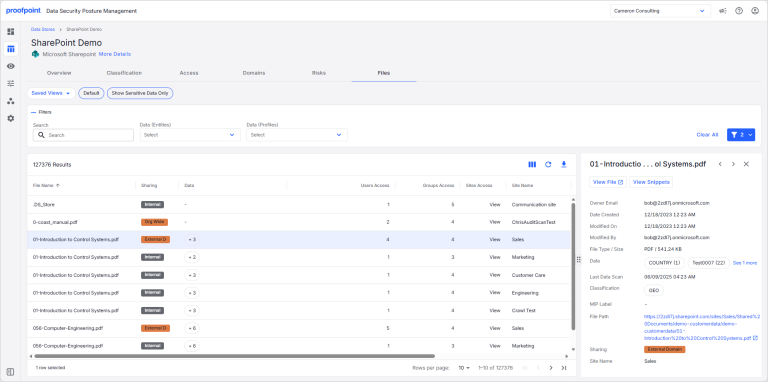
Click the file name to open a side panel with additional information. In the side panel, click View File to access the file in a separate tab.
Export File Details
You can export the details shown on the Files tab to a CSV file.
You can download up to 25 million rows in CSV format, with each CSV file limited to 1 million rows.
- Click the Columns icon and select the columns you want to include in the CSV file.
- Click the Download icon.
- Go to the Workspaces > Reports page to download the CSV file.