Onboard SharePoint, OneDrive, and Teams via script automation.
Prerequisite Information
- The individual running the M365 Onboarding script in Azure must be a Global Administrator and an Owner of the subscription that the script will be run on.
- AWS must be onboarded to DSPM first. For details, see Microsoft Azure Onboarding.
Run M365 Onboarding Script
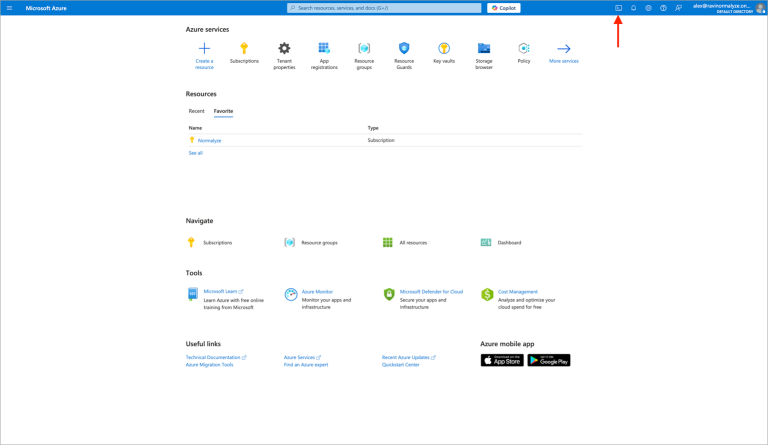
- Open Azure Cloud Shell.
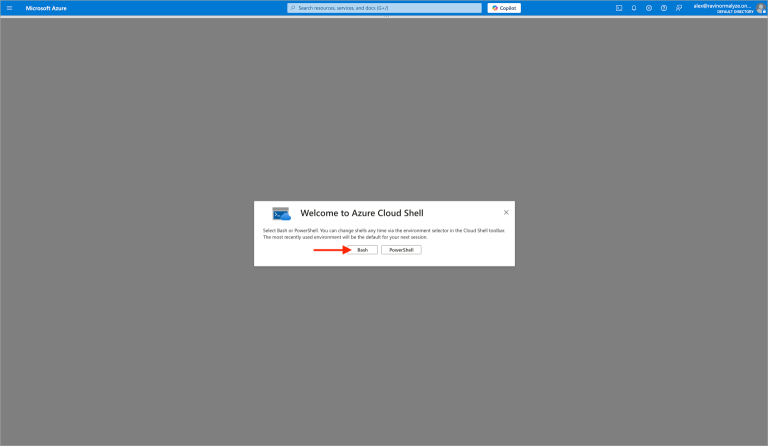
- When prompted to select which Shell to open, choose Bash.
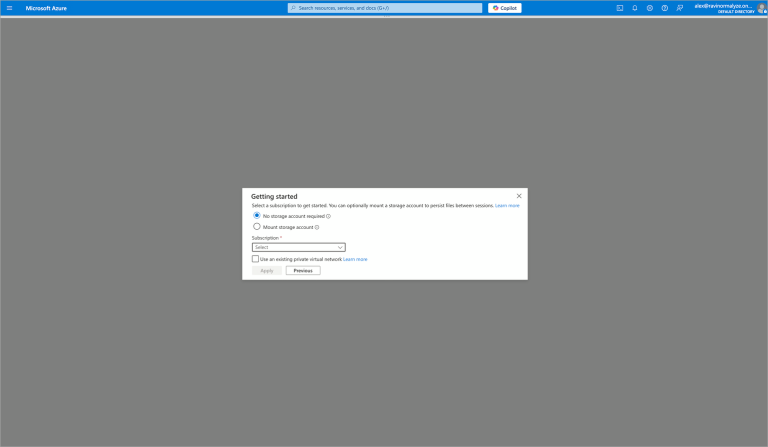
- Select No storage required. Select the subscription that your M365 tenant runs out of. Click Apply.
Run the M365 Onboarding Script
Copy the following command and paste it into the Azure Cloud Shell terminal to run the script, then follow the prompts in the script to onboard your M365 tenant.
Option 1: Run command with default settings:
wget https://pp-dspm-m365-onboarding.s3.us-east-1.amazonaws.com/Proofpoint_DSPM-M365_Onboarding.zip && unzip Proofpoint_DSPM-M365_Onboarding.zip && bash M365_Onboarding.sh -awsOption 2: Run command to enable custom settings and optional features:
wget https://pp-dspm-m365-onboarding.s3.us-east-1.amazonaws.com/Proofpoint_DSPM-M365_Onboarding.zip && unzip Proofpoint_DSPM-M365_Onboarding.zip && bash M365_Onboarding.sh -aws -iNote: If you opt to grant admin consent in the script, when it asks you to select a subscription and tenant out of the list, simply press the return key. No changes need to be made here.
Store Secret in AWS Secrets Manager
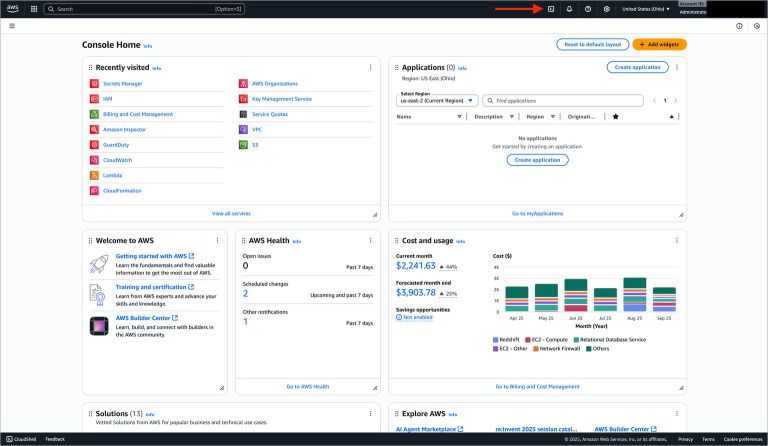
Open the AWS Cloud Shell.
Run the M365 Secret Storage Script
Copy the following command and paste it into the AWS Cloud Shell terminal to run the script, then follow the prompts in the script to store the M365 Credentials into AWS Secrets Manager.
Option 1: Run command with default settings:
wget https://pp-dspm-m365-onboarding.s3.us-east-1.amazonaws.com/Proofpoint_DSPM-M365_Onboarding.zip && unzip Proofpoint_DSPM-M365_Onboarding.zip && bash AWS_Secret_Storage.shOption 2: Run command to enable custom settings and optional features:
wget https://pp-dspm-m365-onboarding.s3.us-east-1.amazonaws.com/Proofpoint_DSPM-M365_Onboarding.zip && unzip Proofpoint_DSPM-M365_Onboarding.zip && bash AWS_Secret_Storage.sh -iOnboard SharePoint / OneDrive / Teams to DSPM
- Navigate to the DSPM UI to Onboard Microsoft SharePoint, OneDrive or Teams.
-
Select “SharePoint”, “OneDrive” or “Teams”.
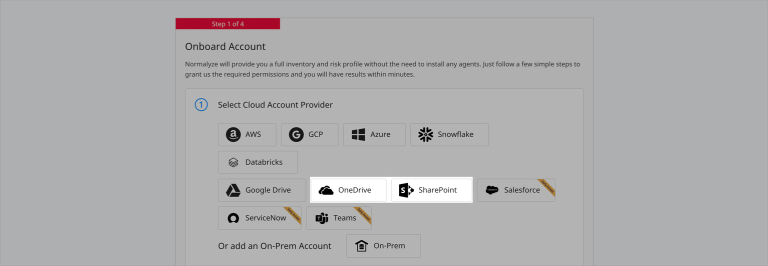
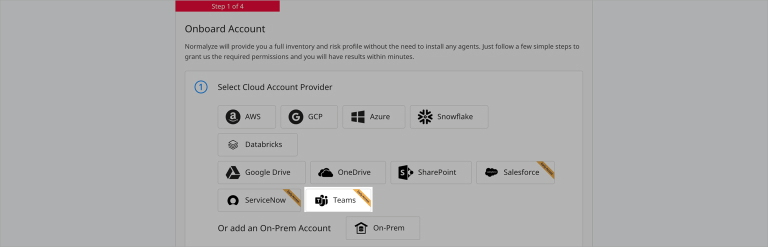
-
Enter the following information for the Sharepoint, OneDrive or Teams:
- Account Nickname Provide an identifiable name for this account. This will be the name displayed on the DSPM UI for the Sharepoint account, OneDrive account or Teams account.
- Microsoft 365 Domain This is the domain that you use to share files. We will use this to mark files shared by this domain as “internal”.
- Environment Type Select the appropriate option from the drop-down.
- Description Additional detail for the account.
- In the Use a Sidecar list, select AWS Sidecar.
- In Secret ARN, enter the AWS Secret ARN.
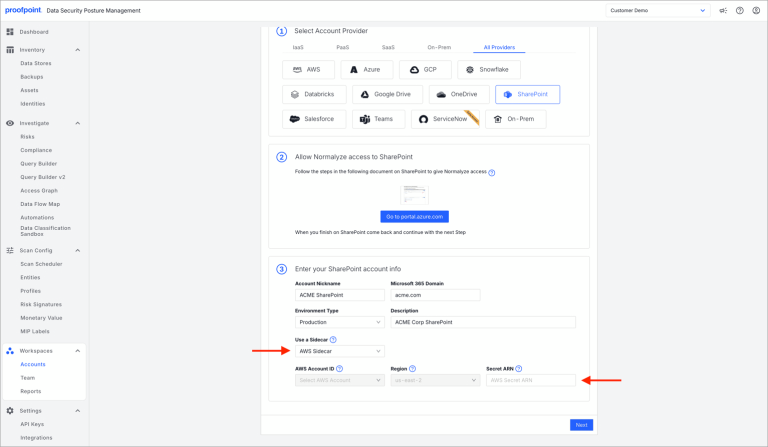
- Click Next to finish Onboarding!