Onboarding an Azure Subscription to DSPM requires the deployment of either a Terraform template or creating the necessary objects on the cloud provider using the Onboarding template. This is done to set the required permissions for DSPM to discover Data Stores and Assets and deploy Data Scanners within the account.
The user running the onboarding script should have “Owner” permissions on the subscription to be able to complete it.
- Login to DSPM.
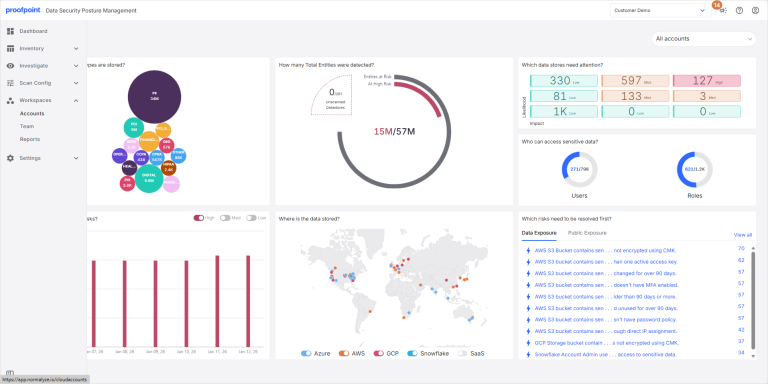
- In the left menu, go to Workspaces > Accounts.
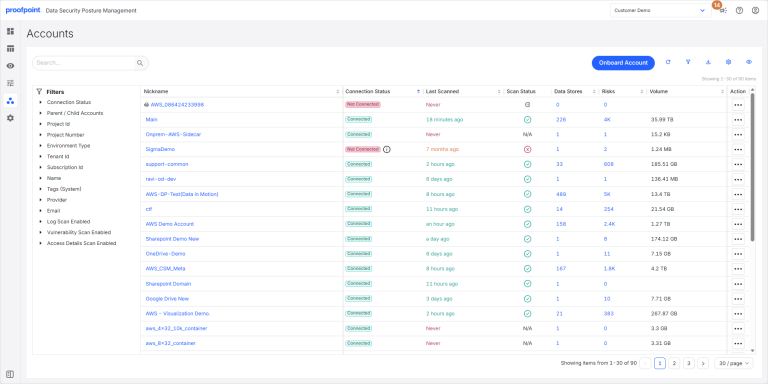
- Select Onboard Account.
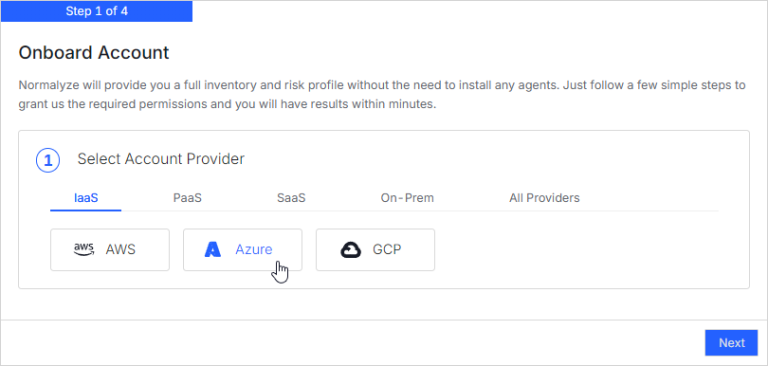
Step 1: Select the Cloud Account Provider
Select Azure.
Step 2: Enter your Azure Subscription Information
To locate your Azure Subscription information, please refer to the Azure documentation:
https://learn.microsoft.com/en-us/azure/azure-portal/get-subscription-tenant-id
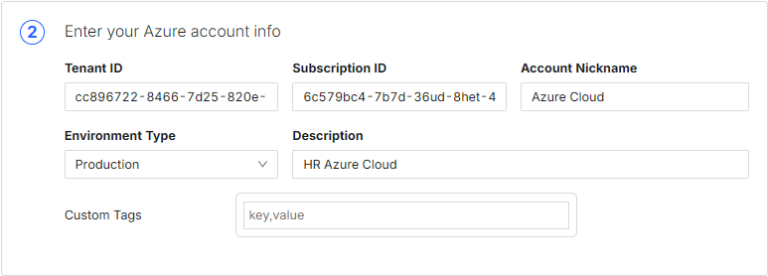
Enter the following information:
- Tenant ID Enter the Azure Tenant ID for the target account.
- Subscription ID Enter the Subscription ID of the Azure target account corresponding to the Tenant ID.
If you are Onboarding a Tenant Azure Subscription, enter the Subscription ID of parent.
If you are Onboarding a standalone Azure Subscription, enter the individual Subscription’s ID.
- Account Nickname A nickname is created automatically. You can change this to your own nickname by typing it in the field.
The nickname you assign will show next to the account number in DSPM. This provides an easy way for you to identify which account you are viewing.
- Environment Type Select the type of environment.
- Description Add a description of the account.
Advanced Options
Expand Advanced to configure additional options regarding the features and behavior of DSPM on this account.
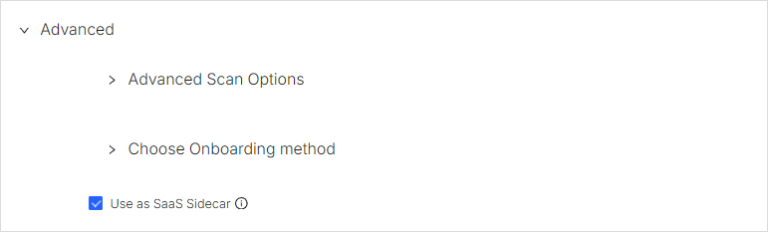
Onboarding Method
Expand Choose Onboarding method to configure additional onboarding settings.
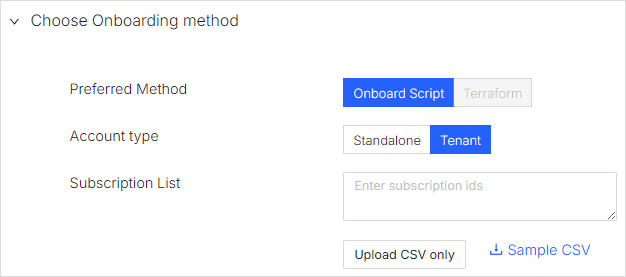
Preferred Method
Select Onboard Script or Terraform based on the mode of resources creation on the Azure account.
Account Type
- Standalone - Select this if a single subscription is being onboarded. Make sure you have the specific Subscription ID entered in the Azure Subscription information section.
- Tenant - Select this if a parent subscription is being onboarded with child accounts. Ensure the parent Subscription ID is entered in the Azure Subscription information section.
Subscription List
The list of child subscriptions which you would like to be onboarded can be set in the text box as comma separated values or a uploaded as a CSV file.
Select the Sample CSV link to download a csv file which has example subscription IDs. This can be used for reviewing the format for actual csv file to be uploaded.
Use as SaaS Sidecar
Select the Use as SaaS Sidecar option if the account being onboarded will be used as a sidecar account for other applications like Microsoft OneDrive and Sharepoint. When this option is checked (selected) the onboarding script will include the additional permissions for the respective resources that will be created on the Azure account.
Next Steps
Select Next after completing the above steps.
Step 3: Credentials Configuration
Based on your preferred onboarding method, you will either go through the Onboard Script or Terraform deployment screen.
Onboard Script
Follow the steps in section 4, and once completed, copy the ‘credentials config’ from the Azure Bash shell, set in the Credentials Config text box and Select Validate.
Select “Validate”, which will check for connectivity from DSPM platform to Azure account using the config credentials set in the previous step.
If the validation is successful, select “Close”
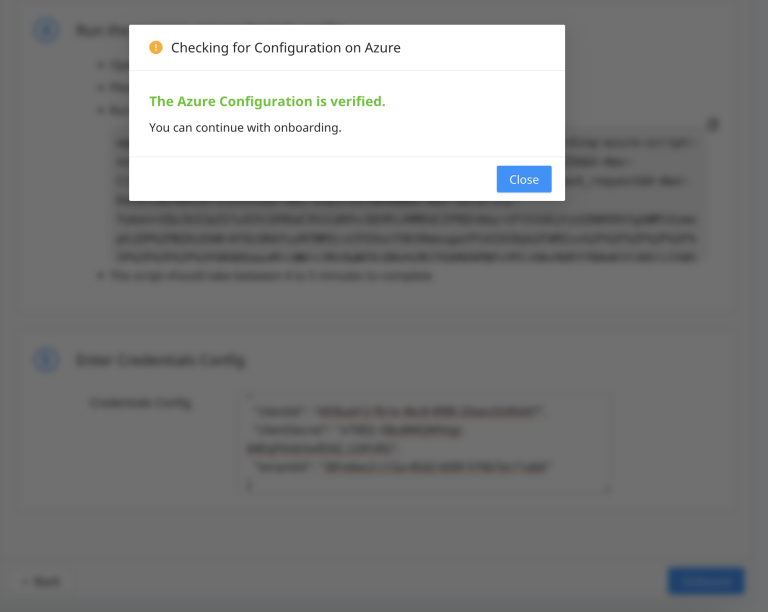
Then select “Onboard” option.
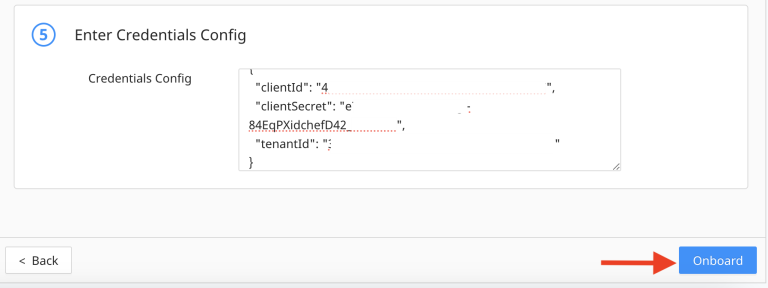
Terraform
If you selected the Terraform option, download the Terraform file from the link provided in section 3.
Use the Terraform file and the details from the Section 4 which includes the Onboarding ID, Customer Account ID (Azure subscription Id), and the External ID to build the pipeline for resources creation on the Azure account.
After the Terraform script is executed successfully, copy the Config Credentials and input it in the text box under Section 5.
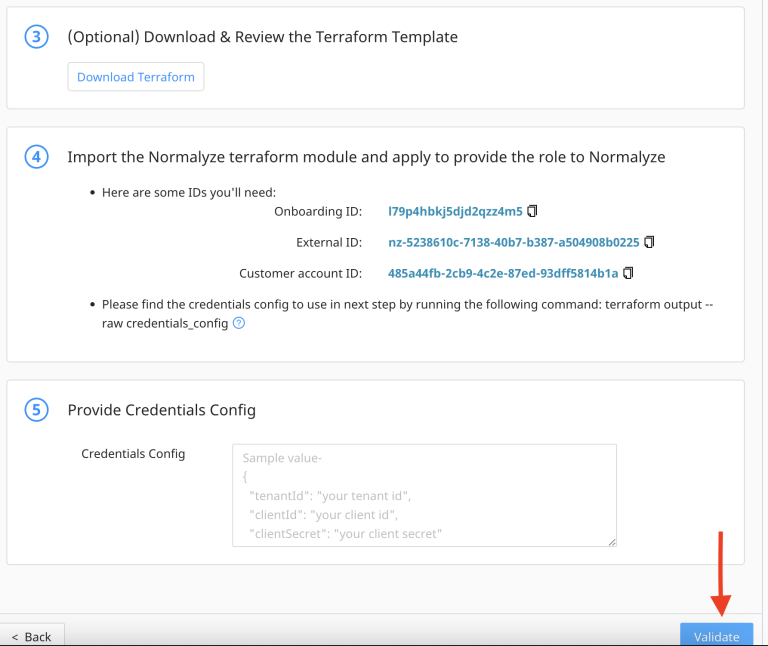
Select “Validate”, which will check for connectivity from DSPM platform to Azure account using the config credentials set in the previous step.
If the validation is successful, select “Close”
Then select “Onboard” option.
Discovery Process
DSPM will now begin the process of discovering Data Stores and Assets within your Azure Subscription(s).
If you elected to use a Tenant Azure Subscription, the first subscription will be be Onboarded, and we will automatically Onboard and scan the other Subscriptions.
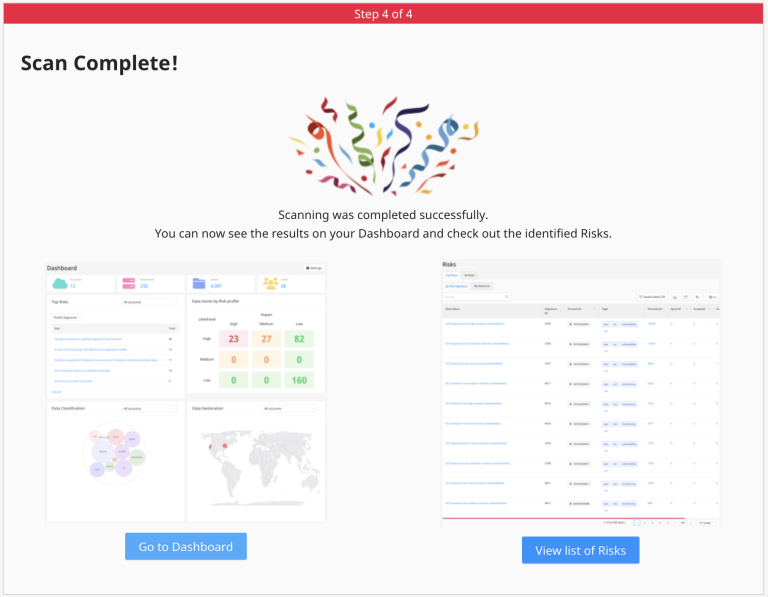
Once all the entities from the Azure Subscriptions are discovered, you will see the success message below. Links to navigate to the Dashboard and View Risks sections are shown for the administrator to begin reviewing the what vulnerabilities were found.