This beta release is available for select customers.
DSPM enables Security Operations team to Revoke Access of users or groups to Sharepoint sites based on review of data scan outcome which are classification details, exposure and distribution realm.
This functionality is currently available only for SharePoint accounts that are onboarded to DSPM using AWS account as sidecar.
For this capability the Sharepoint REST API Permission need to be granted and along with it additional configuration for authorization using Certificate needs to be completed, which are as follows:
Granting Sharepoint API Permission
Sites.FullControl.All - Admin API operations without a user require applications to receive consent for Sites.FullControl.All application permission on the SharePoint resource. This permission requires admin consent on the consuming tenant.
- Select ‘Add a Permission’ - under Microsoft API search for Sharepoint and select it.
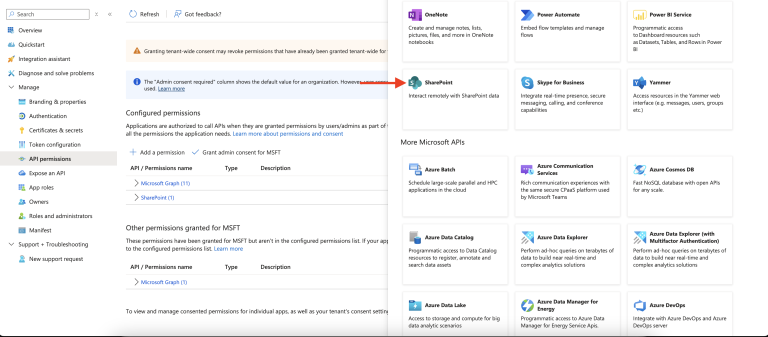
- Select Application Permissions - search for Sites.FullControl.All
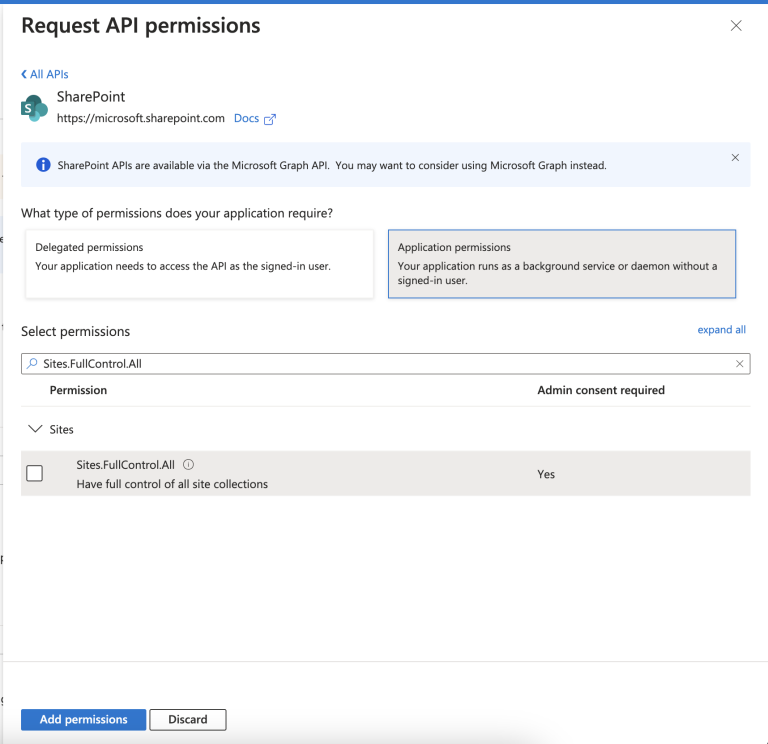
- Select the Permission listed and select Add Permissions.
- Select ‘Grant Admin Consent for MSFT’ and when the popup launches - select Yes.
Adding Certificate based Authorization :
-
Create a self signed certificate PEM file for certificate and private key:
openssl req -x509 -newkey rsa:4096 -keyout key.pem -out cert.pem -sha256 -days 365 -nodesThis will generate 2 files viz: key.pem and cert.pem
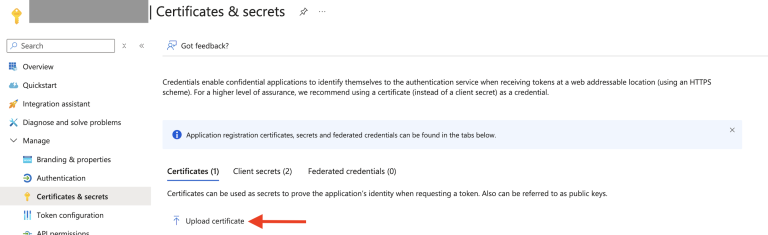
- Navigate to the Azure Portal - select the App registered - Certificates and Secrets - navigate to Certificates tab.
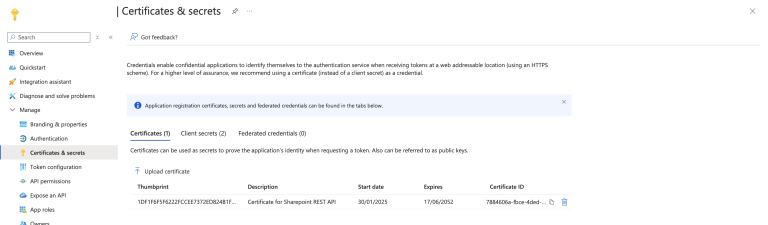
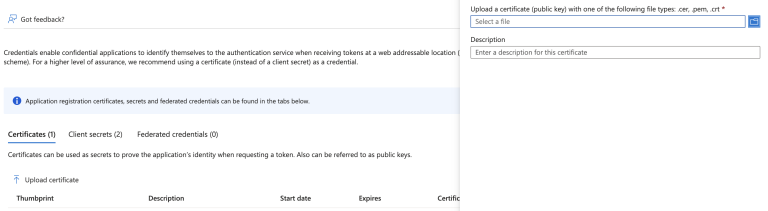
- Select Upload Certificate which will launch an adjoining pane.
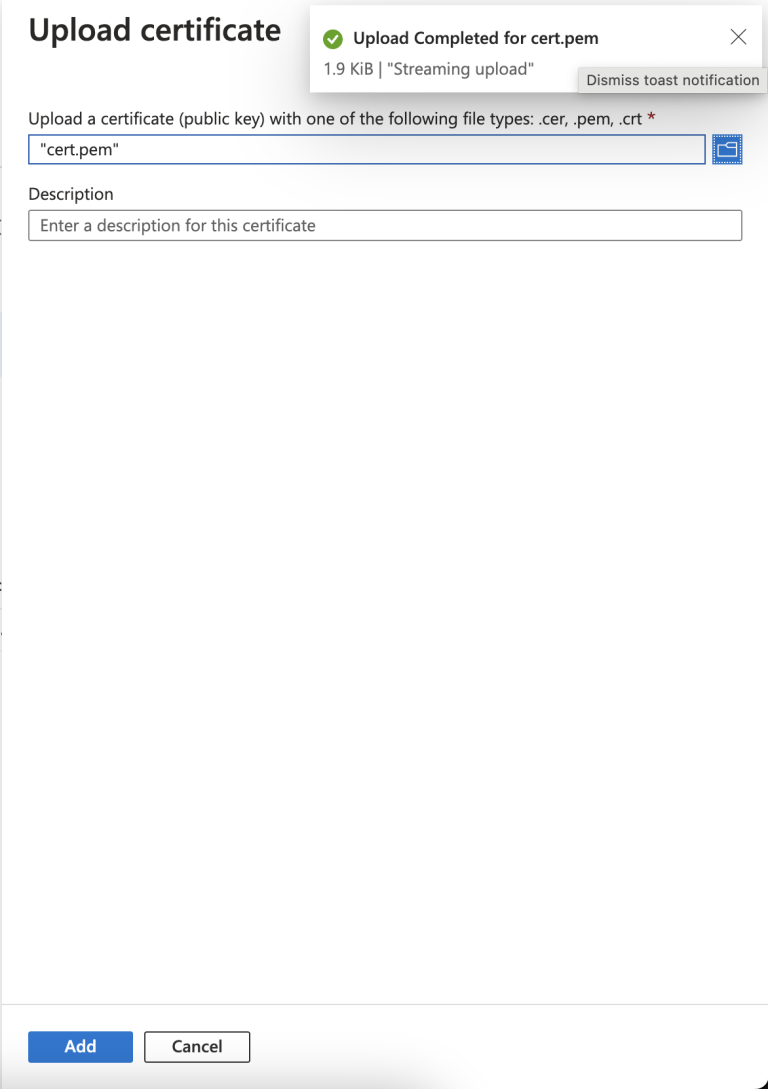
- Select the pem certificate generated in Step 1 and add a suitable description for it and select Add.
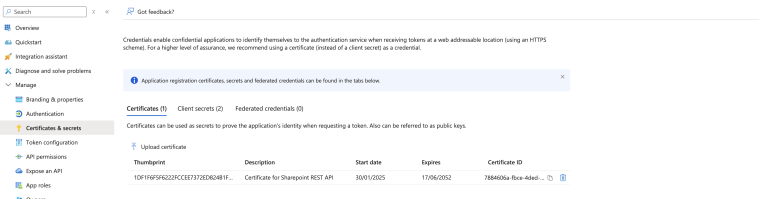
- Copy the Thumbprint value for the uploaded certificate.
-
Use the following Python utility to generate formatted output for key.pem:
PRIVATE_KEY=<file path>/key.pem python -c 'import os; import json; file_handler=open(os.environ.get("PRIVATE_KEY")); data=file_handler.read(); file_handler.close(); print(json.dumps({"privatekey": data}))' - Copy the output printed for privatekey (highlighted in the screenshot).

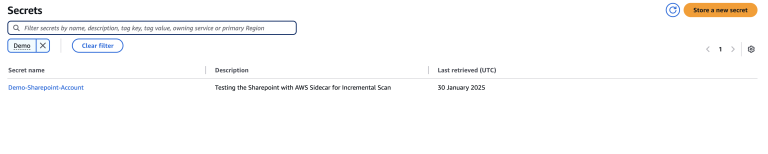
- Navigate to Secrets Manager on the AWS sidecar account where the secret is created for the Sharepoint account. Select the secret.
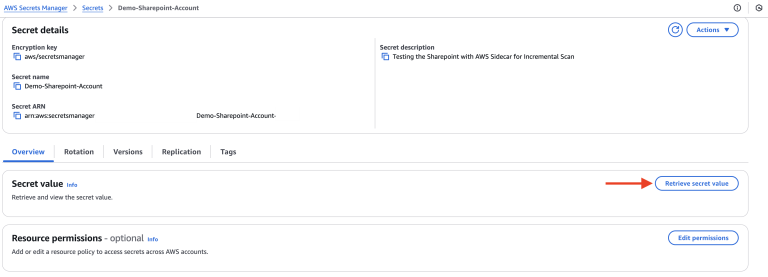
- Under Overview - Secret value - select Retrieve Secret Value.
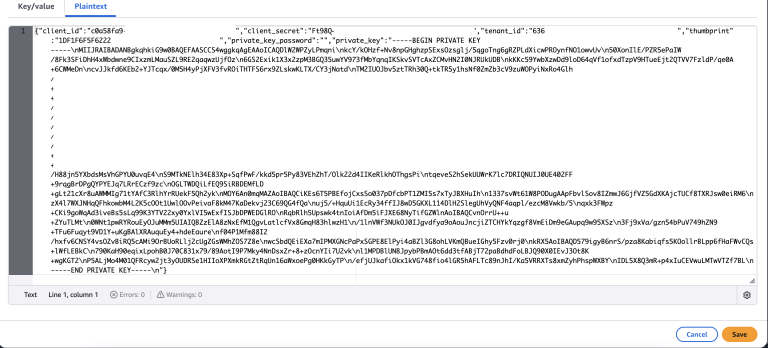
- Select Plaintext and add the following key value pairs in addition to the existing ones listed in Add Azure App Credentials to AWS Secrets Manager.
"thumbprint":"<value copied in step 5>",
"private_key_password":"",
"private_key":"<value copied in step 7>" - The final set of values with the above changes should be as shown in the screenshot.
- Verify the values configured are correctly reflected from the “Key/Value” tab as well as follows:
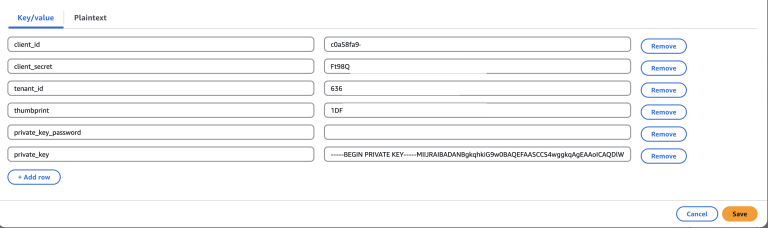
- Select Save after verifying the values added are all in proper format.
This completes the configuration required to enable the functionality to Revoke access for users / groups to Sites.
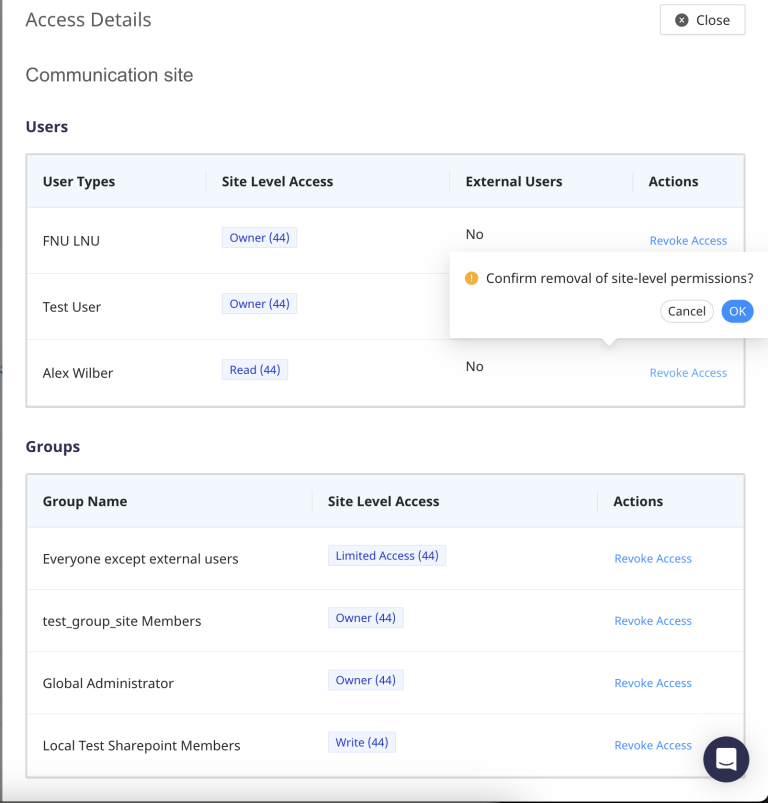
The ability to Revoke the access to Sites is reached by navigating to the Sharepoint data store - Sites - Site Level Access.
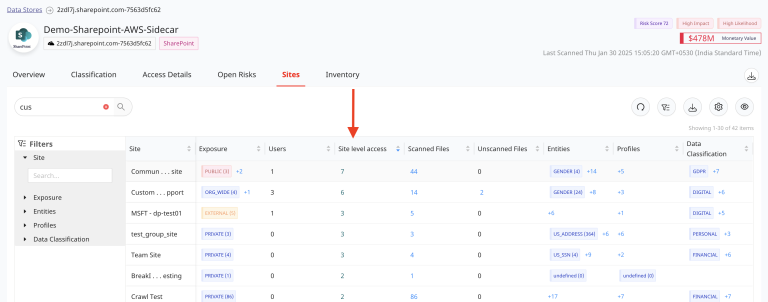
On selecting the number hyperlink under Site level access column, the pop-up table shows the list of Users and Groups that have been granted access to the sites.
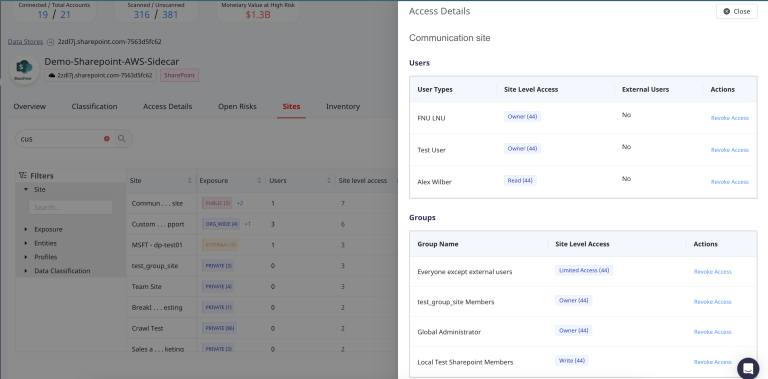
To revoke access navigate to Actions - select Revoke Access . On selecting it a confirmation pop-up is displayed. Selecting “Ok” the access for the user or group would be removed from the site on Sharepoint.