Storing data in Cloud storage platforms presents the same risks of data breach or unauthorized access as traditional storage methods. DSPM addresses those risks with this new feature which discovers, detects, and classifies risks found in your Google Drive storage.
Prerequisite
An AWS Account must be onboarded to DSPM first, with an Onboarding Version of 64 or later. This AWS account will be used as a sidecar for scanning your data, keeping your data within your boundary. You can find our AWS Onboarding instructions here.
Required Accounts outside of DSPM
- Sidecar AWS Account - Since Google Drive is a SaaS application, DSPM cannot deploy the stack and create the necessary resources on it directly as can be done on AWS. The solution requires creating a sidecar AWS account where resources are created and then connected to Google Drive using an AWS secret. This AWS account should be onboarded on the DSPM platform before beginning this Google Drive account onboarding process.
- Google Drive - An active google account that is hosting the drive to be onboarded for discovery, detection, and risk classification.
Detailed steps for Onboarding Google Drive on DSPM are outlined below.
Google Account
STEP 1: Create a Service Account
- Begin by logging into your Google account at console.cloud.google.com and create a new project from the dropdown box next to Google Cloud.
- Next, open the main menu from the 3 bars icon in the top left corner and then select APIs & Services -> Credentials.
- Make sure your new project is selected from the dropdown list
-
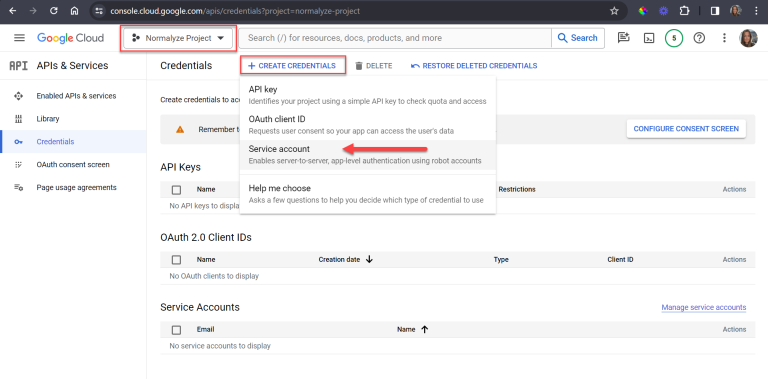
Select CREATE CREDENTIALS at the top of the screen, then Service account from the options shown
-
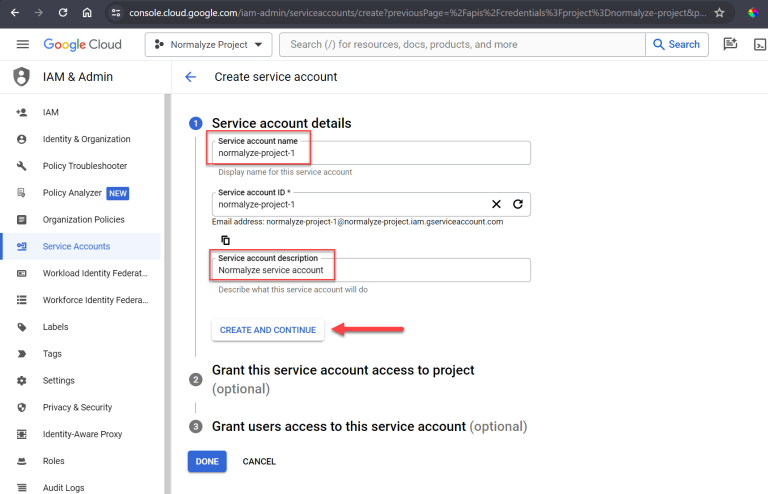
Fill in the Service account name and optional Service account description, then select CREATE AND CONTINUE
-
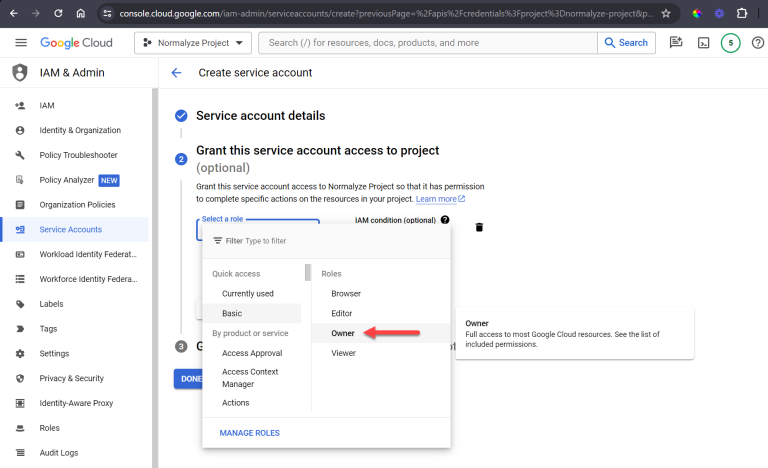
Grant role as Owner then select CONTINUE and DONE
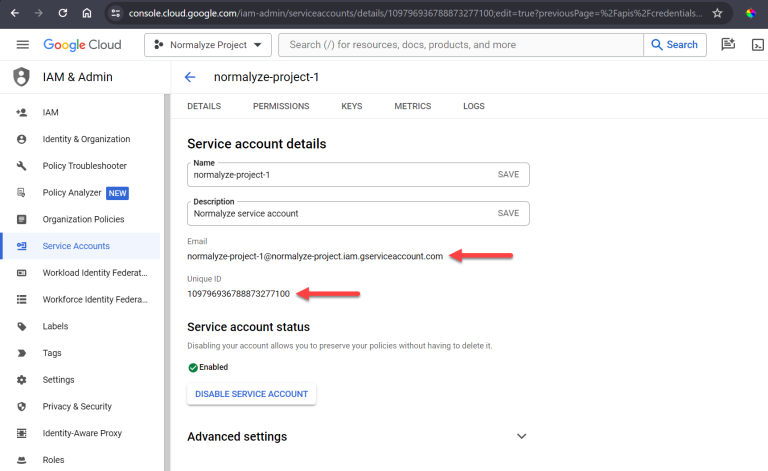
- On the updated Credentials screen, select the email link for the new service account to view the details
- Copy and save the newly created Service account Client ID for later
-
Copy and save the Email created for later
- Select KEYS from the menu on the same page
-
Select the ADD KEY dropdown and then Create new key
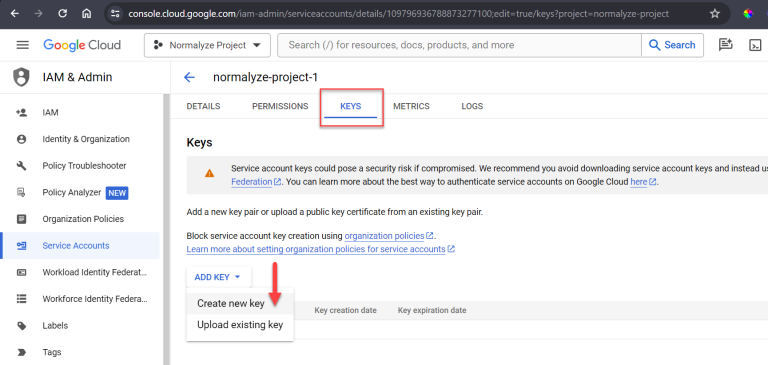
- Keep the JSON selection and then select CREATE which will save the file to your computer
- Save the private key file
STEP 2: Authorize the Domain
-
Open a new tab and login to the Admin Console at admin.google.com
We will go back and forth so leave both consoles open
- Navigate to Security -> Access and data control -> API controls
- Under Domain Wide Delegation -> MANAGE DOMAIN WIDE DELEGATION
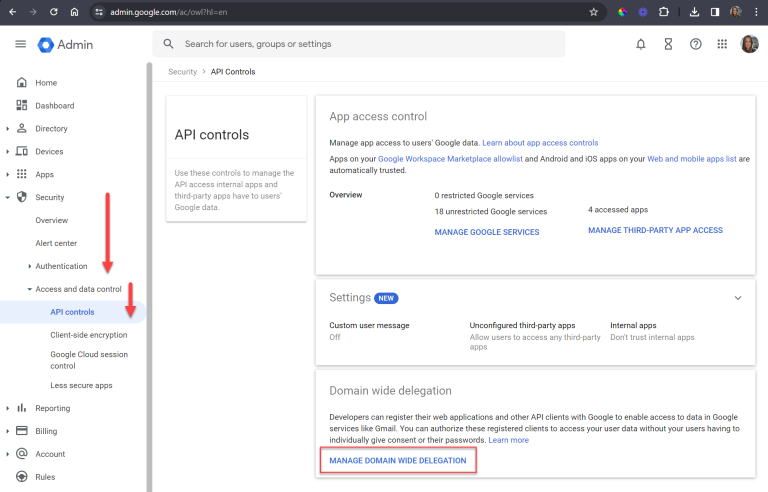
- Select Add new
- Enter the Service Account Client ID created in the previous step on the Client ID line
- Add the following OAuth scope:
https://www.googleapis.com/auth/drive.readonly
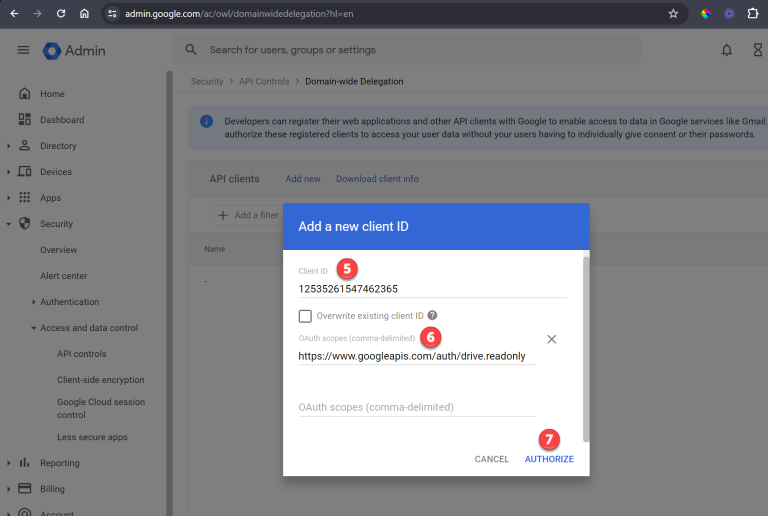
- Click on Authorize to finish
STEP 3: Add Google API’s
-
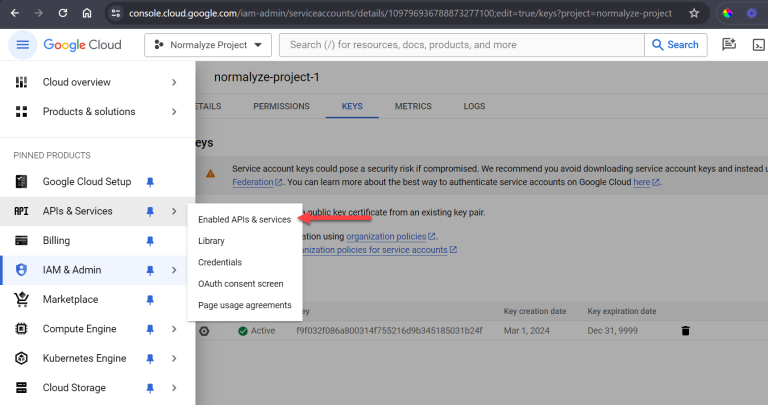
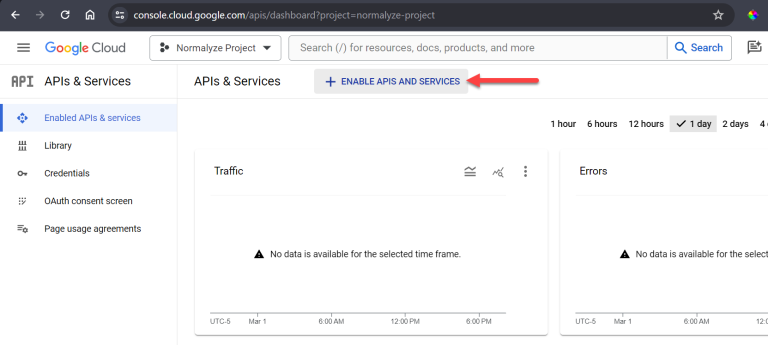
Back in console.cloud.google.com, from the left side menu select APIs and Services and then Enabled APIs and services
-
Select ENABLE APIS AND SERVICES from the top panel to find the specific APIs that need to be enabled
-
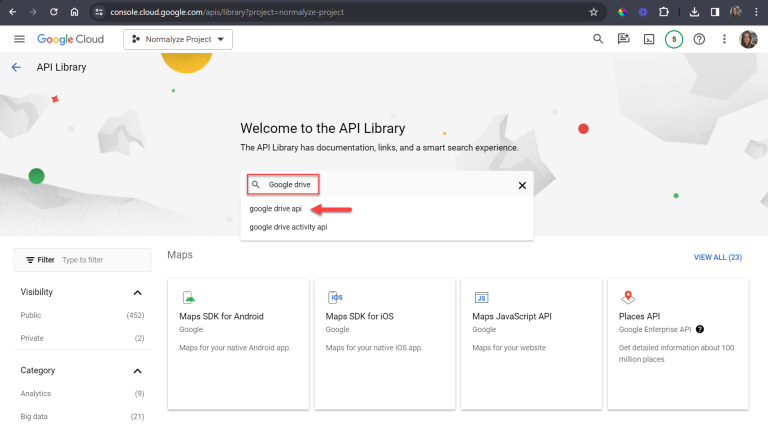
Search for Google Drive and select google drive api from the results
-
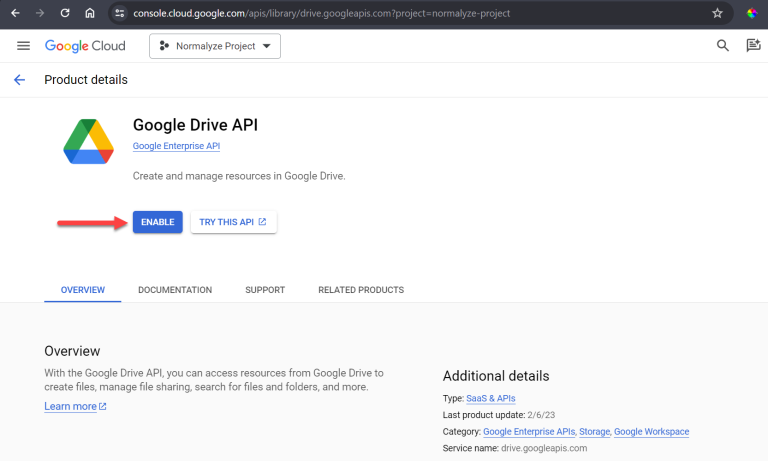
Select ENABLE for the Google Drive API
-
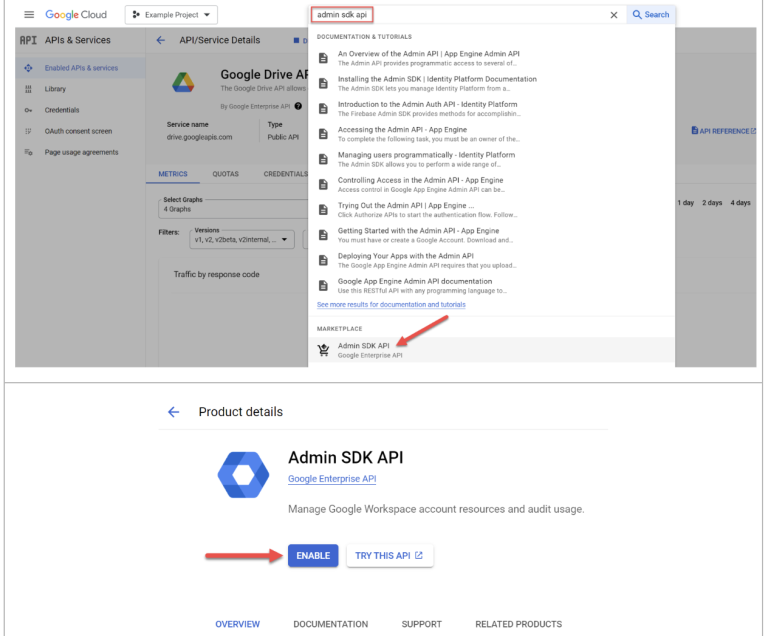
Navigate back and search in the API library for the Admin SDK API and enable it as well.
STEP 4: Add Roles to the Service Account
- Swap back over to the Google Admin console (admin.google.com)
-
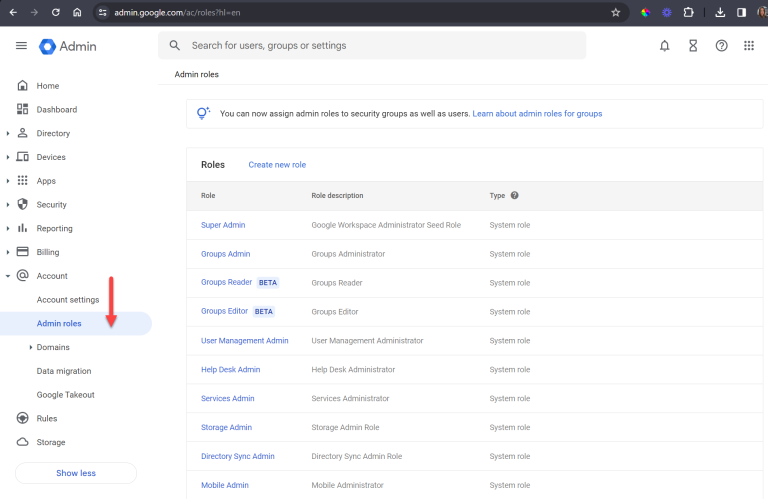
From the main menu select Account -> Admin Roles
-
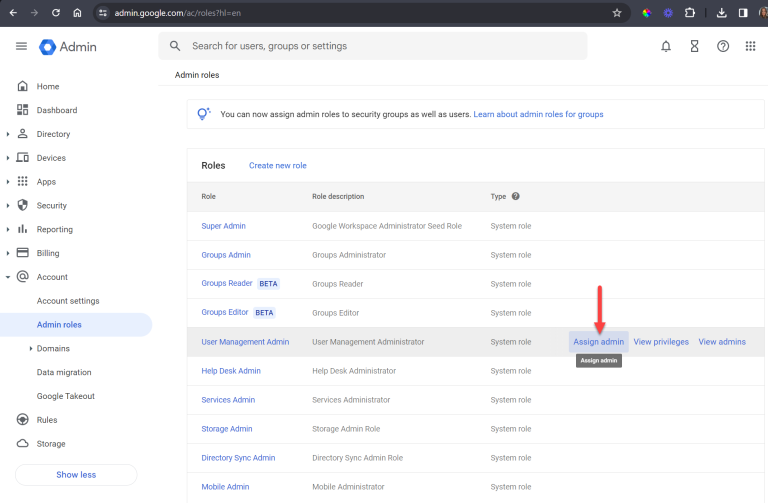
Select User Management Admin -> Assign admin
-
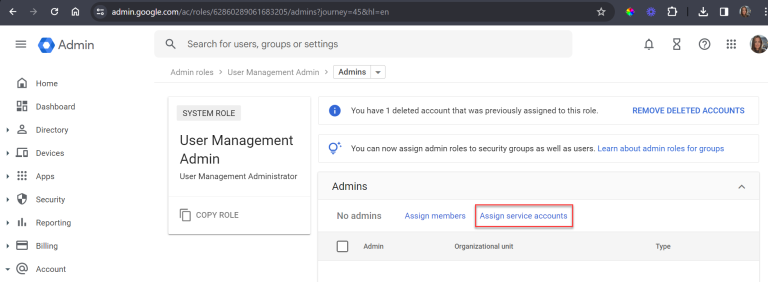
Select Assign service accounts
-
Enter the Service Account email created in Create Service Account section earlier then select ADD.
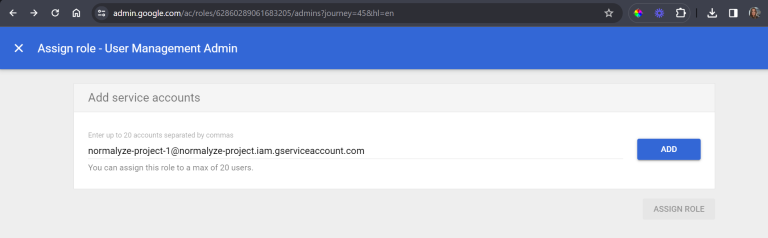
- Next, select ASSIGN ROLE. The email should now show in the Admins list.
That completes the configurations required in your Google Account.
AWS Sidecar Account
STEP 5: Sidecar AWS Account Configuration for Google Drive
- Login to the AWS management console and navigate to Secrets Manager
- Select the option for Store a new secret
- Under Secret Type, select Other type of secret
- Under Key/value Pairs - select Plaintext and remove the existing entry
- Copy the full text from the .JSON file downloaded in Create Service Account section and paste it in the Plaintext field
- Set the Encryption Key to aws/secretsmanager and select Next.
- Enter a name for this Secret and a description (optional)
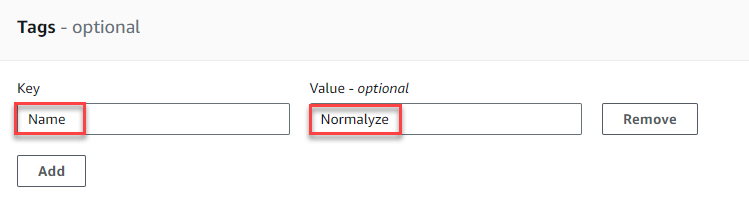
- Using the ADD button, add the following Tag with these values:
- Key: Name
- Value: Normalyze
This is used for the DSPM IAM role to access the secret. It is important to enter the Key as “Name” and the value “Normalyze” exactly as shown here with capitalization.
- Leave the other sections with the default values and select Next on each screen and then select Store to finish.
- Refresh the page to see the new Secret in the list.
- Select the new secret to view the details and copy the Secret ARN value. You will use this value in the next step.
DSPM Account
STEP 6: Onboarding Google Drive from DSPM
- Login to DSPM and go to Workspace -> Accounts -> Onboard Cloud Account
- Select Google Drive from the Cloud Account Provider section.
-
Enter the following details for the each of the options:
Account Nickname - Provide a name for this account on DSPM as per your organizational naming convention
Google Workspace Domain - Provide the domain name of the Google account which is being onboarded
Environment Type - Designate the account as one of the types from the list of values available.
Description - Add a short description for the account.
Secret ARN - Provide the ARN of the secret, copied in Step 5-11 under AWS Sidecar Configuration
After entering the Secret ARN, the fields “Account ID” and “Region” will populate from the values in the secret. - Select Next. This will trigger the Cloud Scan operation for the new account.
This completes the onboarding for your Google drive account.