Onboarding an AWS account to DSPM requires the deployment of either a CloudFormation template or a Terraform template, which will set the required permissions for DSPM to discover Data Stores and Assets and deploy Data Scanners within the account.
- Login to DSPM.
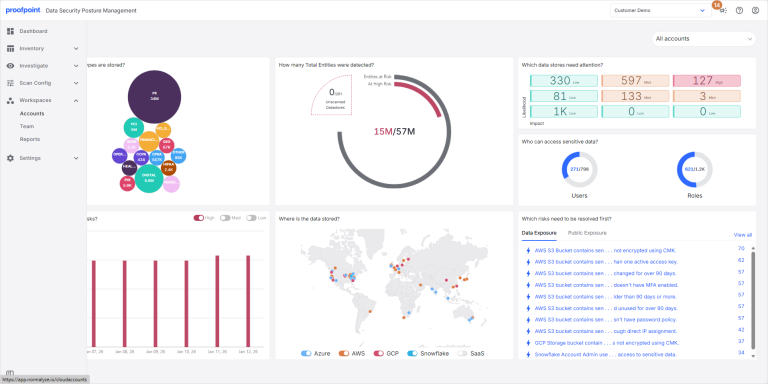
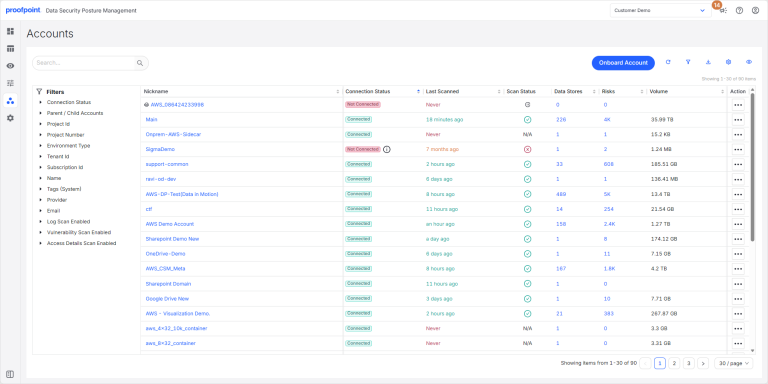
- In the left menu, go to Workspaces > Accounts.
- Select Onboard Account.
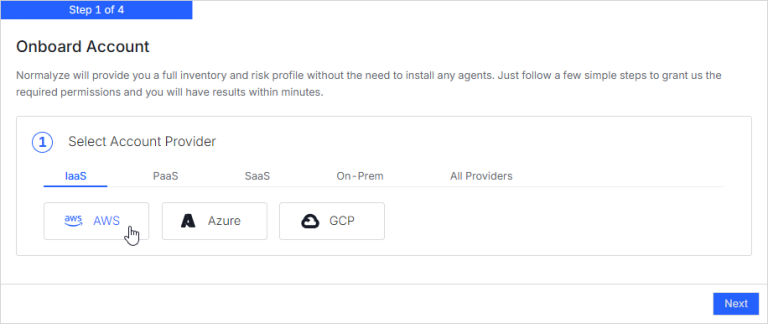
Step 1: Select the Cloud Account Provider
Select AWS.
Step 2: Enter the AWS Account Information
To locate your AWS account information, please refer to the AWS documentation:
https://docs.aws.amazon.com/accounts/latest/reference/manage-acct-identifiers.html
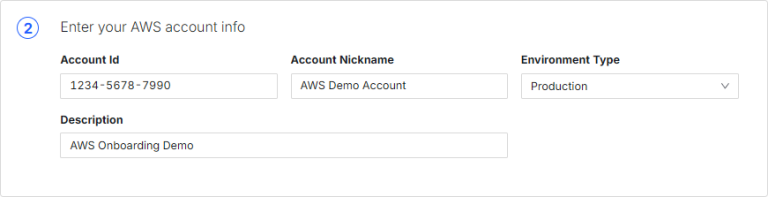
Enter the following information:
- Account Id Enter the AWS Account ID for the AWS account you want to onboard.
If you are onboarding a standalone AWS account, enter the Account ID.
If you are onboarding an AWS Organization, enter the Organization Account ID. See Details for Organization Onboarding for the additional steps required to onboard an Organization.
- Account Nickname The Account ID is entered automatically as the nickname. You can change this to your own nickname by typing it in the field.
The nickname you assign will show next to the account number in DSPM. This provides an easy way for you to identify which account you are viewing.
- Environment Type Select the type of environment.
- Description Add a description of the account.
Advanced Options
Expand Advanced to configure additional options regarding the features and behavior of DSPM on this account.
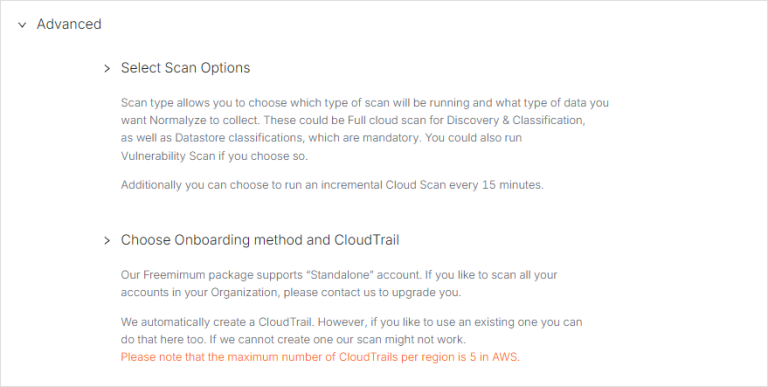
Scan Options
Expand Select Scan Options to configure scans for the account.
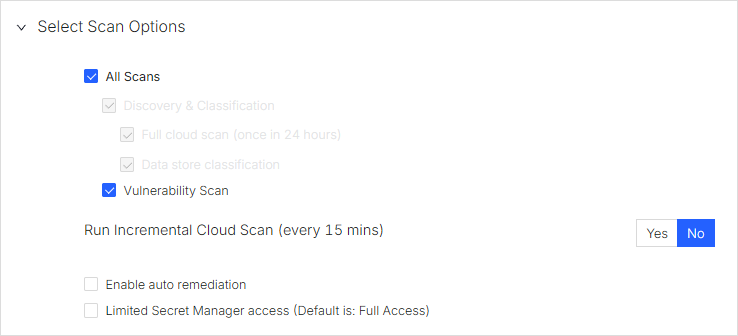
All Scans
This section lists all the scans that are enabled by DSPM by default and gives the option to choose only the ones that are needed.
- The Discovery & Classification scans are non editable - these scans are used for data discovery (Cloud Scan) and data classification (Data Scan).
- The Vulnerability Scan is optional and can be enabled or disabled based on the user preference. If enabled, this will run the scan to detect the vulnerabilities associated with packages that are installed on compute instances of AWS and Azure.
Run Incremental Cloud Scan
If enabled, this option will run the cloud scan every 15 minutes in ‘incremental’ fashion to discover newly added and modified data stores and assets. Any deleted or removed data stores are also identified and updated.
This option is set to No by default.
Enable auto remediation
If the option is checked, it will enable the Activity Events feature.
Limited Secret Manager Access
This is an optional configuration. By default (when the option is not selected) DSPM will get Read access to all the Secrets on the accounts onboarded.
If the option is selected then DSPM will get Read access to only those Secrets which are tagged with DSPM keyword.
Onboarding Method and CloudTrail
Expand Choose Onboarding method and CloudTrail to configure additional onboarding settings.
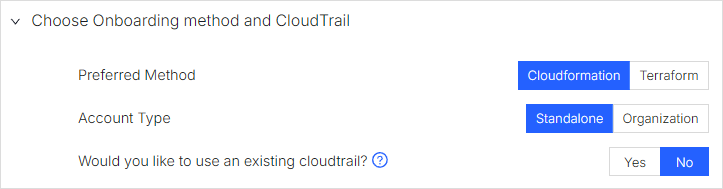
Preferred Method
Select whether you would like to use AWS CloudFormation or Terraform script to create the DSPM stack on your AWS account.
If Terraform is used then by default we will use a CloudTrail that is created by DSPM.
Account Type
There are two account types that are supported today for AWS, Standalone and Organization. Toggle the selection based on the requirement.
See Details for Organization Onboarding for the additional steps required to onboard an Organization.
Select Standalone if you are onboarding a single AWS account. Make sure you have the specific Account ID entered in the AWS Account Information section.
This option will be available only if the Preferred Method is set to CloudFormation.
If Terraform is used then by default the CloudTrail created by DSPM will be used.
Select Organization if the parent account has all the child accounts. Ensure the parent Account ID is entered in the AWS Account Information section.
Both CloudFormation and Terraform script based onboarding are supported for the Standalone deployment model.
Only CloudFormation based onboarding is supported for the Organization deployment model.
CloudTrail
In this section select if you want to use the existing CloudTrail in the AWS account or use one that DSPM can create.
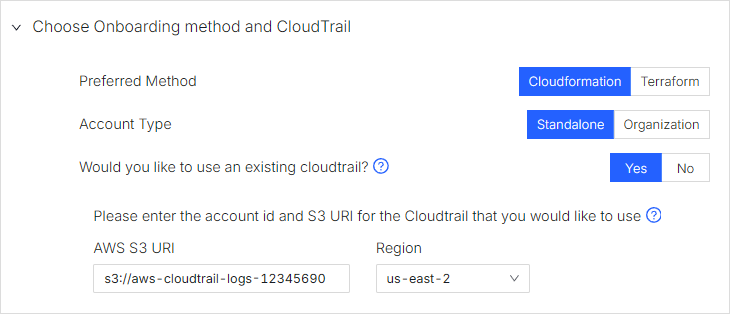
If the option to use an existing CloudTrail is selected, the following details are required:
- AWS S3 URI: S3 URI of the bucket which holds the CloudTrail entries.
- Region: AWS region where the CloudTrail bucket is created.
The CloudTrail configured from this section is leveraged by DSPM for Incremental Cloud Scan, Data Detection and Response (DDR) events and the task that captures the Last Accessed time for objects and entities.
Cross Account CloudTrail Configuration
CloudTrail account may be centralised implying that it would be created along with the trail bucket in a specific account and all the other accounts in same Organization structure or different Organization structure would using it.
If CloudTrail and the bucket associated with it are in a centralized AWS account, the following scenarios are possible.
Scenario One: CloudTrail holding the account is onboarded as Organization account or is part of the child accounts
In this scenario all the accounts which are part of Organization account will be able to access the CloudTrail and the corresponding bucket without any further need for configurations.
Scenario Two: CloudTrail holding account is different - either onboarded as a separate account or not onboarded
In a scenario when the account which is holding the CloudTrail and the bucket is onboarded as a separate account on DSPM or is not onboarded at all, then the CloudTrail bucket ACL has to be updated with permissions granting access to the role of the onboarded account.
For example:
Account ID 123456789123 holds the CloudTrail and the bucket. AWS Account ID 987654321987 is onboarded on DSPM and the AWS S3 URI points to the former account, then the following permission has to be added to the ACL on CloudTrail bucket.
{
    "Sid": "cloudtrail-logs-read-bucket-normalyze",
    "Effect": "Allow",
    "Principal": {
        "AWS": "arn:aws:iam::987654321987:role/nz-datascan-<Normalyze Control Plane Account Id>-<Onboarding-Id-of-acct-987654321987>"
    },
    "Action": "s3:GetObject","s3:ListBucket"
    "Resource": "arn:aws:s3:::<cloudtrail-bucket>/*"
 }
Next Steps
Once all of your selections are complete, select Next.
Based on your preferred onboarding method, you will either go through the CloudFormation or Terraform deployment screen.
If you selected the CloudFormation option, select the Open this AWS CloudFormation link. This will launch the AWS Console for CloudFormation in a new browser tab.
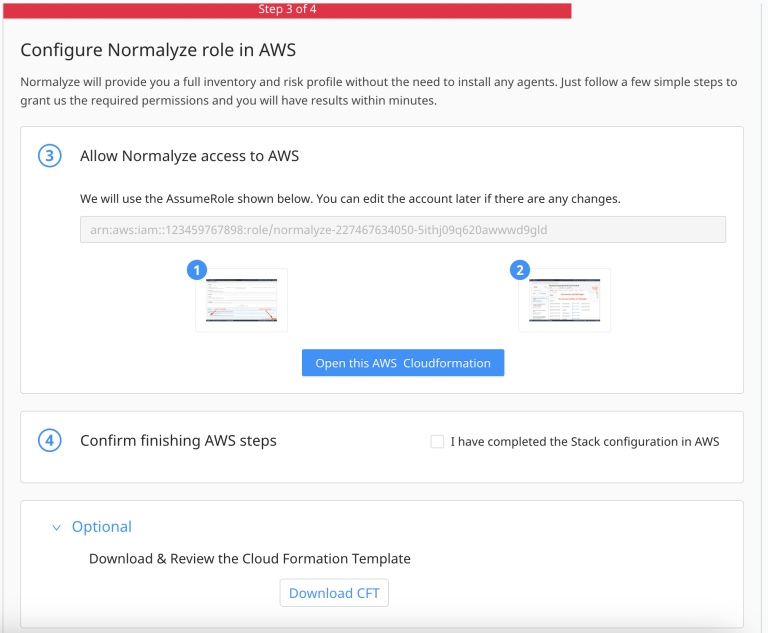
Keep the onboarding process open in DSPM while you complete the stack creation in AWS. Once it is completed, go back to DSPM.
In Section 4, select the checkbox “I have completed the Stack configuration in AWS” and then select the Validate button. This will verify the connectivity to AWS account from DSPM. If it is successful, select Close, then select Onboard.
To download the CFT Template generated for review or including it in deployment pipeline, expand Optional section to get the script.
Terraform
If you selected the Terraform option, download the Terraform file from the link provided in section 3.
Use the Terraform file and the details from section 4 which includes the Onboarding ID, AWS Account ID, and the External ID to build the pipeline for stack creation on the AWS account.
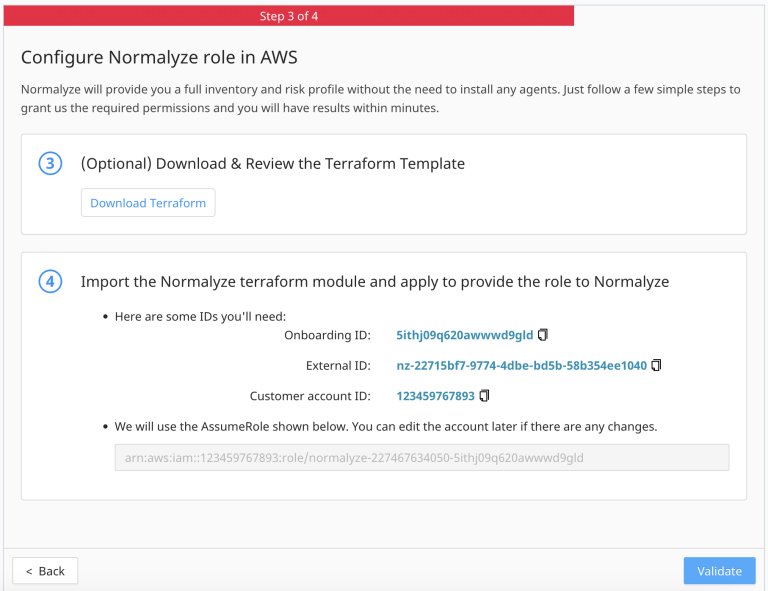
Once the Terraform operation is completed in AWS, return to DSPM and select Validate. This will verify the connectivity to the AWS account from the DSPM platform. If it is successful, select Close, then select Onboard.
Details for Organization Onboarding
The AWS Organization feature can be used to link multiple AWS accounts to one specific account called as the Organization account (parent), making it easier to perform management operations on these group of accounts. For more details on this key feature, see the AWS Documentation.
This capability of AWS is leveraged by DSPM for onboarding, where in all the child accounts that are linked to a parent need not be onboarded individually but can be done so in one operation. The functionality allows to pick and choose which of the accounts linked to the parent account should be onboarded or not there by giving a flexible means for the administrators to decide.
While onboarding the configurations that are selected for the Parent account are cascaded down to the child accounts and set for each one of them.
Detailed steps for Organization onboarding are as follows:
- Login to DSPM. In the left side menu, go to Workspaces > Accounts.
- Select Onboard Account, then select AWS.
-
Enter the following information in the Enter your AWS account info section:
- Account Id Enter the Organization Account ID.
- Account Nickname The Account ID is entered automatically as the nickname. You can change this to your own nickname by typing it in the field. The nickname you assign will be shown next to the Account number in DSPM. This allows you to easily identify which account you’re viewing.
- Environment Type Select the type of environment.
- Description Add a description of the account.
-
Expand Advanced, then expand Choose onboarding methods and CloudTrail.
-
Beside Account Type, select Organization.
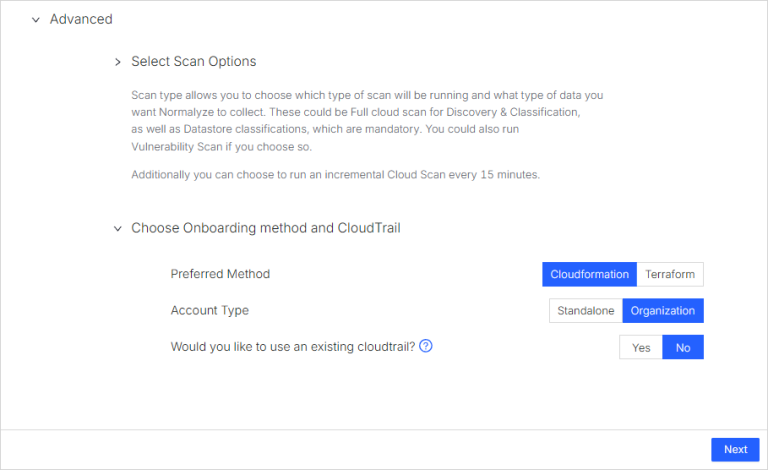
- Click Next.
- In the Allow Normalyze access to AWS section, select Open this AWS CloudFormation. This opens the AWS console in a new browser tab.
- Select the region where the stack need to be deployed on AWS.
- Update the Stack Name if there is a specific naming convention or can be left as-is with the default Name provided by DSPM.
-
Check the option to confirm the resource creation and select Create Stack. This will initiate the steps for resource creation on AWS Organization account as defined in the stack definition.
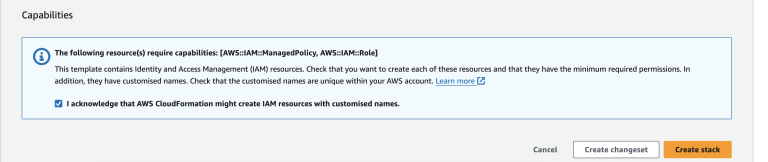
- After the stack is created successfully, go back to DSPM and select I have completed the Stack configuration in AWS. Select Next.
- The Onboard Child Accounts section shows the details for creating the Stackset on the child accounts linked to the Organization account.
-
Click the copy icon to copy the Stackset Template URL. Then select the highlighted Stackset URL link. This will open the AWS console in a new browser tab.
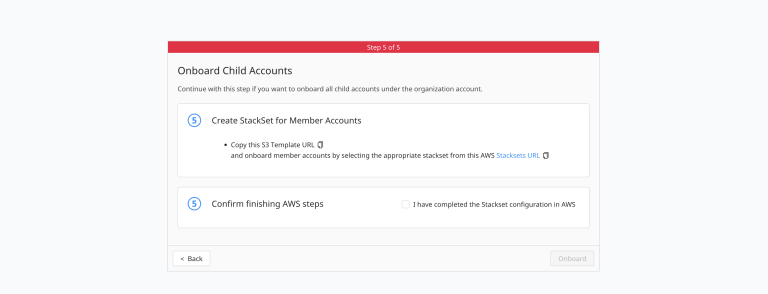
- Select the region where the AWS resources should be created for the child accounts, then select Create StackSet.
-
Scroll down to the Specify template section and paste the url you copied in the previous step under Amazon S3 URL. Select Next.
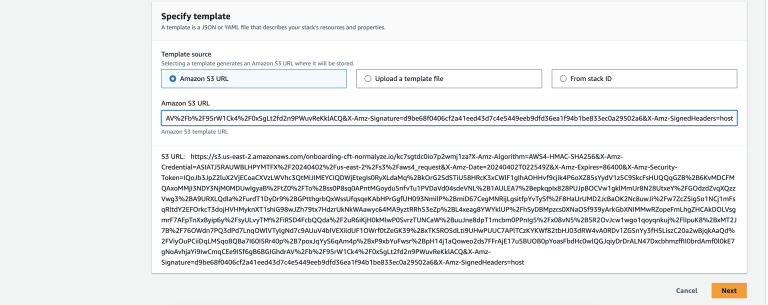
-
Provide the StackSet name and description. This will be the name for the stack that will be deployed on each of the child accounts. Select Next.
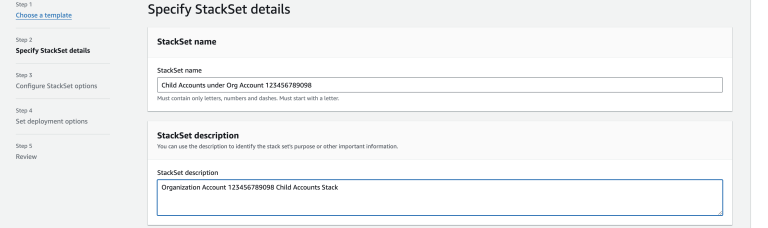
-
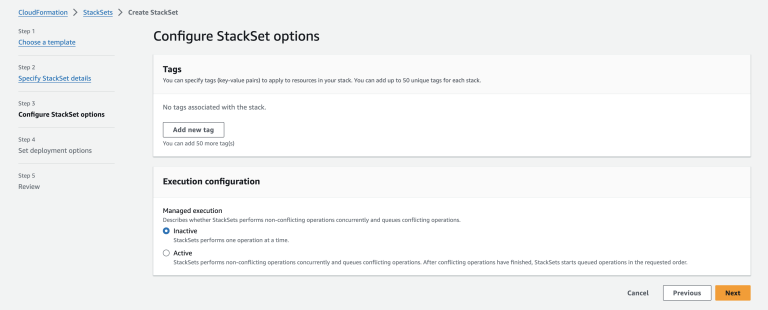
Tags is an optional setting, if there is a requirement to add that as per the cloud policy then it can be set accordingly. In the Execution configuration section, select Inactive. Select Next.
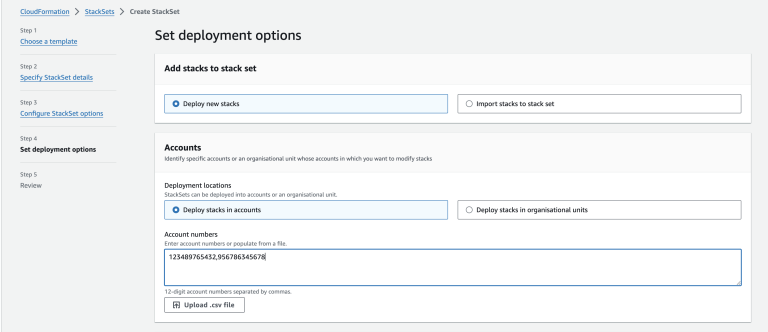
- In the Add stacks to stack set section, select Deploy New Stacks.
-
The list of child accounts to be onboarded can be set in the Accounts section by selecting Deploy stacks to accounts. In the Account numbers section, upload a CSV file containing the Account IDs or enter the Account IDs using CSV format.
If you need to include all accounts under an Organizational Unit, select Deploy stacks in organisational units and provide the OU ID in the Organisation numbers field.
-
In the Specify Regions section, enter the region where the stack will be deployed. This would be the same region that is selected in step 14.
Select one region only. Do not select multiple regions.

-
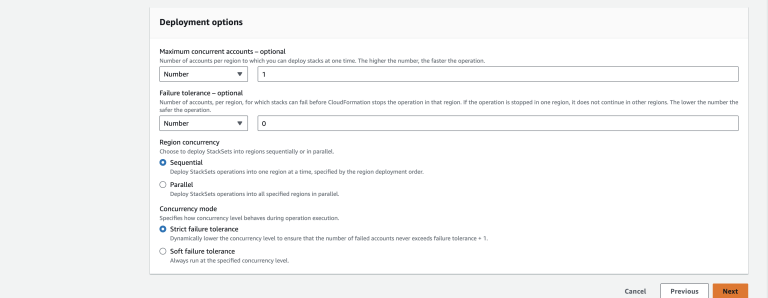
Do not change any options in the Deployment Options section. Select Next.
-
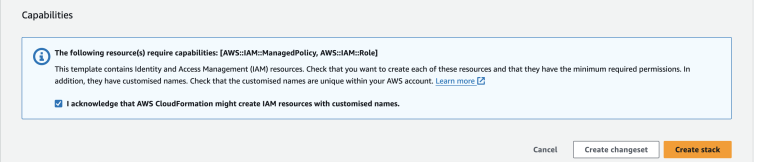
Review the StackSet deployment options selected on this screen. If all options are correctly configured, select the checkbox for final confirmation then select Create Stack.
-
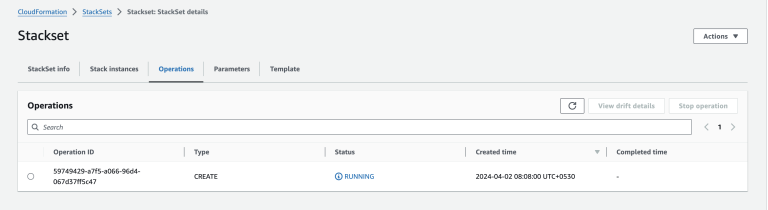
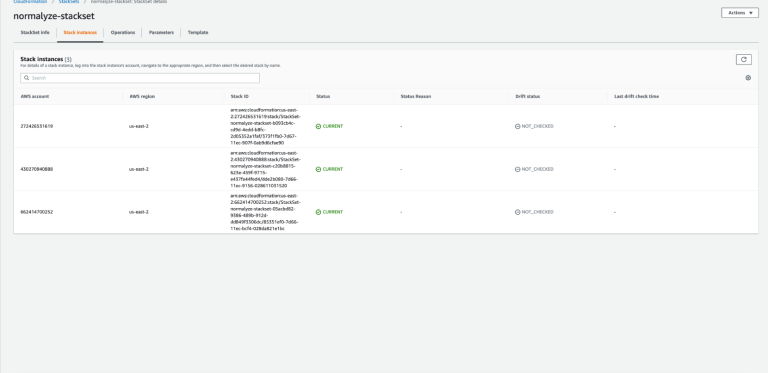
The Stack creation operation status is shown on the Operations tab. The respective account level details are shown on the Stack Instances tab.
-
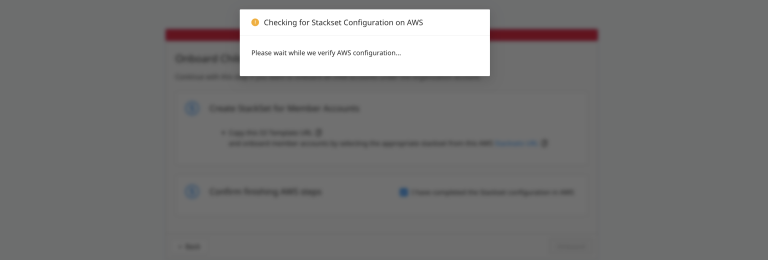
Go back to DSPM and select the option I have completed the Stackset configuration in AWS. This will launch the Configuration Check pop-up and on successful completion message there, the Onboard option will be enabled.
- Select the Onboard option to start the onboarding process for the Organization account and the child accounts.
-
On the Accounts Dashboard, each of the accounts will start listing based on the onboarding completion along with the other details of the accounts.
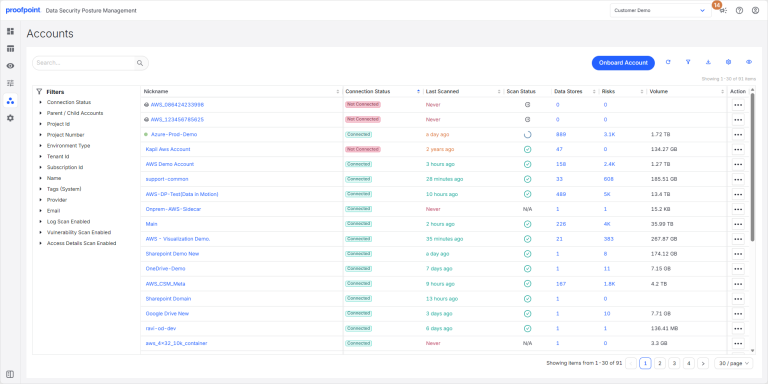
- Once all the accounts selected in step 19 are listed in the Accounts Dashboard, the Organization onboarding has been completed successfully.
Discovery Process
DSPM will now begin the process of discovering Data Stores and Assets within your AWS account(s).
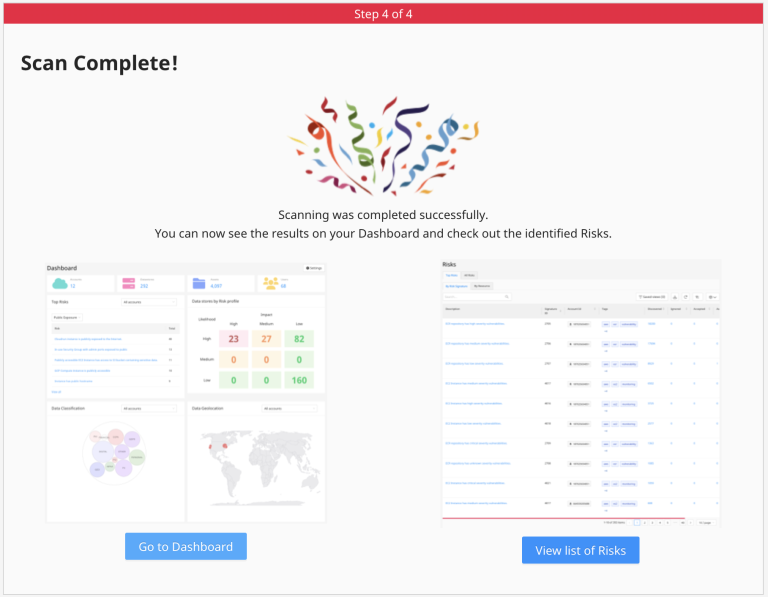
Once all the entities from the AWS account are discovered, you will see the success message below. Links to navigate to the Dashboard and View Risks sections are shown for the administrator to begin reviewing the vulnerabilities that were found.