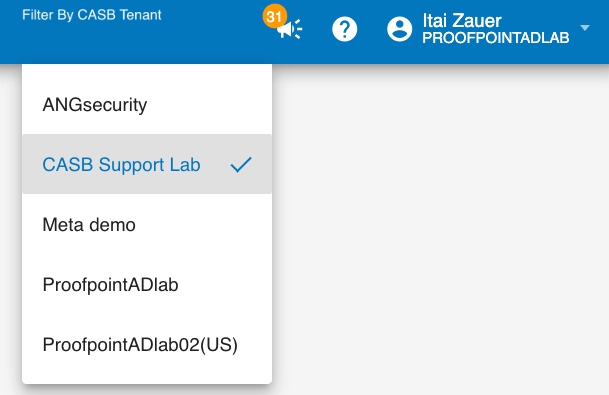
Access Policy Cloud DLP Tenant Segregation
Customers with multiple Cloud DLP tenants can now limit access and visibility to one or more Cloud DLP tenants to particular users and groups using an access policy. This is useful when there is a need to segregate management of Cloud DLP rules, 3rd party apps and configurations between different groups of administrators.
This feature affects only Cloud DLP pages, where the Cloud DLP tenant selector is enabled (such as Rule Editor, Cloud Apps, Cloud Apps Dashboard). You can create similar data segregation in Data Security Workbench by creating complementing custom access policy for analytics. See Custom Access Policies.
To limit the access to a specific Cloud DLP tenant you do the following:
-
Creating a custom access policy to restrict the Cloud DLP tenant access. Use Cloud DLP Tenants Access Global Restriction. This is a restricting policy. It restricts user access to specific tenants. (See Creating the Custom Access Policy to Restrict the Cloud DLP Tenant Access.)
-
Assign a global Cloud DLP access policy that allows access to all Cloud DLP tenants (e.g. Cloud Full Administration, Cloud Full View, Cloud Activity Exploration). (See Assigning Access Policies to Apply the Cloud DLP Tenant Segregation.)
When Cloud DLP tenant segregation is enabled, the user will be only be able to see the Cloud DLP tenants selected in the custom access policy (restricting policy).
Creating the Custom Access Policy to Restrict the Cloud DLP Tenant Access
Create a custom access policy that will restrict the user’s access to specific Cloud DLP tenant(s):
-
From the Administration app in Proofpoint Data Security, select User Management > Access Policies. Click New Custom Access Policy. The General tab of Create Custom Access Policy displays.
-
In the General tab area, complete the Name, Alias fields and optionally the Description field.
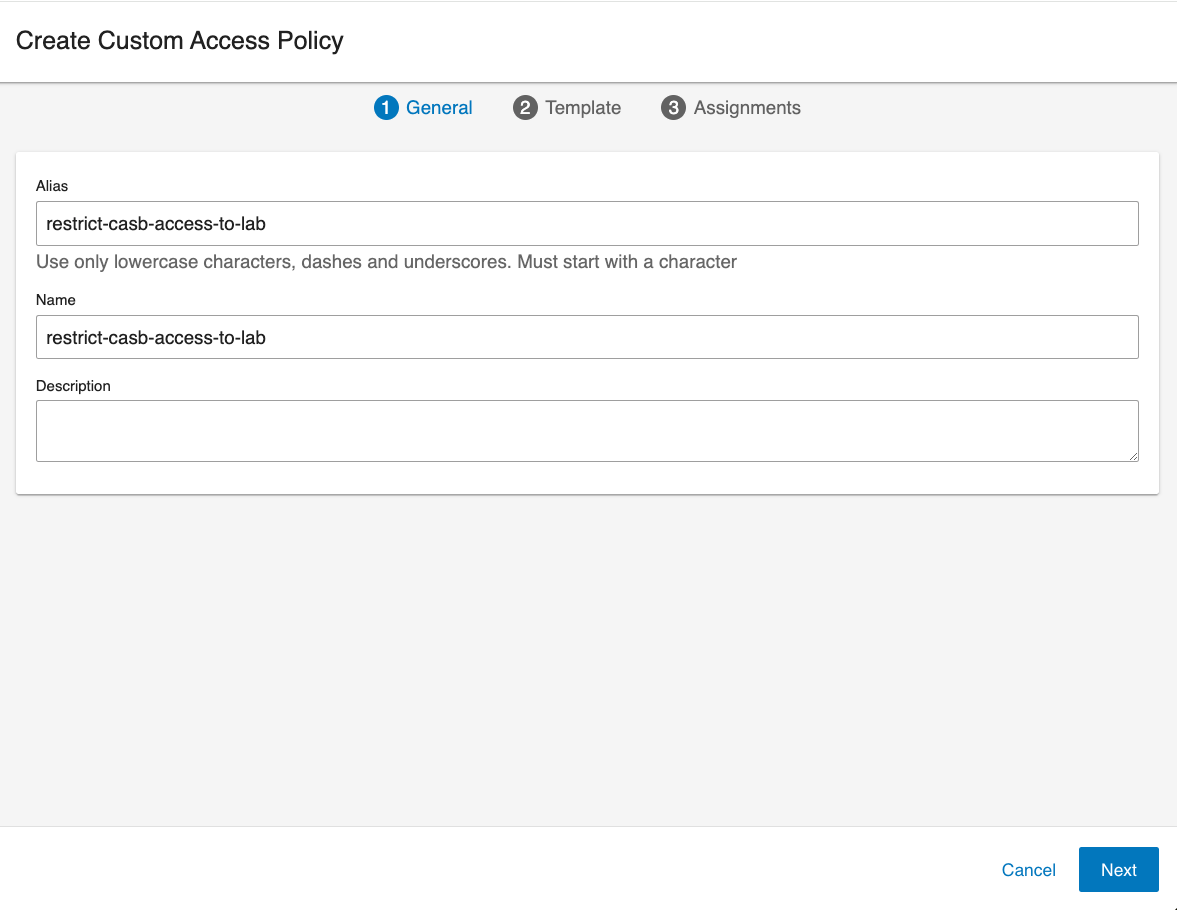
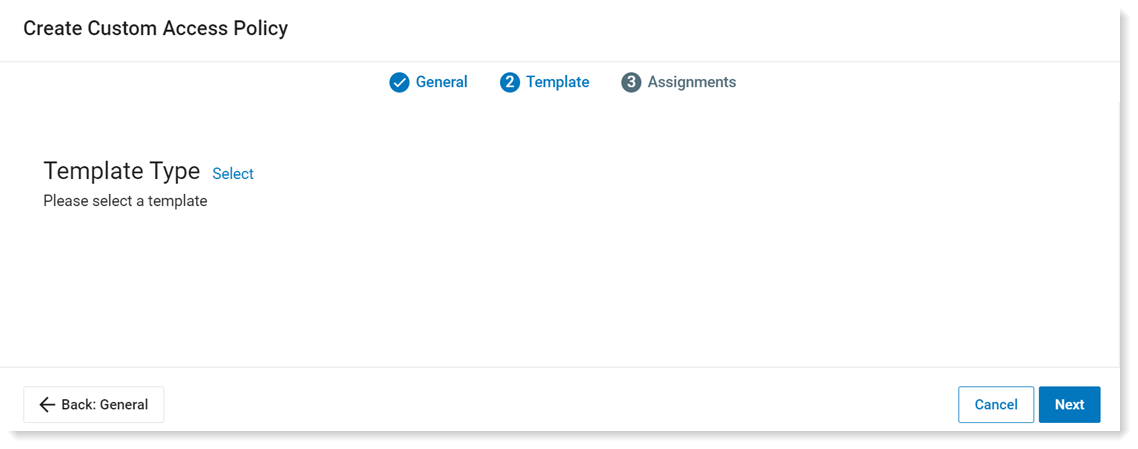
Click Next and the Template tab displays.
-
In the Template tab, define the criteria. Select the Template Type by clicking Select.
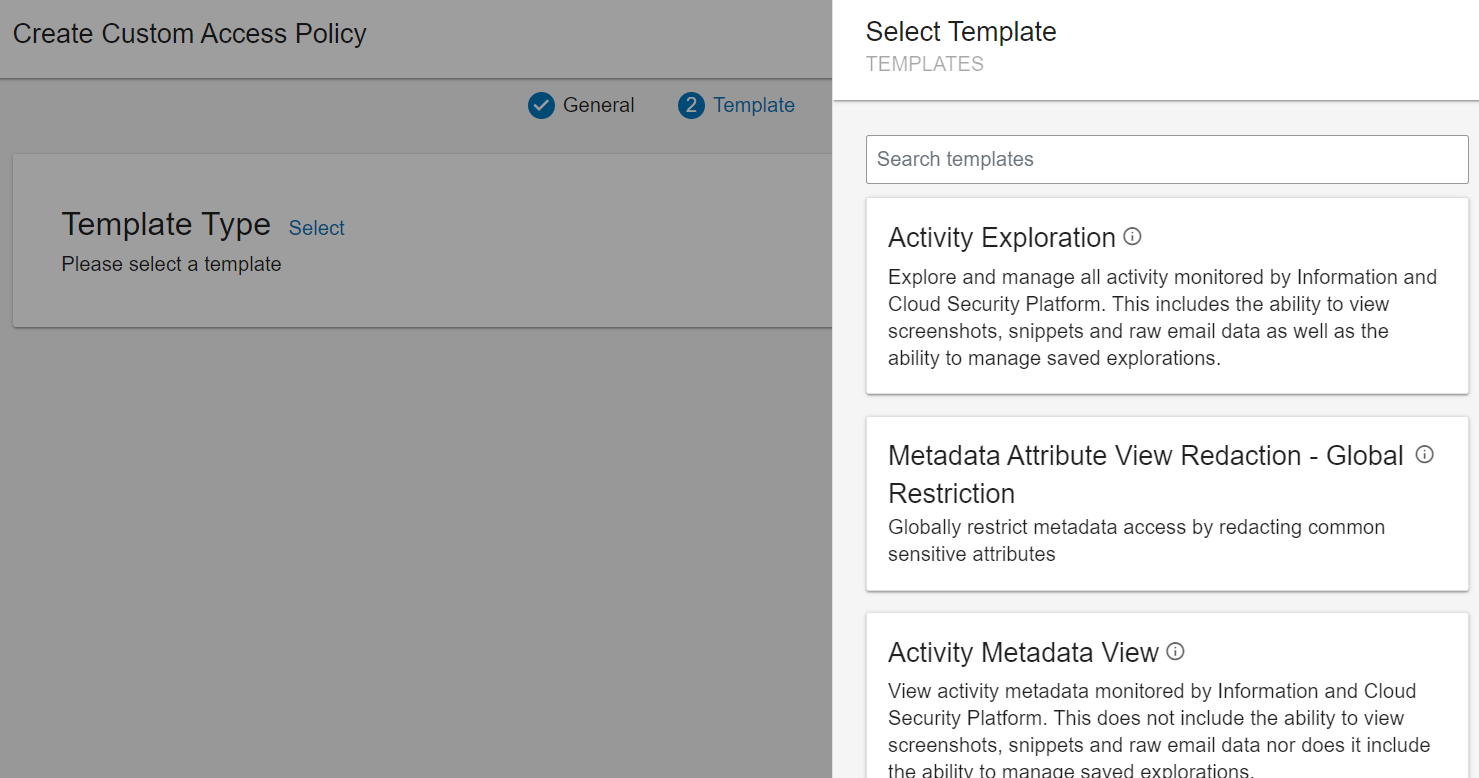
The Select Templates list displays.
-
Select Cloud DLP Tenants Access Global Restriction.
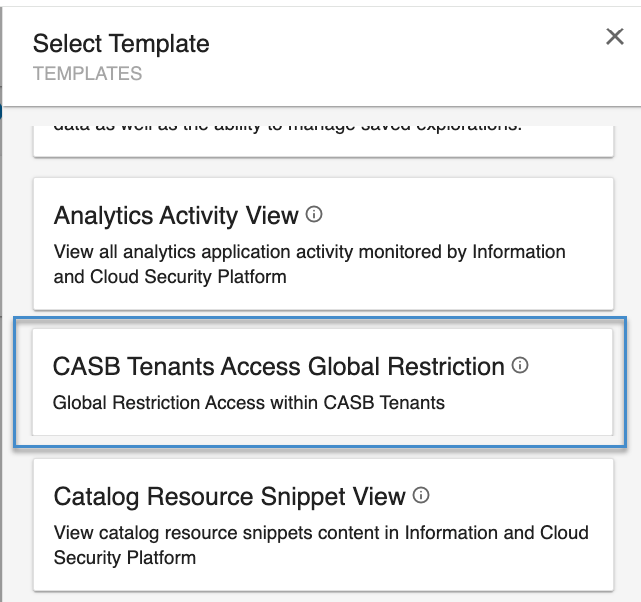
-
From the list, select the Cloud DLP tenants you would like to allow access to, and click Next.
In the example, the user has access only to ‘ProofpointADlab’ and ‘ProofpointADlab02(US)’ Cloud DLP tenants.
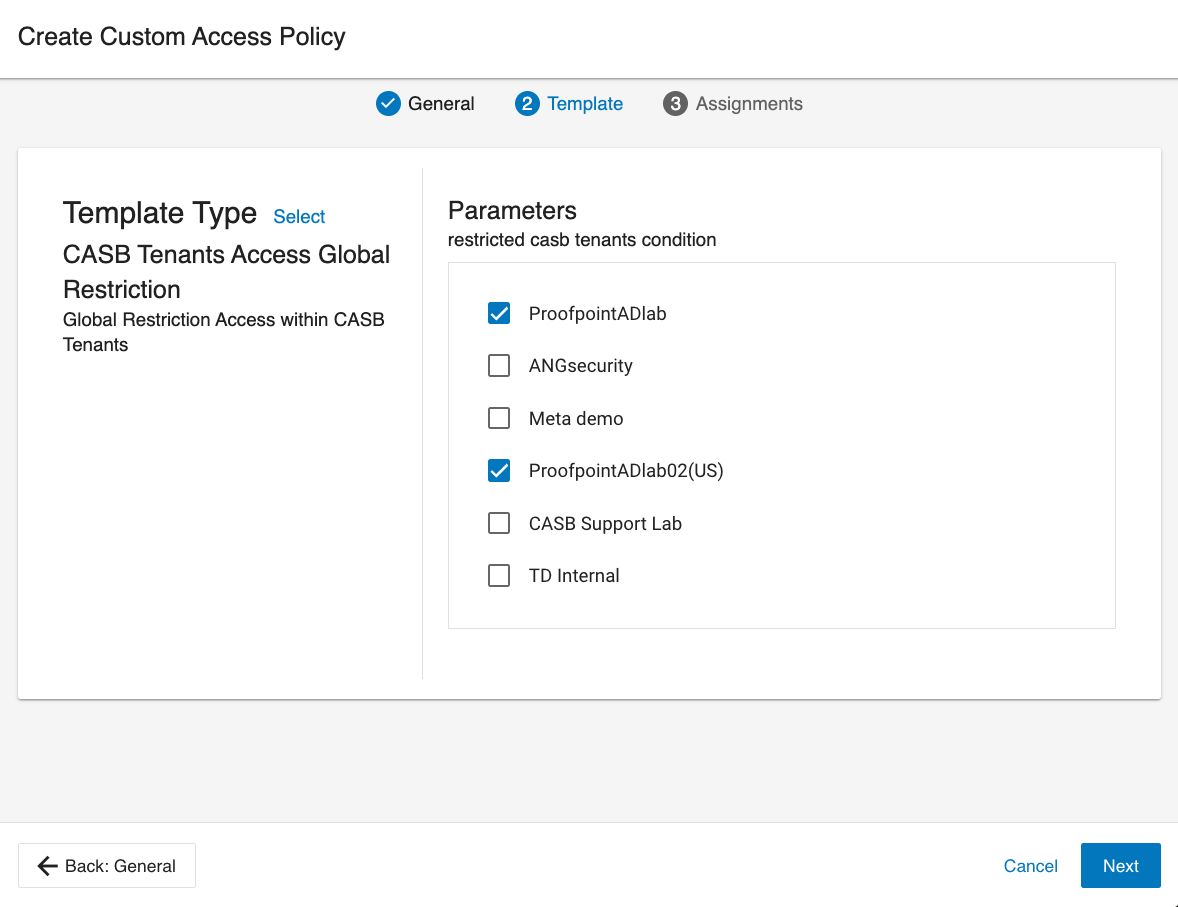
-
Click Save, and verify that your custom access policy was created.
Assigning Access Policies to Apply the Cloud DLP Tenant Segregation
The Cloud DLP Tenants Access Global Restriction policy you created is a restricting policy. It restricts user access to specific tenants and must be assigned together with a global Cloud DLP access policy that allows access to all Cloud DLPtenants (e.g. Cloud DLP Application Full Administration, Cloud DLP Application View, Cloud Activity View).
Access policies can be assigned to users, groups or personas.
-
From User Management > Users, select the user\group\persona you want.
-
From Access Policies area, click Edit.
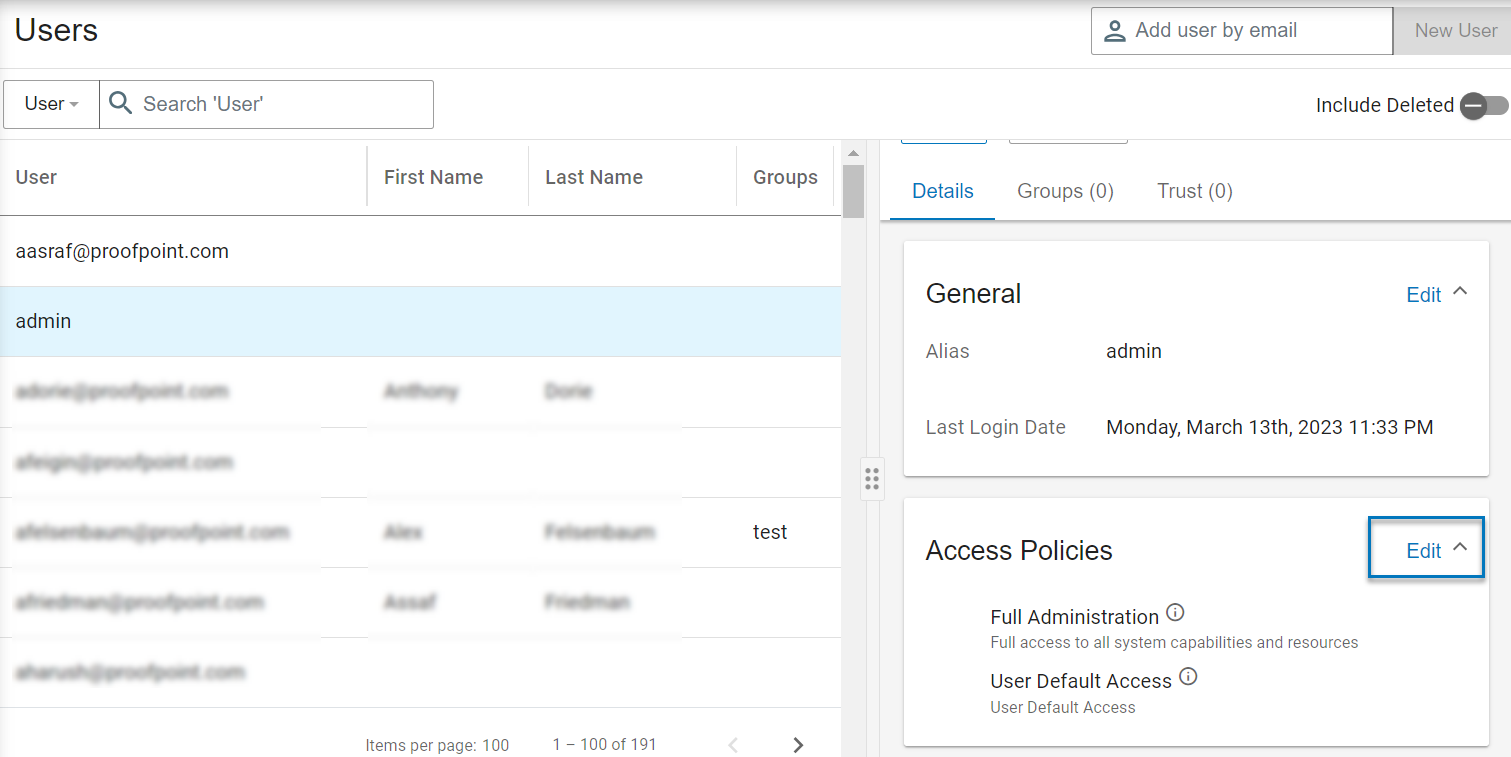
-
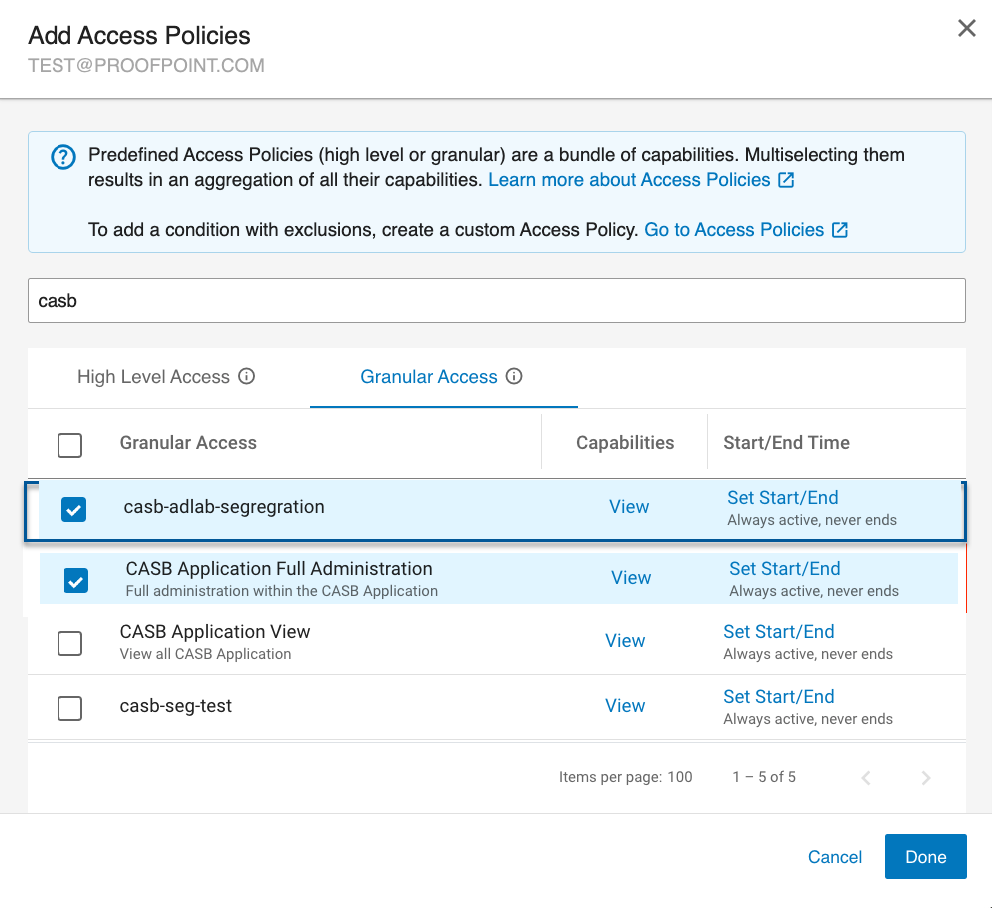
Select a policy that will allow the user access to the Cloud DLP app (e.g. Cloud DLP Application Full Administration, Cloud DLP Application View, Cloud Activity View).
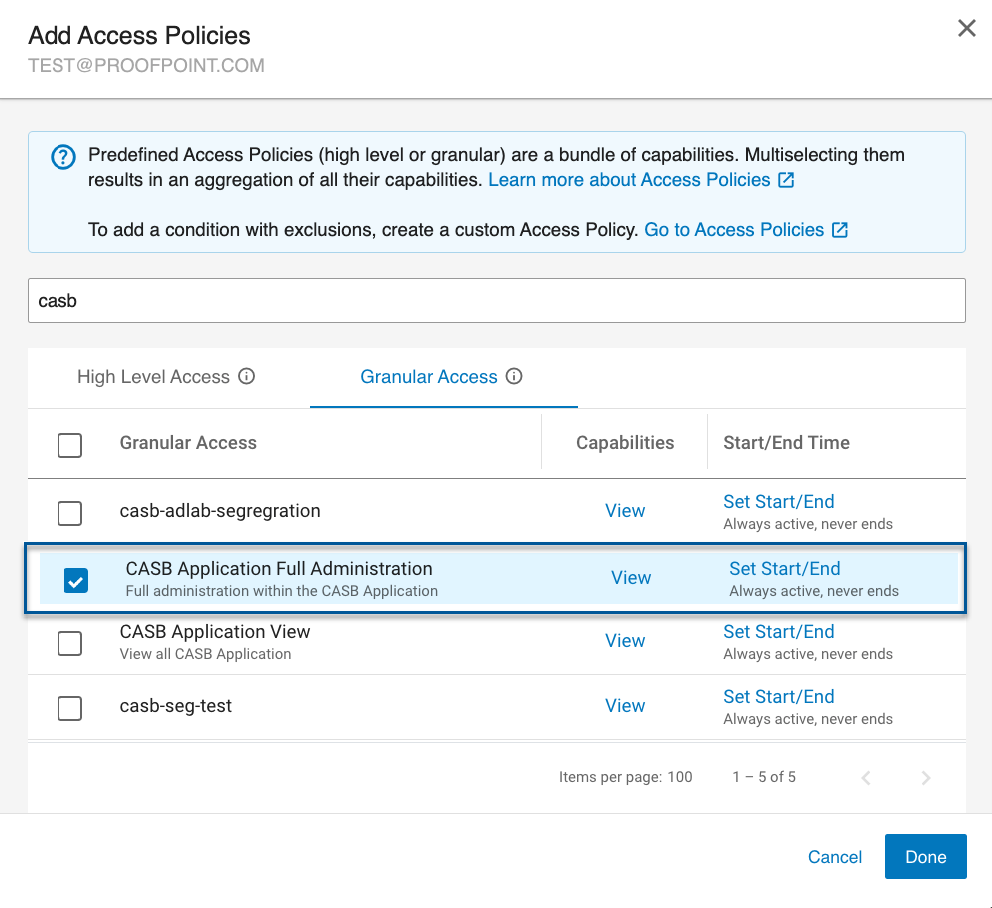
-
In addition, select the Cloud DLP Tenants Access Global Restriction you created. (In the previous example, you created Cloud DLP -adlab-segregation.)
-
Click Done, and verify the two policies were assigned.
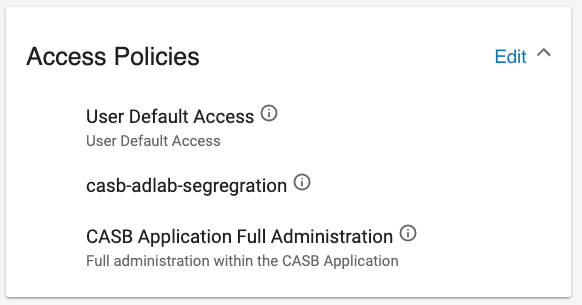
With the restricting policy, the user can see only the restricted policies. In the example, ProofpointADlab and ProofpointADlab02(US) were included in the restricted policy.

If there was no restricting policy, the user can see all policies, including the restricted policy.