This topic describes how to manage screen recording policies.
Grant Permissions
Due to Apple security controls that prevent granting Screen recording permission remotely, when the Mac Agent is installed, screen recording requires user permissions. Permission can be granted by the user manually or via UI automation script will perform the steps of the manual process.
Granting Permissions Automatically
You can turn on permissions from the Agent Realm. A UI automation script runs that grants permissions to capture screens shots.
To enable this script, turn on the Automatically Grant Permissions to Capture Screenshots (MacOS) setting at the Realm level. (Administration > Endpoints > Agent Realms > Advanced Settings > Recording > Automatically Grant Permissions to Capture Screenshots(MacOS)).
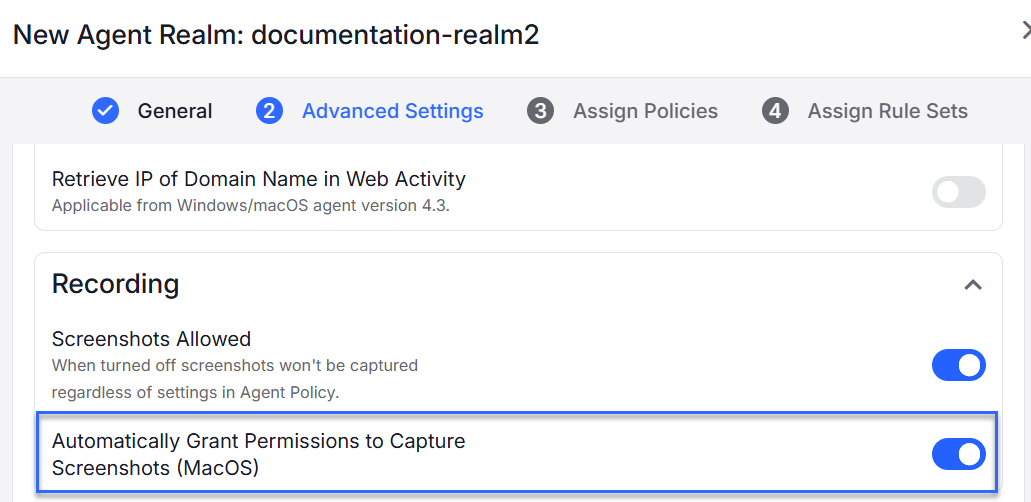
When enabled, screen recording is allowed and the pop-up no longer displays.
-
From macOS Agent 4.4.3 and later, the ITClientUtility app is automatically selected.
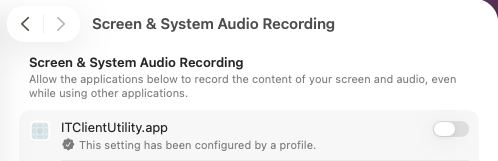
-
From macOS Agent 4.4.2 and earlier, logger is automatically selected.
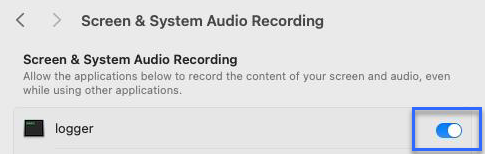
As the UI automation script runs, the interactions may be visible.
With macOS Version 26.1, screen recording will not be available for first time screen recording users. Users who already have functioning screen recording on versions prior to 26.1, will not be affected by this limitation. This issue is resolved with release 4.4.3.
You can suppress macOS screen capture alerts.
This is not the same as granting permissions. It only suppresses the user-facing alert, not the security enforcement.
Granting Permissions Manually
On macOS, you can manually grant permissions when the Screen & System Audio Recording pop-up appears, prompting you to enable and allow the process for screen recording.
macOS Agent 4.4.3 and later
Starting with mac Agent version 4.4.3, you must enable ITClientUtility.app in macOS System Settings.
-
When the macOS pop-up appears, click Open System Settings.
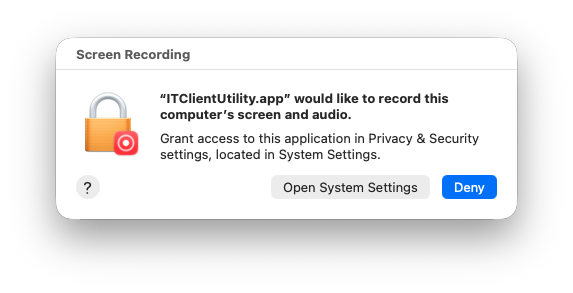
-
In the Screen & System Audio Recording prompt, select ITClientUtility.app.
macOS Agent 4.4.2 and earlier
From macOS Agent version 4.4.2 and earlier, you must enable logger in macOS System Settings.
-
When the macOS pop-up appears, click Open System Settings.
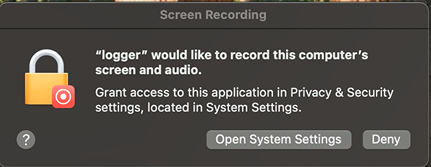
-
In the Screen & System Audio Recording prompt, select logger.
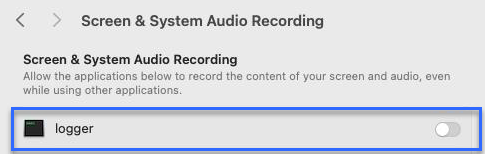
Control Center Privacy Indicator
In the Control Center on Mac, a purple dot  displays, indicating that the system audio and/or screenshots are being recorded. This is a privacy indicator, introduced by Apple in Sequoia is not specific to Proofpoint. Any application that records the screen (e.g. Zoom, Teams) will trigger this indicator.
This indicator cannot be turned off or hidden when screenshot recording is enabled for the Proofpoint Agent. If screenshot recording is not required, disable the Screenshot Allowed option in the Agent Realm.
Endpoints > Agent Realms > Advanced Settings > Recording > Screenshot Allowed)
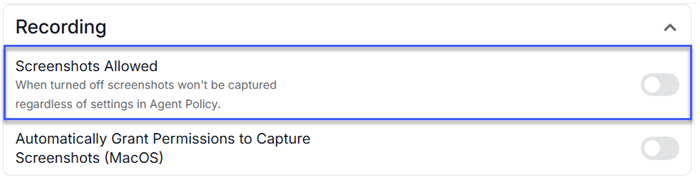
Clicking on the purple dot displays the applications sharing the screen.
-
From macOS Agent 4.4.3 and later, IT Client Utility displays.
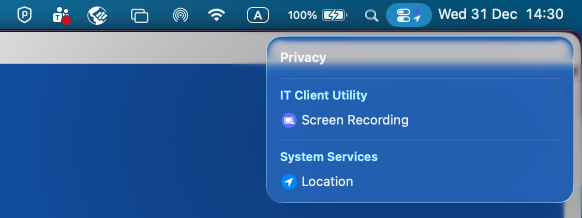
-
From macOS Agent 4.4.2 and earlier, logger displays.
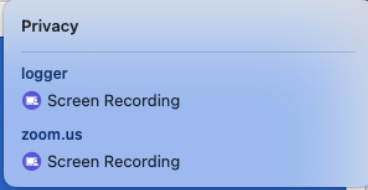
For macOS version 4.4.2 and earlier, you can rename the logger process. This does not eliminate the purple dot, but it allows you to choose the process name. To change the name, sign the Unsigned Configuration Profile IT Viewer macOS 11.mobileconfig with the name you want.
Suppress Screen Capture Alerts
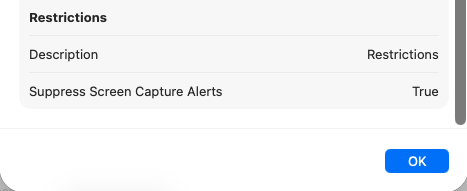
From the MDM you are using for deployment, you can suppress macOS pop-ups that appear when screen recoding is performed. Set Suppress Screen Capture Alerts to True via the MDM.
Use this screen to check that Suppress Screen Capture Alerts is set to True. (Located in your Apple Profile in Device Management.)
Related Topics:
Mac Agent and Apple Privacy Controls
Configuration Profiles - Mac Agent and Apple Privacy Controls