Deploying Proofpoint ZenWeb to Safari - MDM Installation
This topic describes how to use Mobile Device Management (MDM) to deploy ZenWeb to Safari on Mac.
To deploy to you will need:
-
Apple Business Manager: Apple Business Manager (ABM): Used to acquire the extension licenses ($0 cost) and assign them to your MDM, which then receives the app and its entitlements.
-
Proofpoint ZenWeb Extension
-
MDM such as Jamf Pro
When you set up Proofpoint ZenWeb Extension, you must configure the following Apple's Declarative Device Management (DDM) parameters:
Configure the Extension with the following parameters.
These parameters may be named differently in the MDM you are using.
-
Extension identifier: com.proofpoint.zenw.zenweb.extension (DJR63QYCGL)
-
Extension state: Always on
The extension is enabled automatically and users can’t turn it off, so ZenWeb protection stays active without requiring any action from them.
-
Private browsing state: Always on
Safari disables extensions in Private Browsing by default, so this keeps ZenWeb protection active in private windows too.
-
Allowed Domains: * (to indicate that all domains are allowed)
ZenWeb needs access to all websites so protection applies wherever users browse, not just on specific domains.
Acquire ZenWeb Licenses in Apple Business Manager
-
From Apple Business Manager, acquire Proofpoint ZenWeb Extension (for free).
Make sure you select Proofpoint ZenWeb Extension and not Proofpoint ZenWeb.
Direct link to this purchase is https://apps.apple.com/us/app/proofpoint-zenweb-extension/id6795591419
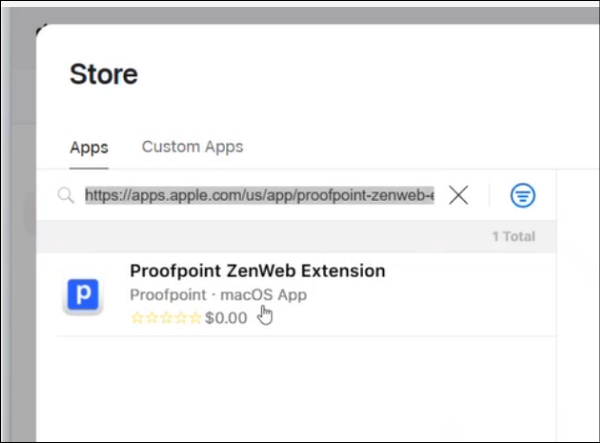
If you do not see the ZenWeb Extension, it is currently not available in your region. Contact your Proofpoint representative to open your region.
-
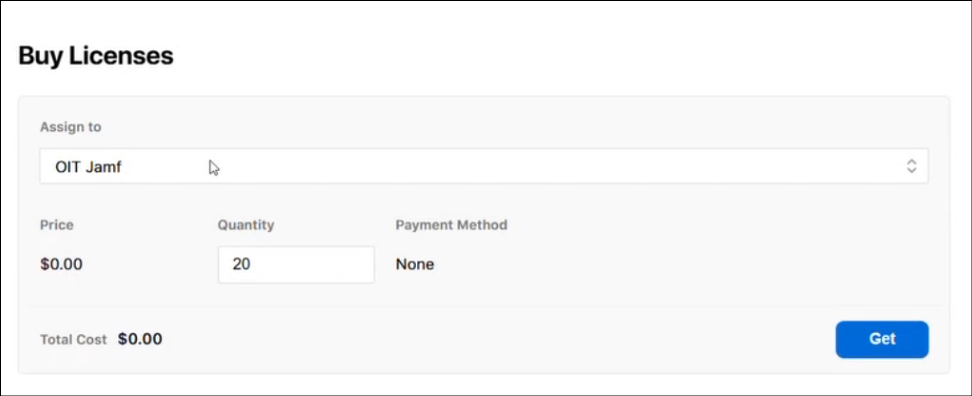
In Buy Licenses area, Assign to the MDM (such as JAMF). Choose the MDM and the Quantity of licenses.
-
You can review the license status in the Manage Licenses area.
Setup ZenWeb for Safari
This example shows how to set up in Jamf Pro.
-
Login to Jamf Pro.
-
From the Jamf Pro Dashboard, select Computers > Mac Apps.
-
Select Mac apps and choose the App Store tab.
-
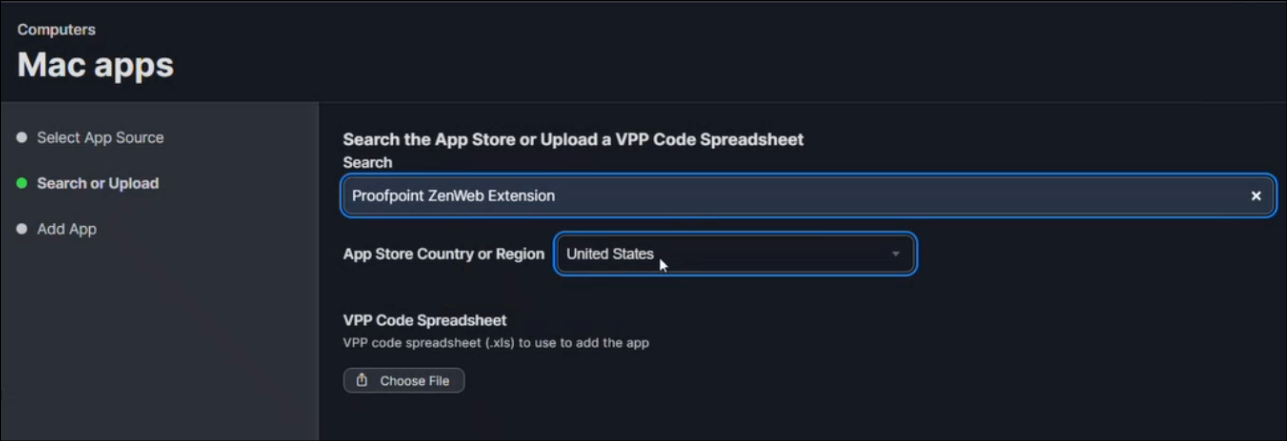
Click New and from App Source select Mac App Store. Click Next.
-
From Search, locate and select Proofpoint ZenWeb Extension. Click Next.
-
In the Add App screen, click Add next to Proofpoint ZenWeb Extension.

-
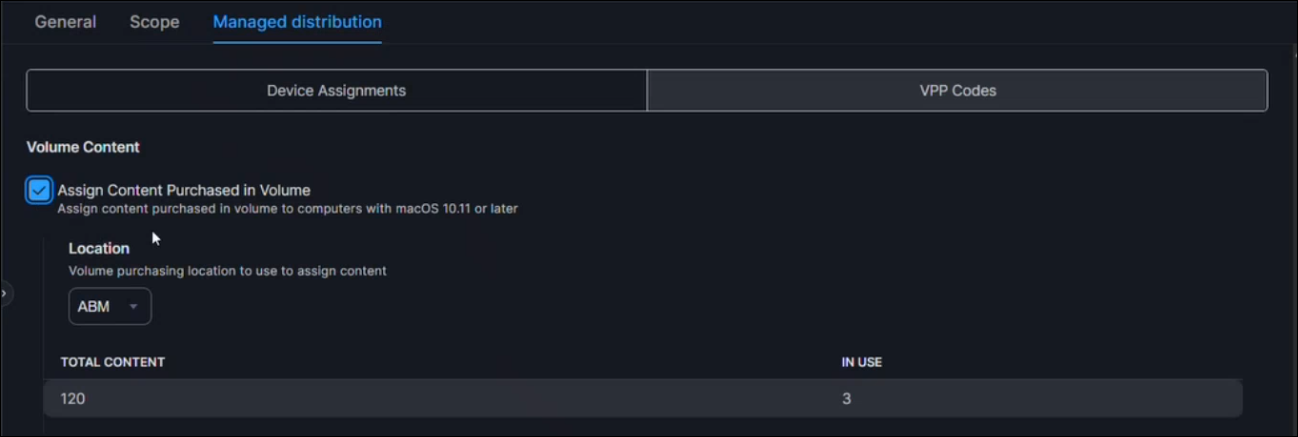
In Managed distribution, Assign Content Purchased in Volume should be selected.
-
From Blueprints, click Create.
-
In the Components Library, locate and select Safari extensions.
-
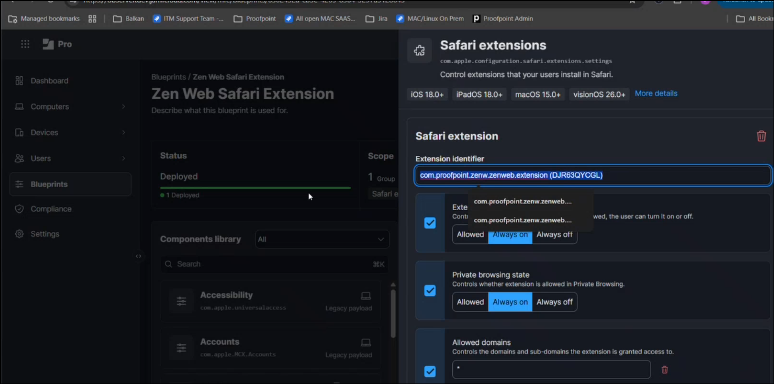
Configure the Safari extension as follows:
-
Extension identifier: com.proofpoint.zenw.zenweb.extension (DJR63QYCGL)
-
Extension state: Always on
-
Private browsing state: Always on
-
Allowed Domains: * (to indicate that all domains are allowed)
-
-
Click Save.
-
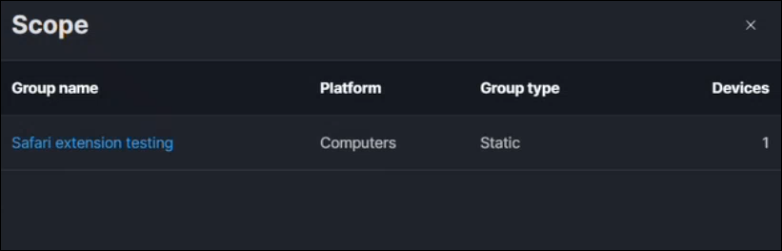
In the Scope, select the group of endpoints you want to deploy to.
-
Click Deploy.