This feature prevents printing of files with sensitive information.
Support includes Network Printer, Local Printer, and Print to File.
Enhanced Print Detection and Prevention
For Windows agent, the print-monitoring solution leverages two core technologies: Application-level interception and Spooler monitoring and control.
The combination of these approaches provides extensive coverage of print activities while ensuring a consistently high success rate for printing from the most used applications.
-
Application-level interception captures and controls print actions directly within supported applications and retrieves the printed content for inspection using application APIs or the source file. Because it operates independently of printers, drivers, and output formats, it delivers a high success rate and is not affected by printer or format limitations. Supported applications include Microsoft Word, Excel, PowerPoint, Acrobat Reader, Chrome, Edge, Outlook (classic and new), Notepad, and Notepad++.
-
Spooler monitoring and control intercepts print jobs at the Windows Print Spooler level, renders the printed content for content scanning, and controls print job execution using Windows OS APIs.
Windows Print Spooler monitors print activity at the spooler level, so it is not sensitive to application type. This method enforces print policies across all applications, extending print detection and prevention coverage beyond the only supported applications.
This method serves as a fallback when an application is not supported by the Application-level interception.
In cases where printing from supported application fails to intercept the print, the printed job will be intercepted by the Spooler Monitoring and Control mechanism. Failure detections may occur in different scenarios as described in the declared limitations.
This approach is dependent on print formats and printer driver capabilities, as not all formats and drivers are supported. (This Spooler monitoring and control capability is currently released as Limited Availability (LA) and available upon request.) When the agent intercepts a print job, the rendering process generates a temporary file (.pxpsl) that captures the printed content. In some cases this file may appear in the printer queue as the originating source.
With Spooler Monitoring and Control, when the agent intercepts a print job, the rendering process generates a temporary file (.pxpsl) that captures the printed content. In some cases this file may appear in the printer queue as the originating source.
In cases where a print action cannot be supported due to a limitation or error, the agent behavior follows the configured realm setting for Action to apply on unsupported print action.
Print retention by the Spooler monitoring and control logic applies only to file formats supported by Ghostscript.
Validated Printers
The following printers have been validated by Proofpoint for print using Spooler monitoring and control.
-
DYMO LabelWriter 550
-
Dymo LabelWriter 550 Turbo
-
Panduit TDP46HE
-
Panduit TDP46HET
-
ZDesigner ZD621-203dpi ZPL
-
FF Multi-model Print Driver 2
-
HP LaserJet Pro M402-M403 PCL-6
-
Xerox Global Print Driver PS
-
HP LaserJet M203-M206 PCL-6 (V4)
-
HP Universal Printing PS
Starting with Windows Agent version 4.4, print detection leverages a new technology based on events intercepted directly from the spooler, replacing the previous method that relied on general operating system events. This advancement provides significantly improved accuracy and reduces false positives. The enhanced detection is applied in both the monitoring (detection) and blocking (prevention) flows.
The new technology comes with a known limitation that the URL domain is not captured when printing is initiated from a web browser.
CUPS Technology for Mac Agent
From mac version 5.2, Content Scanning for Print (Detection and Prevention) uses the Common UNIX Printing System (CUPS) instead of the previous NFW technology. This change expands print detection and prevention coverage across a broader range of supported applications.
CUPS is a native printing framework used by macOS.
With CUPS, the agent intercepts print jobs and gain access to printed content before sending it to the Content Scanning service.
Supported Files Types
For supported file types, content is scanned and printing is prevented according to the prevention rule you define. (Depending on the rule settings you choose, you can either block or prompt the user.)
To enable this print prevention, from Processing settings in the Advanced Settings of the Realm, enable Print Prevention. This option is available only when you have enabled Advanced Settings > Processing > Prevention.
Print Prevention Support
Print prevention is supported for the following:
-
Windows: Microsoft Word/Excel/PowerPoint, Outlook (classic and new), Acrobat Reader, Chrome, Edge, Notepad, Notepad++
-
Mac: Microsoft Word/Excel/PowerPoint, Acrobat DC Reader, Preview
Pinter Type field is only supported on Win Agent. For mac agent use Device URL or Device Schema fields.
Print Detection and Prevention for Microsoft Word and Excel and Acrobat Reader Notes
When an Excel document is printed the whole document is scanned not just the sheet printed.
For Windows Agents:
For MS Word and MS Excel, content scanning will scan the actual content of the document in edit mode. So the scan is on the most recent content.
For MS Word and MS Excel, content scanning will scan the actual content of the document in edit mode. So the scan is on the actual content that was sent to print.
For Acrobat Reader, the saved file content is scanned.
For Acrobat Reader, the saved file content and not the actual content sent to print is scanned.
When a file is sent to print using Right Click + Print from Windows File Explorer, an instance of the program must be opened.
If you run Word / Excel files as Administrator, print will not be prevented.
Print prevention for Save to pdf is the same as Print to pdf.
When a print action from Acrobat Reader is blocked, closing the agent blocking pop-up may result in the Print dialog either remaining open or closing, depending on the case.
For Mac Agents:
For Mac Agents, print detection with Content Scanning is supported from version 4.3.0.
Print Prevention from Microsoft Outlook
Print Prevention supports Microsoft Outlook. The body of emails that are sent or received can be scanned. The mechanism is based on evaluating the rule criteria when the Print window is opened and is all criteria is matched. The large Print button will be disabled.
Print Prevention from Outlook occurs when Print is selected from Outlook menu, before the destination printer is chosen. Printer Name and Printer Type are therefore not supported as fields for Print Prevention from Microsoft Outlook.
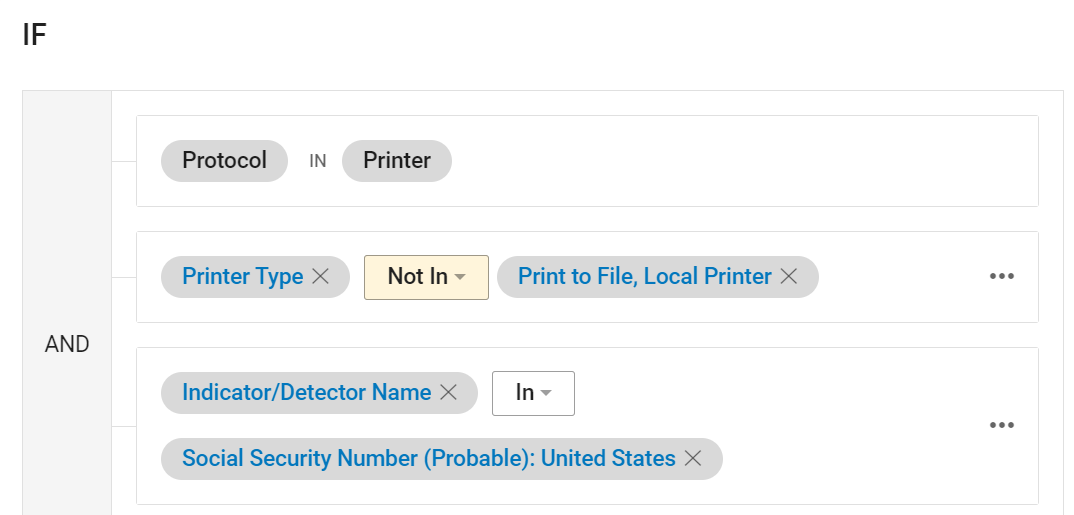
If you already have Prevention Rules on print based on Printer Name/ Printer Type, it is recommended that you modify them to use the Not In condition.
For example, you already have a Prevention Rule to block printing of sensitive information to Network Printers based on the condition
Printer Type In Network Printer.
It is recommended to modify it to:
Printer Type Not In Print to file, Local Printer as shown.
Known Issues
Print Prevention from PowerPoint
Print Prevention supports Microsoft PowerPoint.
Only content sent to print is scanned. This does not include comments or any other content that is not sent to the printer.
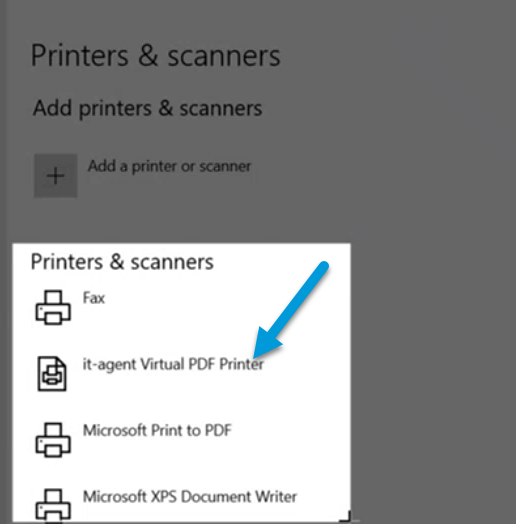
Print Prevention from PowerPoint is handled by a virtual printer (it-agent Virtual PDF Printer) that is automatically added when you install the Agent.
Known Issues
Filter By
You can filter by:
-
Indicator/Detector Name (Detector > Indicator/Detector Name)
-
User Name (User > User Name): Name of the user monitored.
-
Groups (User > Groups): Groups a user is a member of.
-
Printer Type (Devices > Printer Type)
-
Printer Name (Devices > Printer Name)
-
File Name (Files/Resources > File Name)
Printer Type is not supported on Mac. The agent automatically matches condition of Printer Type with operator Not In.
Example: Prevent Printing of Files with Sensitive Information
In this example, you want to scan content to make sure that files with social security numbers are not sent to print.
-
From Proofpoint Data Security, select the Administration app. Select Endpoints > Prevention/EndpointRules.
-
Click New Rule and from the Prevention Rule area and click Create Rule.
-
In General tab, complete the Name and Description (optional) fields. If you want to add a tag to the rule, in the Rule Tags area, click Add tags and select the tag from the Add/Edit Tags list. Click Done. (For more information about tags, see Tag Management .) Click Next.
-
In the Activity tab, select Printer and click Next.
-
In the Settings tab, define the new rule using if/the logic. In the If section.
-
Protocol is Printer and Categories is File Write.
-
Now add the detector you want to block.
Click Add Row. From Select dropdown, select Detector > Indicator/Detector Name.
From Select Values, select Social Security Numbers. Click Done.
-
in the Then section, select Block to block or Prompt the User to Provide a Justification if you want you can add a Notification Policy.
-
In the Agent Policies tab, select the Agent Policies you want associated with this prevention rule. Click Save.
Print from an Unsupported Program
This option prevents users from exfiltrating sensitive data using an application that the Agent does not support print monitoring activity. This feature acts as a low level gatekeeper, intercepting all print jobs and applying any relevant rules.
Currently supported actions are Allow and Block. Prompt is not supported.
This feature is enabled at the Realm level in the Processing area, Print Prevention > Action to apply on unsupported print action in the Advanced Settings of the Agent Realm.
Action to apply is either Block or Allow and by default, the action is set to Block. An End User Notification must be assigned for Block action.
When this feature is initially turned on by Proofpoint, by default, the action is set to Block and the default prompt notification for the Realm is assigned. To modify and save the Realm, use Allow action if relevant or Block action with an End User Notification.
You must assign an End User Notification for a Block action. A Realm cannot be saved with the default prompt notification for a Block action.
Print Prevention must be enabled to use this feature.
Mac Agent
Print Prevention with content scanning is supported only on saved files/content.
Mac Agent supports the following:
-
Print Shortcuts and ‘command’ + P
-
Print from Finder Menu (when supported app is not opened)
Print prevention is not supported when Print Dialog is not used.
Block and Prompt (Justification) actions are supported.
Content Scanning based Print Prevention
For Mac Agents: New permissions were added in the 4.0 Configuration Profile for the Content Scanning based Print Prevention on Mac. You must update the Configuration Profile to use this feature.
From mac version 5.2, CUPS technology replaces NFW technology.
This capability is supported when printing via the menu of the supported applications, for both the Block and Prompt actions. It allow preventing printing based on:
-
DLP Detectors (content scanning)
-
Printer Name
-
User/Group
During Content Scanning, Print dialog freezes.
Print to USB Printer
Mac Agent can detect when a user prints to a printer connected to a USB.
From Mac Agent 4.2.0, this feature is available for detection rules.
From Mac Agent 4.3.0, this features is also available for prevention rules.
Since corporate printers are often network printers, this feature provides a way of checking when users are printing to non-corporate printers.
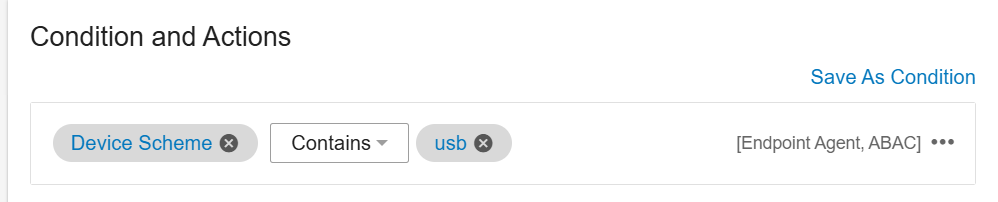
USB printers can be identified by Device URL or Device Scheme fields located inDevices. These fields are specifically for identifying USB connected printers.
Examples:
-
Device URL: Use this field to detect any URL that contains "usb", such as usb://Brother/HL-1210W%20series?serial=xxxxxxx.

-
Device Scheme, Use this field to detect when the value is USB.
Related Topics:
ITM / Endpoint DLP Prevention Rules