Attach to Desktop Applications
The Attach to Desktop Applications exit point enables organizations to detect, monitor, and prevent file attachment attempts to desktop applications such as messaging tools, email clients, and collaboration platforms.
This feature is supported for Windows from 5.1.0.
Data exfiltration often happens through desktop applications because users can easily attach and send files outside their organization often bypassing traditional controls.
This feature helps your organization:
-
Prevent data exfiltration through unmanaged or unmonitored applications
-
Detect risky user behavior before data leaves the organization
-
Apply consistent DLP policies across browsers and desktop apps
-
Gain visibility into file movement across endpoint applications
The agent evaluates activity only for applications explicitly defined in the monitored applications list. Applications that are not listed are not monitored by this exit point. This provides you with precise control over coverage, allowing you to focus on high-risk or business-relevant applications while avoiding unnecessary monitoring.
This feature detects and enforces policies on file attachment attempts, not confirmed transfers. The agent identifies when a user attempts to attach a file, but it does not determine whether the file was ultimately accepted or sent by the application.
Excluded Applications
The following application types are hardcoded to be excluded from monitoring by the Attach to Desktop Applications exit point because they are already covered by dedicated Endpoint DLP capabilities:
-
Operating system file explorers (for example, Windows File Explorer)
-
Supported browsers (for example, Chrome, Edge)
-
Applications already explicitly managed by the agent through existing controls
Excluding these applications ensures no duplicate monitoring or policy enforcement, consistent and predictable policy behavior, and optimized performance with reduced noise. Any attempt to add these applications to the monitored applications list will be ignored by the agent.
Enabling Attach to Desktop Application
Attach to Desktop Applications is enabled at the Agent Realm level.
-
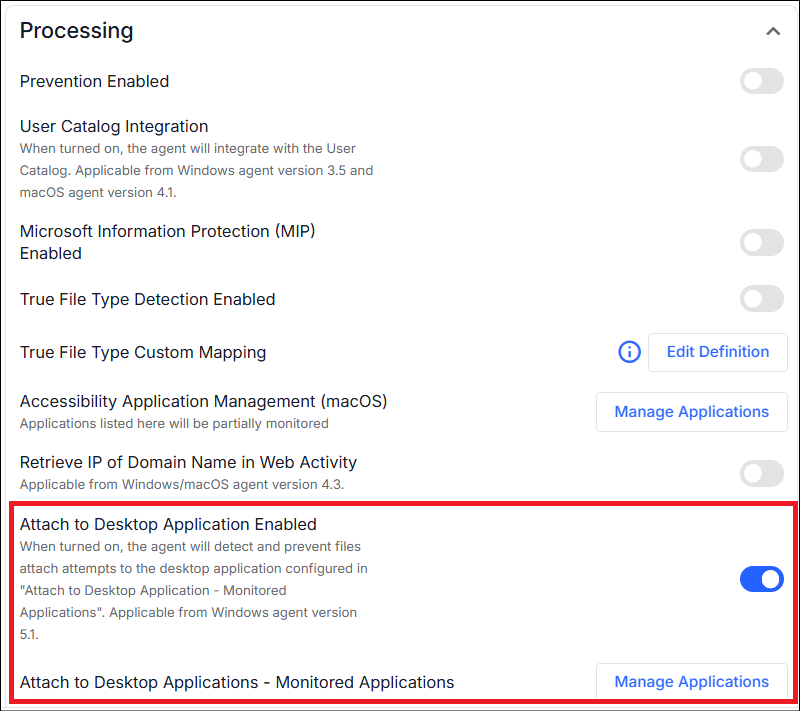
From the Administration application, select Endpoints > Agent Realms. In Advanced Settings > Processing, turn on Attach to Desktop Application Enabled.
-
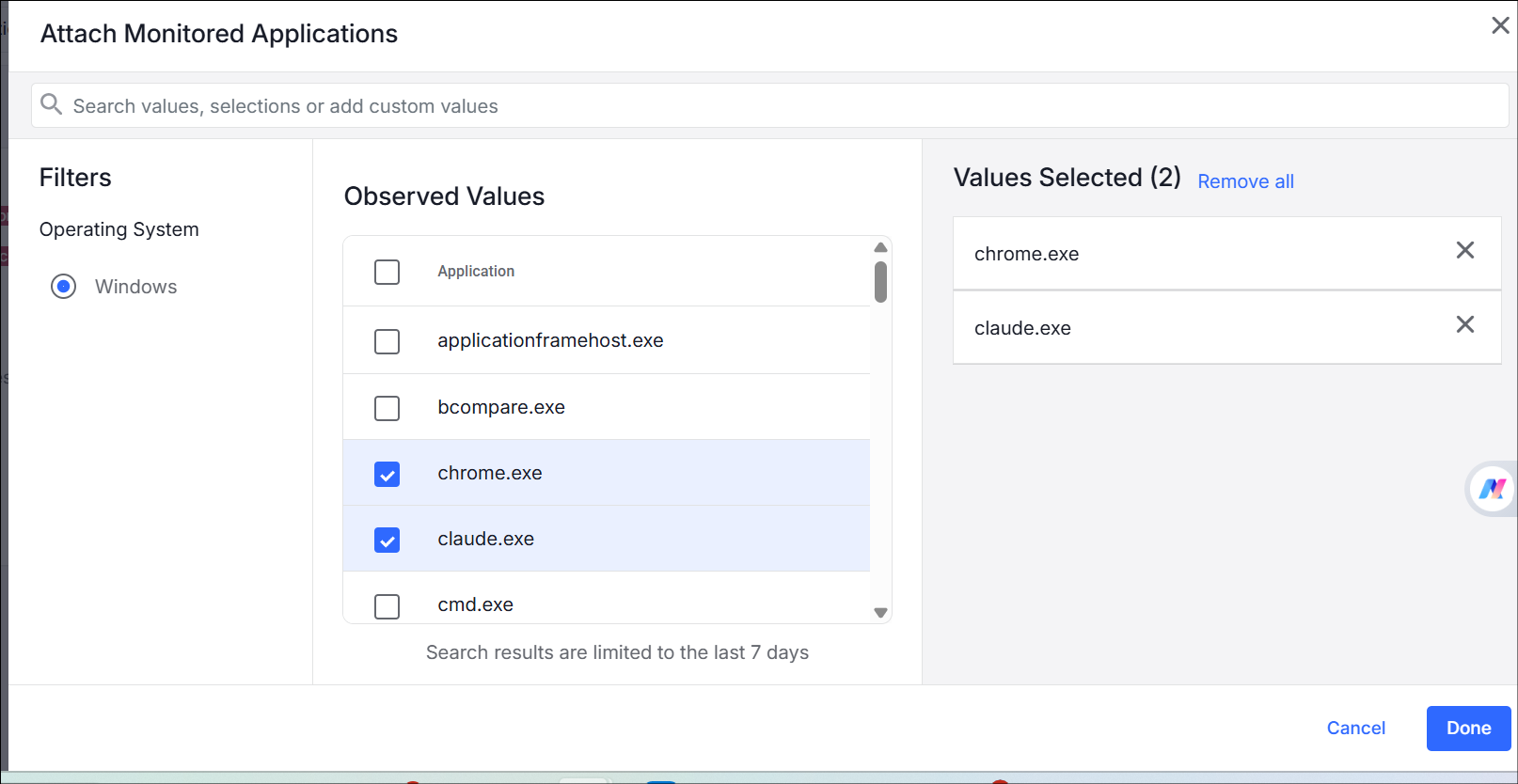
Select the applications you want to monitor. From Endpoints Attach to Desktop Applications - Monitored Applications, select the applications from Manage Applications.
-
From the list, select the applications or manually type the nameo of the application and enter to add an application to the list.
Detection of Attach to Desktop Applications
The agent detects file attachment attempts to desktop applications using:
-
File Picker (OS dialog)
-
Drag & drop from File Explorer
-
Copy & Paste from OS Clipboard
Prevention of Attach to Desktop Applications
You can create prevention rules for attachment attempts using:
-
Block (with or without file retention)
-
Prompt (with or without file retention)
-
Allow
Data Security Workbench
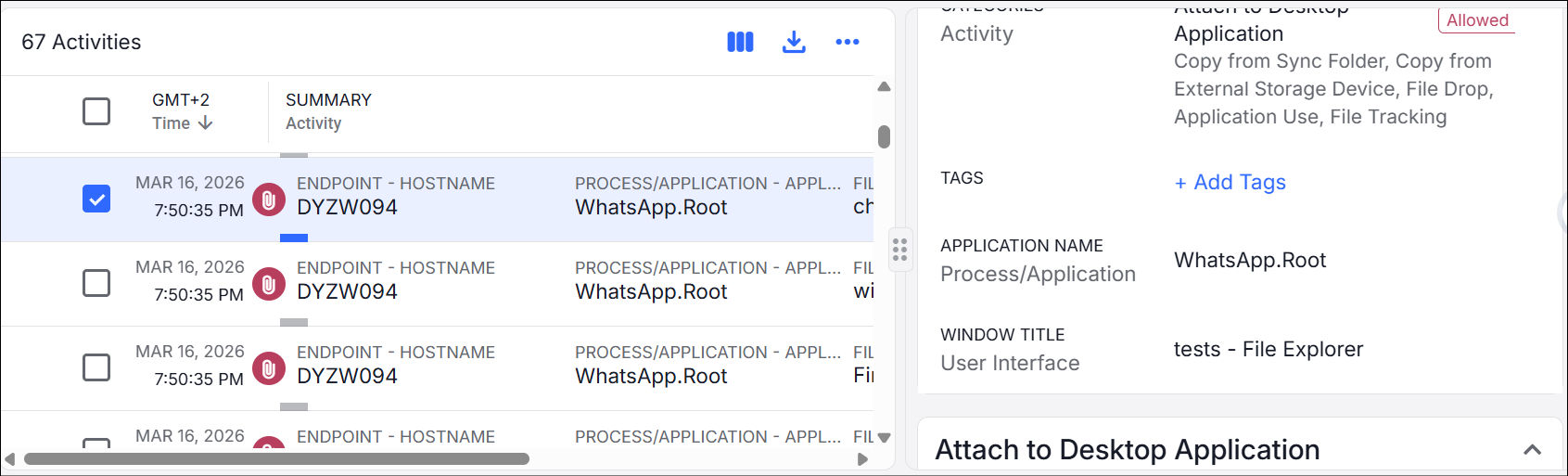
You can review and analyze the events in the Data Security Workbench with the following key fields:
-
Endpoint hostname
-
Application name
-
File name
-
Window title
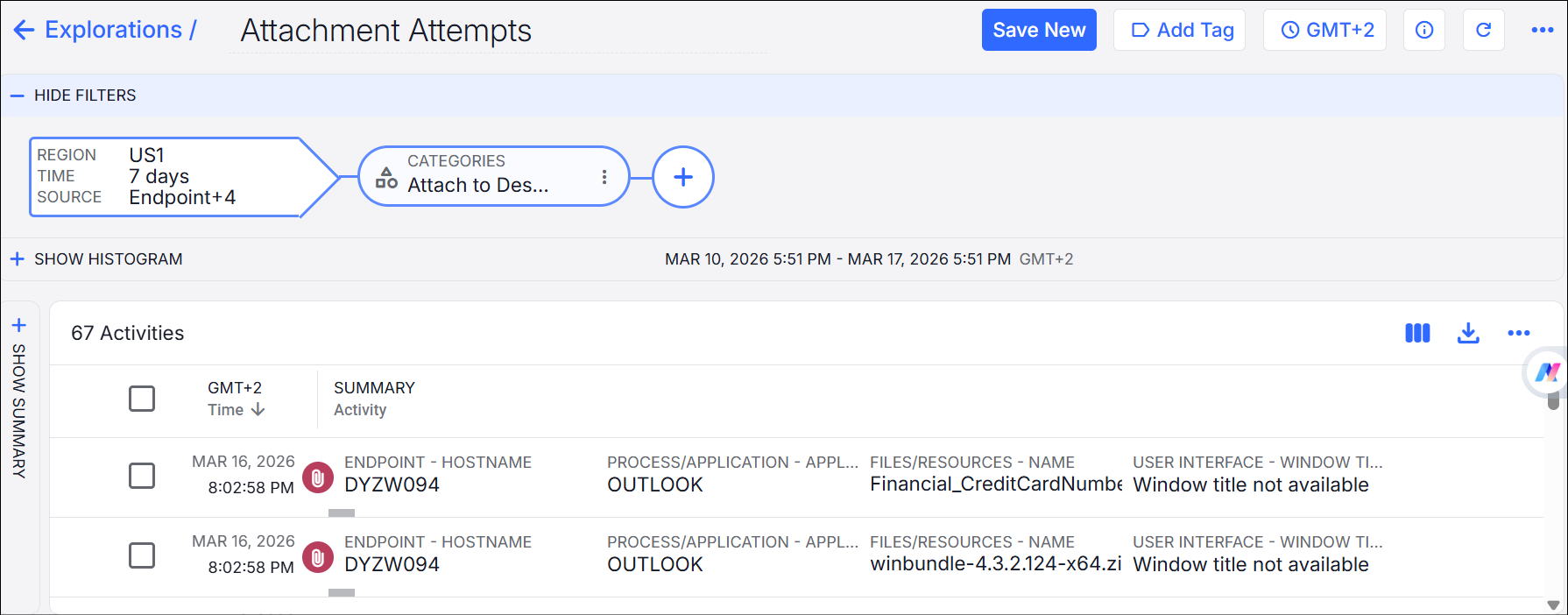
To create and Exploration, select Activity > Categories > Attach to Desktop Application.
In the example, you see the application and the files attached.
Notes and Known Issues
-
Detects and enforces policies on file attachment attempts only. The agent does not verify whether the file was successfully attached or sent.
-
Supports the following attachment methods only:
-
File picker (OS dialog)
-
Drag and drop from file explorer
-
Copy and paste
Other attachment methods are neither detected nor prevented, such as Outlook's Recent Items menu.
-
-
Drag-and-drop from non-file explorer sources (for example, Outlook or Chrome Downloads):
-
Not detected
-
Activity is logged
-
Prevention rules are enforced only when dragging from Outlook.
-
-
Files from Android devices attached to desktop applications:
-
Not detected
-
Always blocked when prevention is applied, with user notification to copy to local storage before attaching
-