Bluetooth - File Detection and Prevention
Bluetooth can act as an exit point through which sensitive information may be copied from the endpoint to a Bluetooth supporting device. To mitigate this risk, the Agent supports detecting and preventing file exfiltration via Bluetooth.
Supported for Windows from version 5.0.0.
Supported Capabilities
The Agent supports the following actions for file sent via Bluetooth:
-
Detection: Detect and alert when files are sent via Bluetooth
-
Content Scanning: Trigger scanning when files are sent via Bluetooth
-
Prevention: Block, allow or prompt for justification when files are sent via Bluetooth
The Agent can detect file transfer to Bluetooth device only when Windows OS Utility is used.
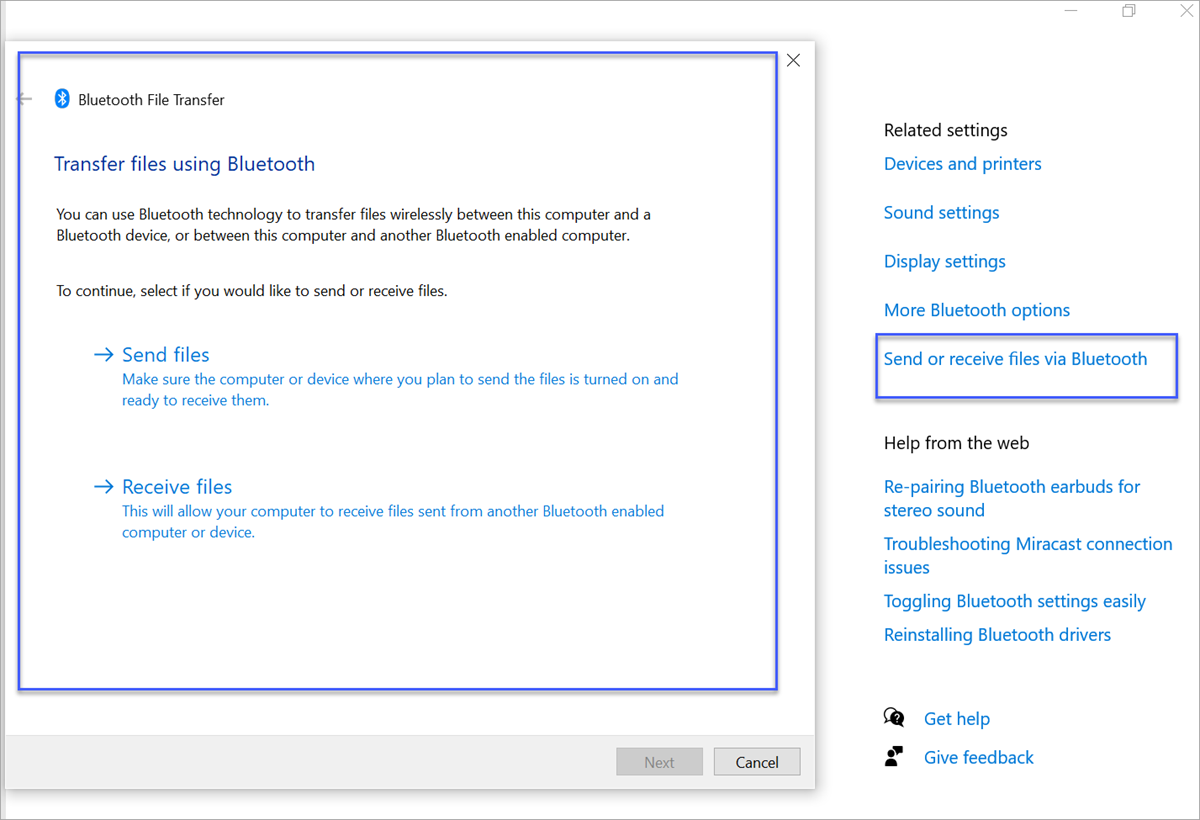
Any activity of file sent via Bluetooth is assigned the Primary Category /Category of Send File using Bluetooth.
Information about the Bluetooth device is located in Devices > Device Name.
Detecting Exfiltration to Bluetooth
To create a detection rule do the following:
-
Navigate to the Rules area of the Administration application > (Policies > Rules).
-
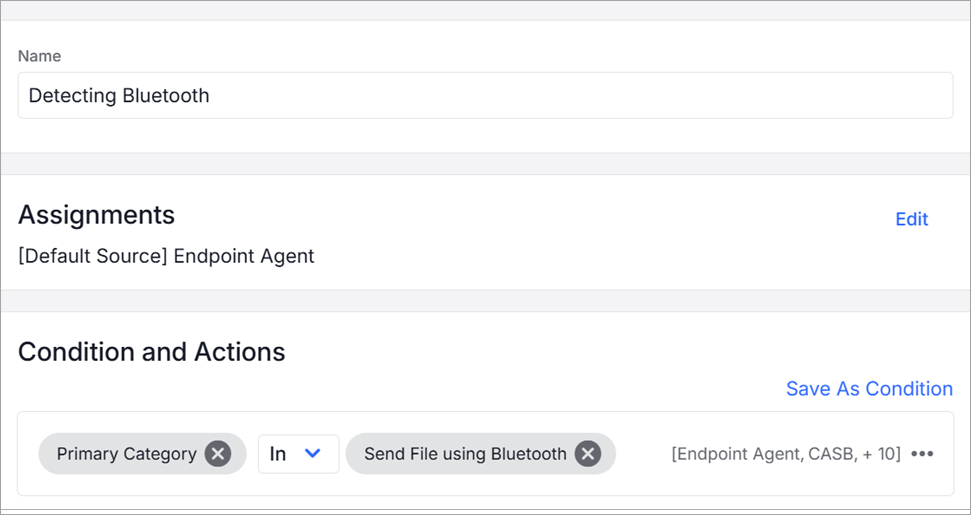
In Conditions and Actions select Activity > Primary Category and select Send File using Bluetooth as the value.
Content Scanning Trigger
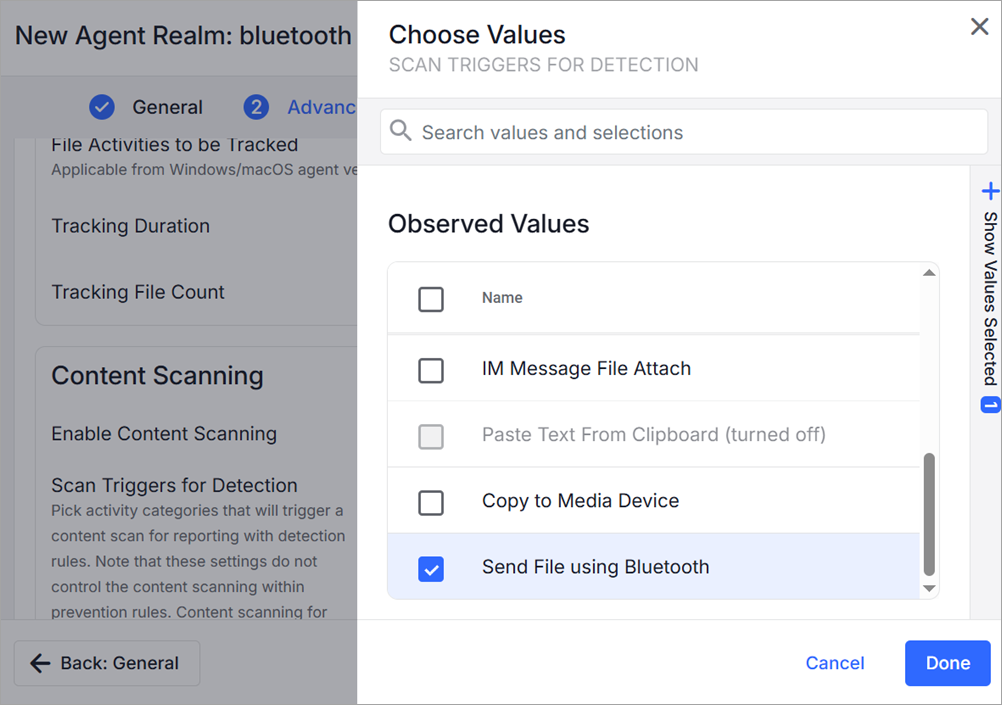
To enable content scanning for Bluetooth transfers use Send File using Bluetooth from scan triggers defined at the Agent Realm level.
-
In Administration app, in the Advanced Settings of the Agent Realm, turn on Enable Content Scanning.
-
From Scan Triggers for Detection, click Choose Values and select from the list.Send File using Bluetooth
Prevention of Exfiltration via Bluetooth
To prevent, prompt, or allow file exfiltration via Bluetooth:
-
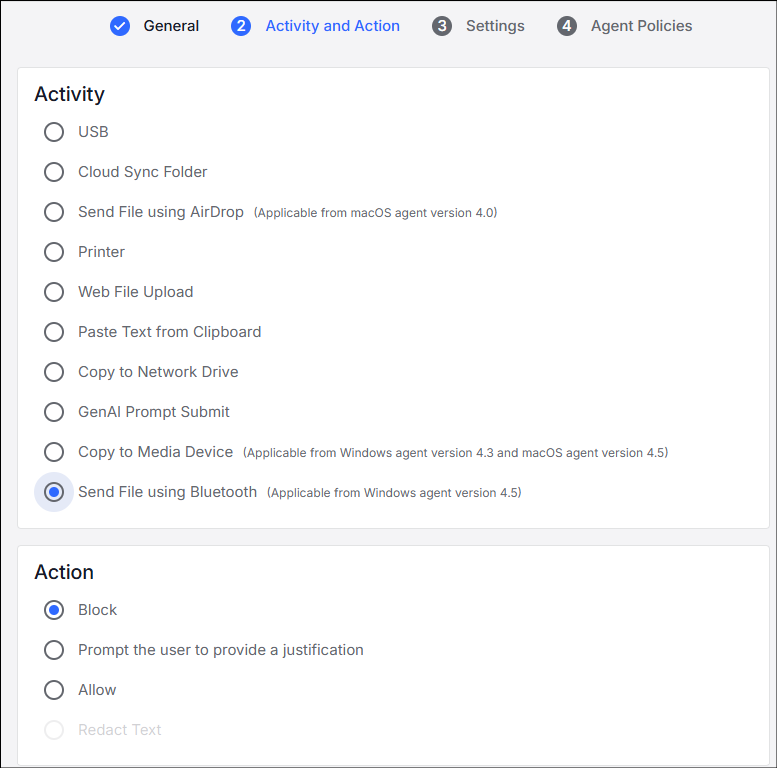
In the Administration app, go to Endpoints > Prevention/Endpoint Rules > Prevention Rules.
-
In the Activity and Action tab, select Send File using Bluetooth from the supported activities.
Supported Filters for Prevention Rules:
-
Detector
-
User
-
Files/Resources
-
Devices
Prevention and Unsupported Programs
Bluetooth file transfer is only supported via the Windows OS Utility. To prevent file exfiltration using unsupported programs:
-
In the Administration app, go to Endpoints > Agent Realm > Advanced Settings > Processing > Prevention Enabled.
-
Enable Disable Bluetooth file transfer when using unsupported programs.
When this option is enabled, any file copy/move activity via Bluetooth using unsupported programs automatically fails. Receiving files via Bluetooth will be blocked for all programs, including Windows utility, when this option is enabled.
No Proofpoint notification is sent when the transfer fails due to this setting.
Data Security Workbench - Exploration
This is an example of copy/move activity via Bluetooth.
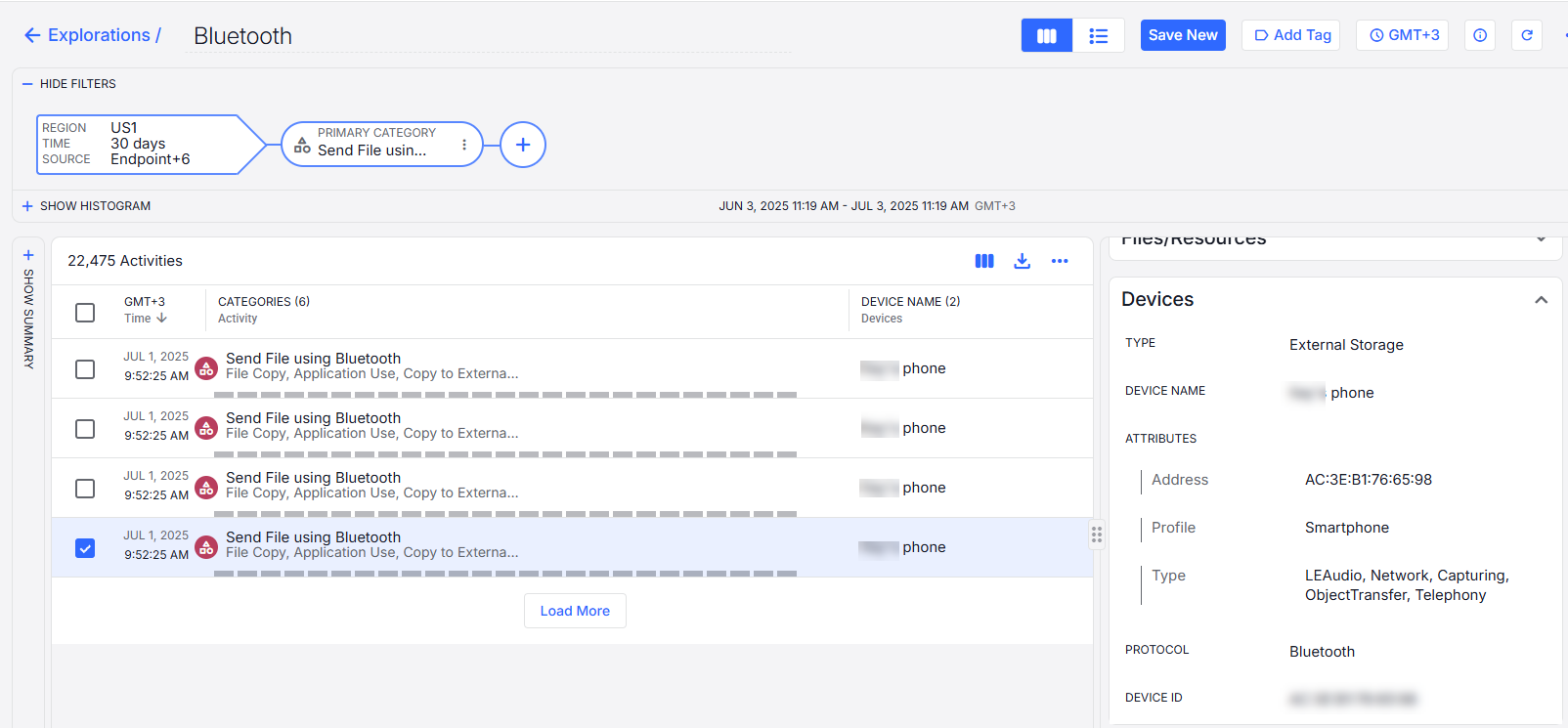
In the Details area of a selected activity, you can see the information about the Bluetooth device that the file was copy/moved to.
From Devices, you can see the following:
-
Attribute ID
- Address
- Profile
- Type
- Protocol
- Device ID
Related Topics: