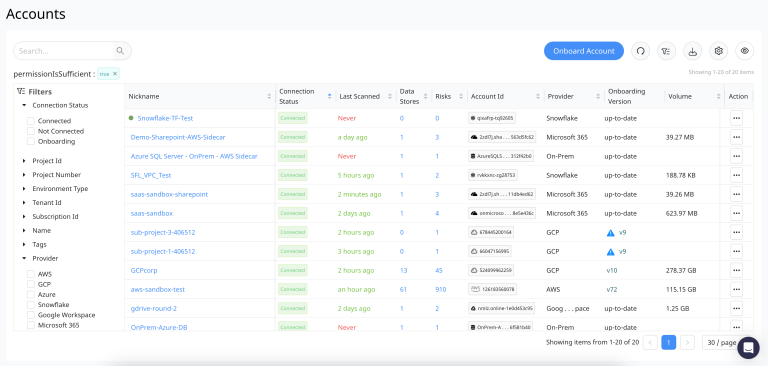
View critical account information
This section lists all the Accounts that are onboarded to DSPM with important details outlined below. Administrators can see an overview of all the accounts with their current status and health.
Select a listed account to view the configuration used for onboarding which includes the following key items:
- Assume Role - This is the role name that is used for setting up the stack on the cloud account.
- Onboarding ID - This is the unique ID assigned for each account.
- External ID - This is the unique ID assigned to each account and is used for all external related operations.
- Org Account - This field shows if the account is a parent account under which other accounts reside.
Account Details
|
Field |
Description |
|---|---|
|
Nickname |
Chosen nickname for this account |
|
Account ID |
This displays value set of Account Id at the time of account onboarding. Following is the format used for displaying this value : Azure - it is the first 12 characters from the Subscription ID. GCP - it is the Project Number. OneDrive - it is the value set for Microsoft 365 Domain Sharepoint - it is the value set for Microsoft 365 Domain |
|
Project ID |
GCP Project ID |
|
Project Number |
GCP Project Number |
|
Environment Type |
Displays the value for Environment as set during the Onboarding. |
|
Tenant ID |
Azure Tenant ID |
|
Subscription ID |
Azure Subscription ID |
|
Name |
Name associated with the accounts |
|
Tags |
Identifiers for the associated objects where the Risk is applied. For example: - Tags to identify which cloud object the risk applied to like storage, lambda, VPC |
|
Data Stores |
Count of Data Stores in the selected account |
|
Risks |
Count of Risks found in the data stores in the selected account |
|
Provider |
Cloud provider |
|
|
Designated email for the selected account |
|
Scan Status |
This column shows if the scanning has happened successfully or not. |
|
Onboarding Version |
Version of DSPM when the account was onboarded |
|
Log Scan Enabled |
Yes or No |
|
Vulnerability Scan Enabled |
Yes or No |
|
Access Details Scan Enabled |
Yes or No |
|
Connection Status |
This column shows if the permissions are correct and DSPM is able to connect to the cloud account. |
|
Last Scanned |
This column shows time elapsed after the scanning has completed successfully. |
|
Custom Tags |
Custom tags created for the selected account |
|
Action |
Show options for actions that can be taken per account |
|
Volume |
Displays the Total Volume of data at the Account level which is sum of the volumes of all the individual data stores under the Account. |
|
Parent / Child Accounts |
If Organization based onboarding is used then it will list the Organization account (designated as Parent) and the sub-accounts linked (designated as Child). It is displayed as Hypelink to parent account from child and vice-versa. |
For Google Workspace and Microsoft M365, the "Volume" column will show volume information once a Data Scan has sucessfully completed for the respective Data Store(s).