To view the new Risk pages, click your profile icon. In the New UI section, turn on the Risks toggle.
The Risks page contains information for all of the risks discovered in your cloud accounts.
Each risk is linked to the resource in which it was detected. Detailed information is shown for each risk, such as the resource name, cloud account name, when the risk was first seen and last seen, the risk impact, and risk severity.
To view the Risks page, select Investigate > Risks.
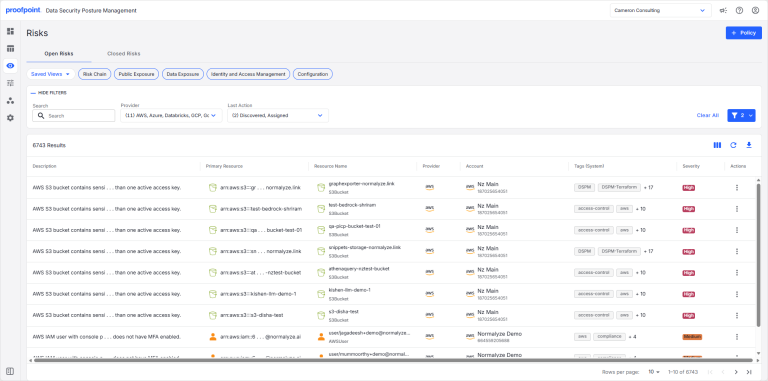
The Open Risks tab contains all of the active risks discovered in your cloud accounts. The Closed Risks tab contains all risks with a Closed status, meaning the risk has been resolved.
The following information is shown for each risk.
|
Field |
Description |
|---|---|
|
Description |
Description of the identified security risk (example: “AWS Security Group allows egress to all traffic”). |
|
Primary Resource |
Resource ID of the object for which the risk has been detected. |
|
Resource Name |
Resource name as defined in the cloud account. |
|
Provider |
Cloud provider for the resource. |
|
Account |
Cloud account for the resource. |
|
Tags (System) |
Tags that can be used to filter the risks on this page. These tags are defined by DSPM and include all tags that apply to the risk (compliance tags, risk tags, data store tags, etc.). |
|
Severity |
Severity of the risk (High, Medium, or Low). |
|
Compliance Controls |
Set of compliances (grouping) associated with the risk. |
|
Compliance Tags |
Compliance section associated with the risk. |
|
Custom Datastore Tags |
Data store tags that can be used to filter the risks on this page. These are custom tags defined by your organization. |
|
Data Classification |
Data class assigned to the risk. A data class represents a broad category (e.g., DIGITAL, PII, PERSONAL) used to classify risks. |
|
Entities |
Entities associated with the resource that are relevant to the risk. |
|
Entity Count |
Total number of entities associated with the resource. |
|
First Seen At |
Date and time the risk was first detected. |
|
Impact/Likelihood |
Assessment of the potential impact and likelihood of the risk occurring.
Hover over the column to view the risk score and the individual impact and likelihood scores. |
|
Issue URL |
Link to a ticket related to the risk. For example, the risk could be linked to a Jira ticket. |
|
Last Action |
Last action recorded for the risk (Discovered, Assigned, Ignored, or Accepted). |
|
Last Seen At |
Most recent date and time the risk was detected. |
|
Level |
Risk level. |
|
Monetary Value |
Financial impact that would result if a data breach occurred for the resource. |
|
Policy ID |
Unique ID of the risk policy. |
|
Profiles |
Profiles associated with the resource that are relevant to the risk. |
|
Region |
Region where the data store is located. |
|
Resource Owners |
ID of the entity that owns the resource. Examples include a user ARN (AWS) or a user ID (Azure). |
|
Resource Type |
Type of resource (IAM, S3 Bucket, GCP Bucket, etc.). |
|
Risk Category |
Categorization of the type of risk. Hover over the icon to view the risk category. |
|
Risk ID |
Unique ID for the risk. |
|
Risk Score |
Overall risk score based on the risk’s impact and likelihood scores. |
|
Status |
Risk status (Open or Closed). |
|
Tags (Custom) |
Tags that can be used to filter the risks on this page. These are custom tags defined by your organization and include all tags that apply to the risk (compliance tags, risk tags, data store tags, etc.). |
|
Unique Entity Count |
Number of unique entities associated with the resource. |
View the Risk Policy
To view the policy for a risk:
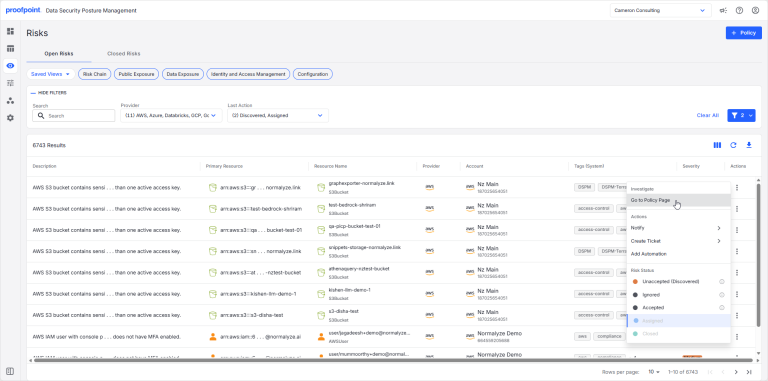
- Click in the Action column, then select Go to Policy Page.