Visualize the paths to sensitive data in your cloud
The Access Graph is accessible from the Investigate menu. It gives a visual representation of the path or access to sensitive data from an entire account level.
This helps Security teams understand the overall risks pertaining to columns that are holding sensitive data and assets. It also identifies if any users or roles are being granted excessive privileges on the tables that have these columns.
The key detail in the Access Graph is the path of accessibility to sensitive data:
users -> roles -> tables -> columns
Currently, the Access Graph only supports Snowflake.
Account Selection
Select an Account from the dropdown menu, then associated structured Data Stores are available for selection from the adjoining Data Store dropdown menu.
By default all the entities for the Snowflake account are listed as collapsed nodes on the Access Graph. From there the user can select and filter any specific entity that they are looking for reviewing the information and expand on each of them. The filters can be applied from the left hand side Advanced Filter search or by selecting each of the nodes in the Access Graph and selecting one or more values there.
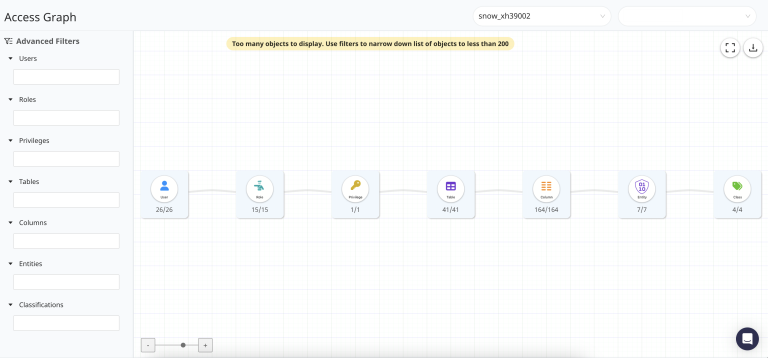
For eg: from the above Access Graph listing, user has selected the Table node which shows the list of tables that are discovered. From this on selecting any table name, it populates the value in the Advanced Filter section and filters the Access Graph for that table only.
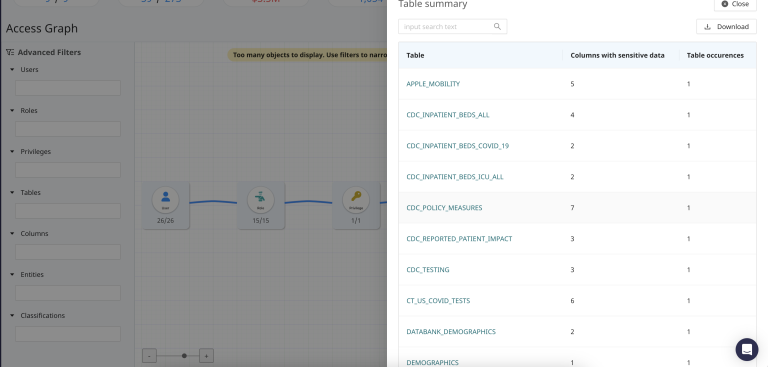
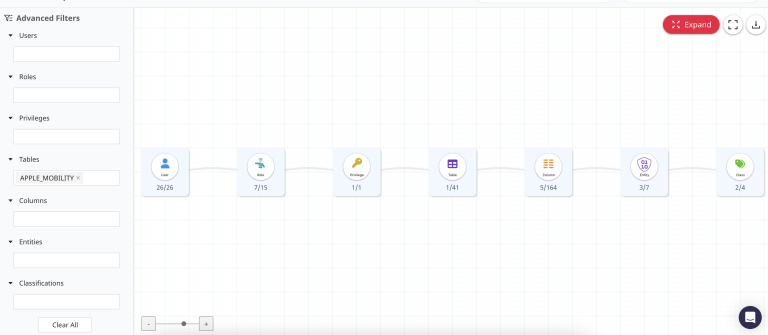
As seen in the above screenshot, the Advanced Filter section for Table is populated with the selected value and the all the nodes in the Access Graph are reflecting the entity relationship based on that filter.
Once the relevant filters are applied then selecting the "Expand" icon from the top right hand corner would expand all the nodes and shows the path of access for the table, it’s corresponding columns and the sensitive data the column holds (if any).
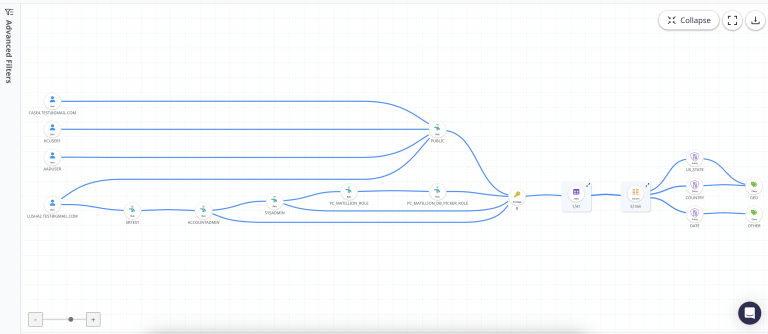
The access graph is loaded per data store on an account basis from the Account Selector dropdown. Advanced Filters can be used to select entities like a specific column or a specific sensitive data item detected in the structured Data Stores.
For example, in the above screenshot, the drill-down is focused on the user which then shows all the roles granted to them, the privileges, tables and the respective columns they can access.
The access graph will show only after the Data Scan is completed for the structured Data Stores in your account
Access Graph Report
After loading the Access Graph, it can be downloaded for further review or sharing with other stakeholders using the ‘Download as PDF’ option.