To view the new Data Store pages, click your profile icon. In the New UI section, turn on the Data Stores toggle.
The Teams tab is available for Microsoft Teams data stores.
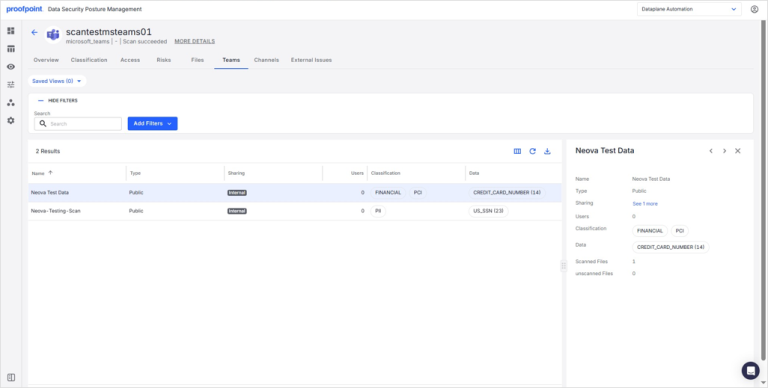
The Teams tab allows you to gain insights into the Microsoft Teams within a data store, including their type, sharing settings, associated users, and any sensitive data identified within them. This helps you manage your security posture and compliance for Microsoft Teams environments.
The Teams tab provides valuable insights into your Microsoft Teams environment, allowing you to:
- Assess Team Sensitivity: Understand which Teams contain sensitive data and their associated classifications.
- Review Sharing Settings: Verify the sharing configurations of Teams to ensure sensitive data is not overexposed.
- Monitor Scan Status: Track the number of scanned and unscanned files to ensure comprehensive data coverage.
- Inform Compliance: Use the classification and data insights to ensure Teams usage aligns with organizational compliance policies.
To view the Teams tab:
- Select Inventory > Data Stores.
- Select the Data Stores tab.
- Select a Microsoft Teams data store. The Overview tab opens.
- Select the Teams tab.
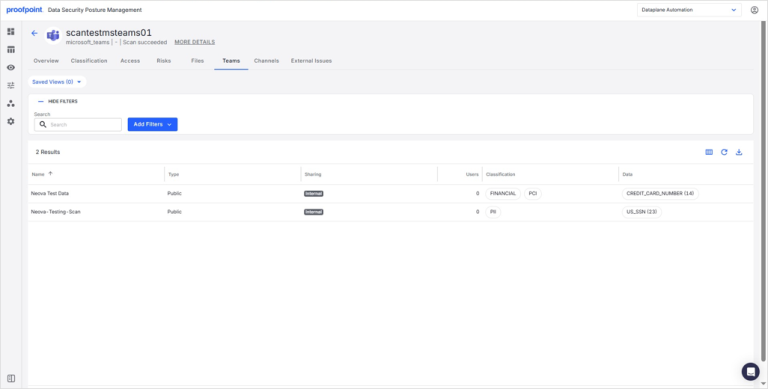
The tab lists key information for each Team, including:
- Name Name of the Microsoft Team.
- Type Type of Team (e.g., Public, Private).
- Sharing Sharing status of the Team (e.g., Internal).
- Users Number of users included in the Team.
- Classification Sensitive data classification identified within the Team (e.g., FINANCIAL, PII, PCI).
- Data Summary of specific sensitive data identified within the Team (e.g., CREDIT_CARD_NUMBER, US_SSN).
- Scanned Files (Optional) Number of files within the Team that have been scanned.
- Unscanned Files (Optional) Number of files within the Team that have not been scanned.
View Team Details
Click the Team name to open a side panel with additional information.