To view the new Data Store pages, click your profile icon. In the New UI section, turn on the Data Stores toggle.
Data snippets help you identify where Classification and Data tags appear across all of your data. This gives you a quick, contextual view of your sensitive data.
- Classification tags are used to classify types of data. Example tags include FINANCIAL, PCI, and PII.
- Data tags include entities and profiles. Example tags include CREDIT_CARD_NUMBER, EMAIL_ADDRESS, and PHONE_NUMBER.
Data snippets are supported for Azure and GCP data stores. To use snippets, you must update the Azure Onboarding version to v15 and the GCP Onboarding version to v7. In addition, snippets must be enabled in the Scan Scheduler as either Full or Mask.
Snippets Tab
The Snippets tab is available for Azure and GCP data stores.
To view the Snippets tab:
- Select Inventory > Data Stores.
- Select the Data Stores tab.
- Select a data store. The Overview tab opens.
- Select the Snippets tab.
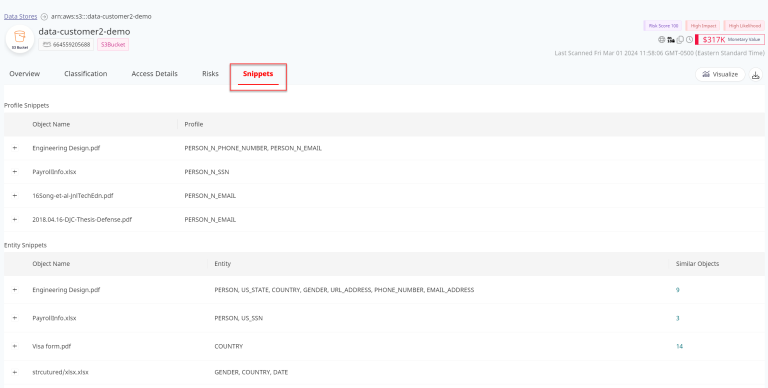
Snippets show the locations where sensitive data is found in your files. Expand a snippet to view details, including:
- Filename of the file where the data was discovered.
- Database schema or file path. Only shown for unstructured data stores.
- Name of the Classification or Data tag.
- A “snippet” of the file showing where the sensitive data appears in the file.