To view the new Data Store pages, click your profile icon. In the New UI section, turn on the Data Stores toggle.
The Overview tab provides summary information for the data store.
To view the Overview tab:
- Select Inventory > Data Stores.
- Select the Data Stores tab.
- Select a data store. The Overview tab opens.
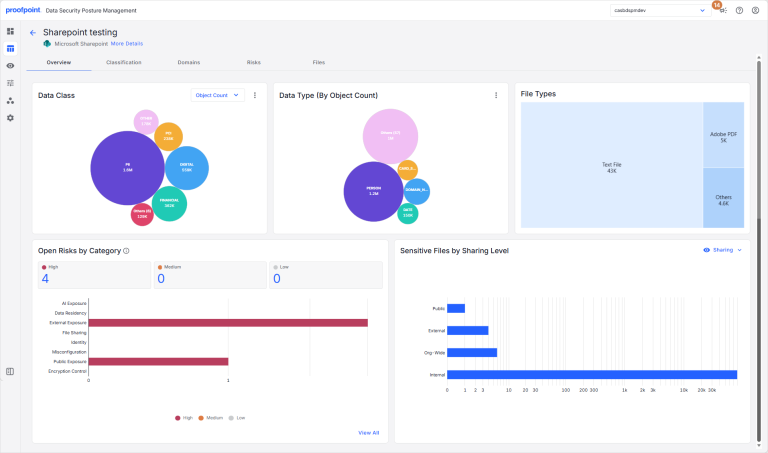
Data Class
View sensitive data organized by data class. You can view this information by:
- Object Count Number of data types (entities/profiles or detectors) within each data class.
- $ Value Monetary value of the sensitive data within each data class.
Click a data class to view details (on the data store Classification tab).
Data Type
View the data types (entities/profiles or detectors) found within your sensitive data, and the number of times each data type was discovered.
Click a data type to view details (on the data store Classification tab).
(SaaS Only) File Types
View the file types discovered in the data store and the number of files for each type. Hover over a file type to view additional information. Click a file type to view details (on the data store Files tab).
(SaaS Only) Open Risks by Category
View open risks by risk category. Each risk category is shown as a bar graph with a breakdown of the high, medium, and low risks in the category. You can:
- Click the High, Medium, or Low risk count (above the chart) to view details for the unresolved risks (on the data store Risks tab).
- Hover over a risk category bar to view a count of the high, medium, and low risks in that risk category.
- Click a section of a bar to view details for the high, medium, or low risks in that risk category (on the data store Risks tab).
- Click View All to view details for risks in all risk categories (on the data store Risks tab).
(SaaS Only) Sensitive Files by Sharing Level
View sensitive files and who can access them. You can view this information by:
- Sharing Number of files that can be accessed by each group.
- File Type Number of shared files for each file type.
Hover over a bar to view the exact number of files. Click a bar to view details (on the data store Files tab).