To view the new Data Store pages, click your profile icon. In the New UI section, turn on the Data Stores toggle.
The Channels tab is available for Microsoft Teams data stores.
The Channels tab provides a centralized view of all your Microsoft Teams communication channels. It allows you to monitor, understand, and manage data sharing, access, and sensitivity classification, serving as a critical tool for maintaining data security and compliance.
This helps you maintain a clear understanding of your team’s communication landscape and contribute to a secure data environment.
To view the Channels tab:
- Select Inventory > Data Stores.
- Select the Data Stores tab.
- Select a Microsoft Teams data store. The Overview tab opens.
- Select the Channels tab.
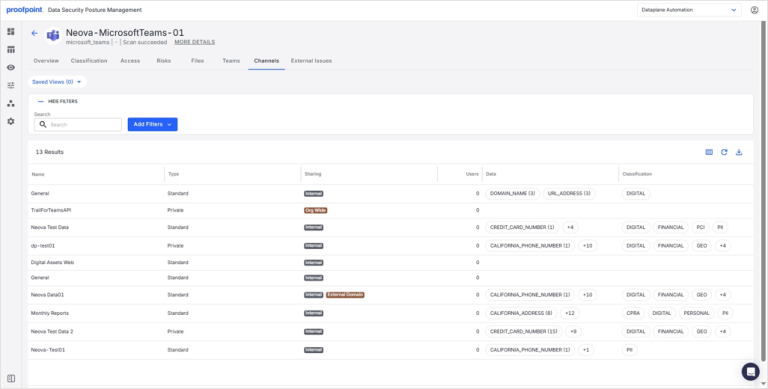
The tab lists key information about each Team’s channel, including:
- Name Name of the Microsoft Teams channel.
- Type Type of channel, such as “Standard” or “Private”.
- Sharing Sharing settings for the channel. Indicates if the channel is “Internal” or if it’s shared externally (e.g., “Org Wide”).
- Users Number of users participating in the channel.
- Data Summary of the types of data identified within the channel.
- Classification Labels applied to the data within the channel, such as “DIGITAL”, “FINANCIAL”, “GEO”, “PII” (Personally Identifiable Information), “CPRA” (California Privacy Rights Act), and “PERSONAL”.
The Data and Classification columns are particularly important for understanding potential risks and ensuring compliance. Be sure to regularly review these columns to identify channels that may contain sensitive information and ensure it is handled according to your company policies.
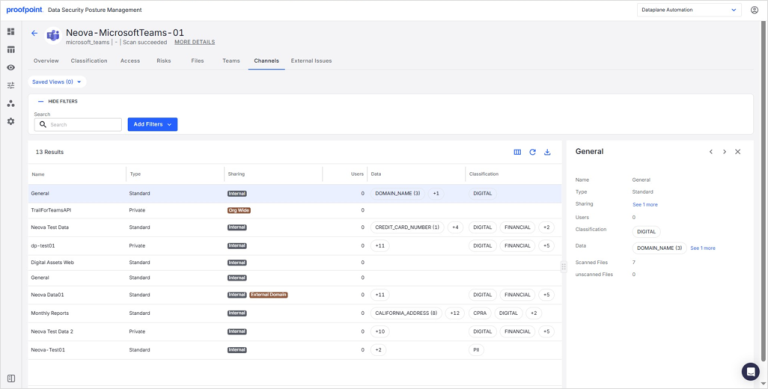
View Channel Details
Click the channel name to open a side panel with additional information.