Overview
- Configure Salesforce for OAuth based authentication.
- Sidecar Configuration - Adding Salesforce OAuth credentials to AWS Secret Manager or Azure Key Vault.
- Onboard Salesforce application on DSPM.
Pre-requisites
- User who will follow the steps below and setup the configurations needs to be a System Administrator.
- AWS / Azure account should be onboarded on DSPM so that it can be used as sidecar while Onboarding Salesforce.
Step 1. Salesforce Configuration
- Login to Salesforce portal with the user which has the Admin role (System Administrator) role assigned.
- Verify the logged in user has System Administrator privilege assigned as follows:
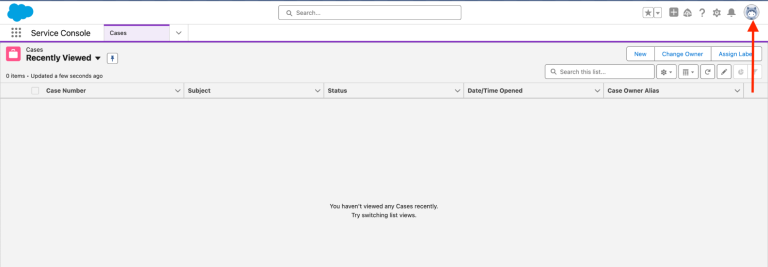
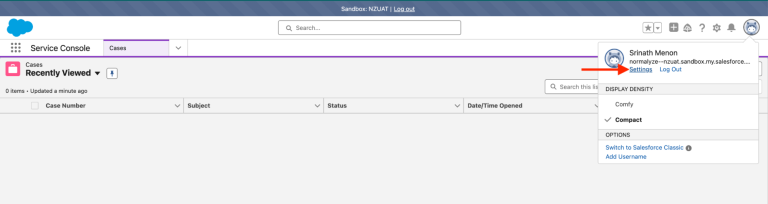
- Navigate to View Profile from the Top right corner.
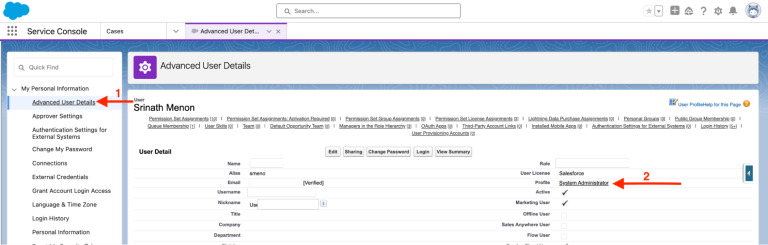
- Select Advanced User Profile (marked 1 in the below screenshot) and View the value set for Profile field (marked 2 in the below screenshot)
- From the right hand top corner select the Setup icon (wheel icon - marked 1 in the below screenshot) and select Setup from the option listed (marked 2 in the below screenshot). This will launch a new browser tab and open the Setup section.

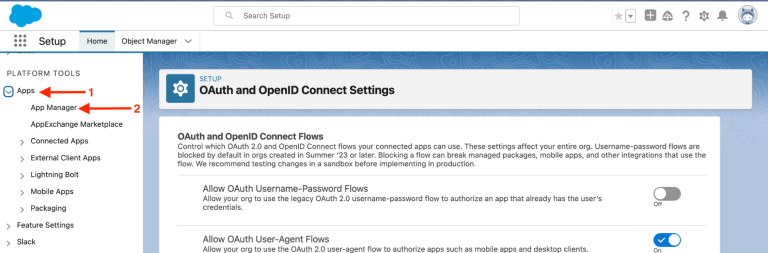
- At the top right of the page, click the wheel/cog icon and select “Setup”. This will take you to the Setup Home Page, on the left hand navigation, scroll down to select Apps (marked 1 in the below screenshot) - App Manager (marked 2 in the below screenshot)
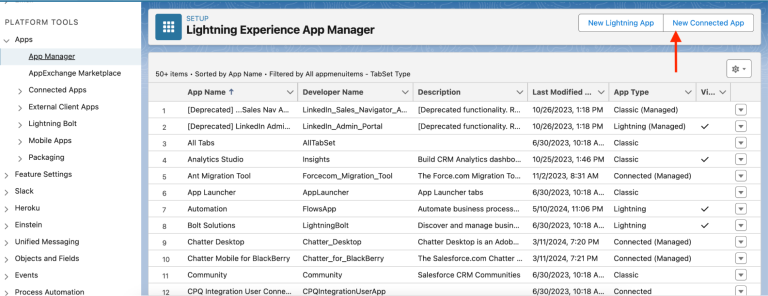
- From the App Manager UI - select New Connected App This will bring up the UI for setting up the Connected App.
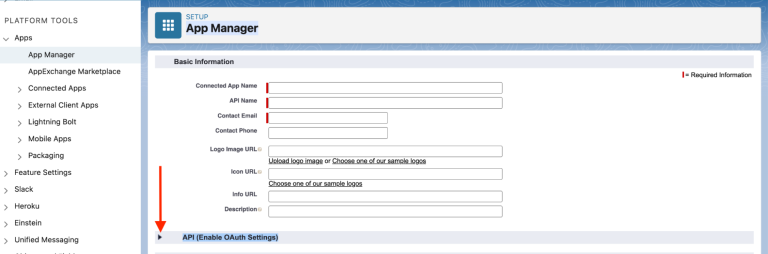
- Under Basic Information section set the values for the following fields:
- Connected App Name - provide a name to identify the app created for DSPM
- API Name - by default it takes the name from “Connected App Name” but it can be set as per the administrator for quick look up.
- Contact Email - set the email address of the admin user or the one where the administrator needs to be contacted.
Leave all the other fields as blank.
- Expand the next section API (Enable OAuth Settings)
- Under this section select the check-box for “Enable OAuth Settings”
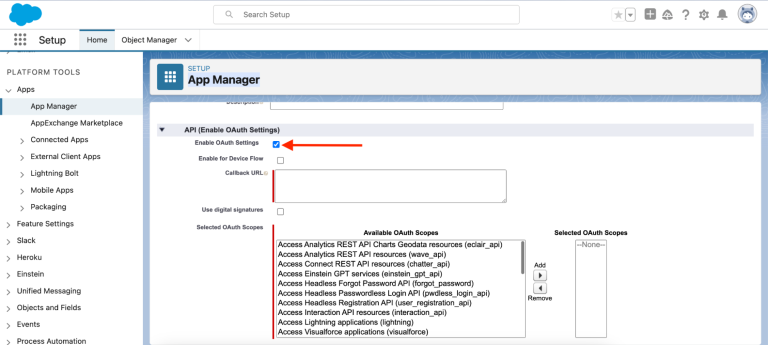
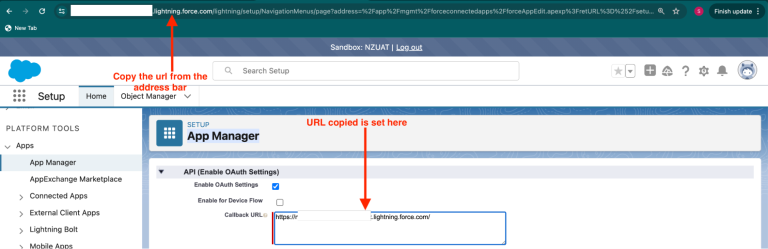
- In the text box for Callback URL - enter the Salesforce domain url which will in the following format:
https://<Org specific name>.lightning.force.com/
This value should be copied from the browser address bar as well upto “.com”
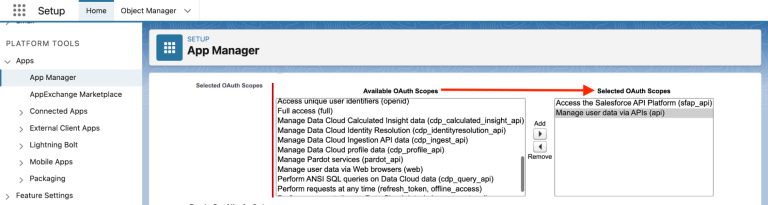
- Under “Selected OAuth Scopes” - select the below two API scopes from “Available OAuth Scopes” and add to “Selected OAuth Scopes”:
- Access the Salesforce API Platform (sfap_api)
- Manage user data via APIs (api)
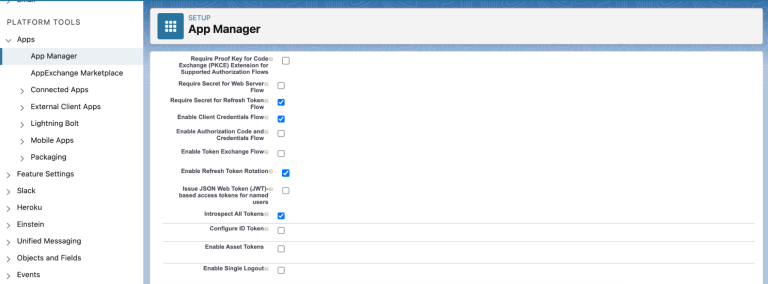
- Below this section, uncheck (if already selected) the following options:
- Require Proof Key for Code Exchange (PKCE) Extension for Supported Authorization Flows
- Require Secret for Web Server Flow
Select (check) the following options:
- Require Secret for Refresh Token Flow
- Enable Client Credentials Flow
- Enable Refresh Token Rotation
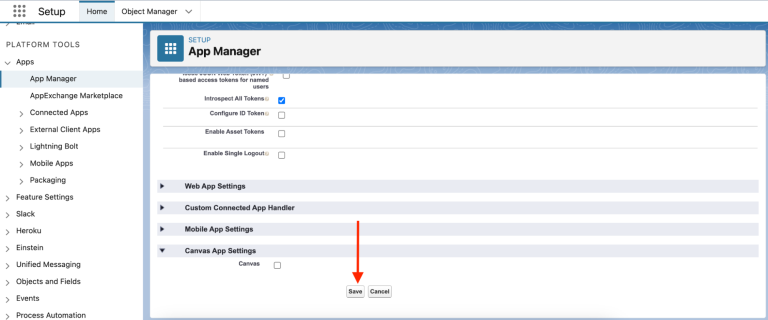
- Introspect All Tokens
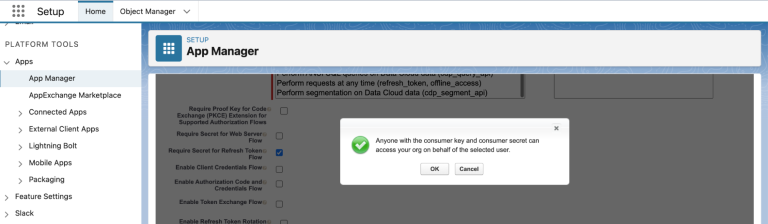
On selecting “Enable Client Credentials Flow” a pop-up message will come up displaying the details for this option. Select OK.
After all the aforementioned selections are done (and options deselected), following is the display to the user.
- Save the changes done in this section by selecting “Save” button. On the next screen click “Continue”.
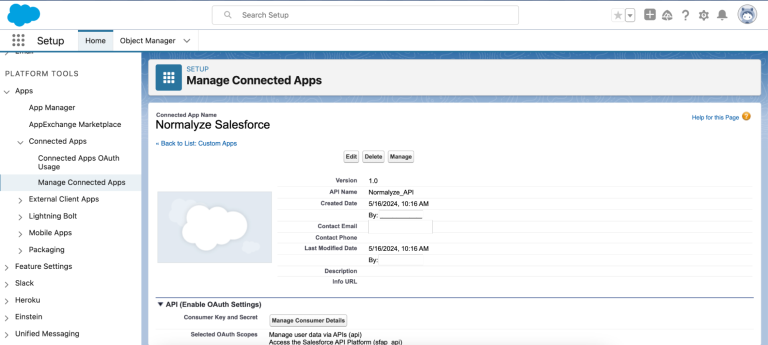
- On saving the changes, the following details are displayed for the newly created Connected App.
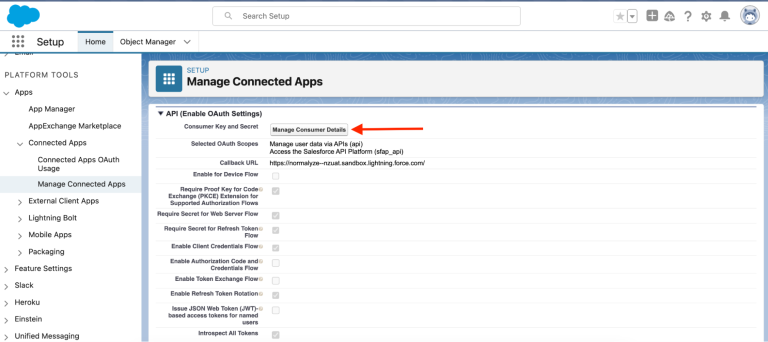
- From API - (Enable OAuth Settings) select “Manage Consumer Details”.
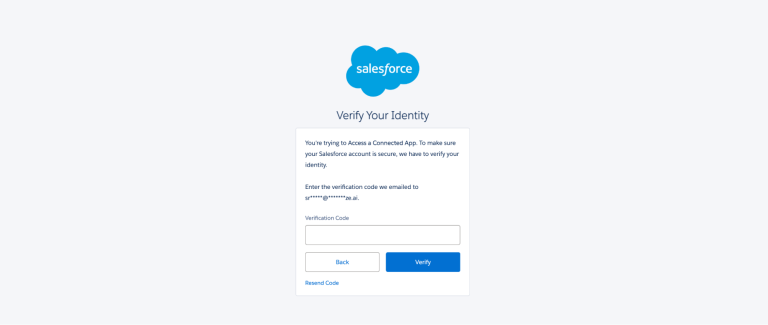
- On selecting the “Manage Consumer Details” option it will launch a new browser tab to input the verification code. The verification code is sent to the user’s email address set in it.
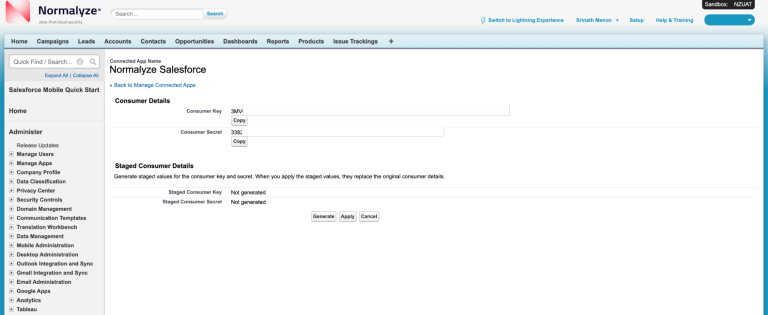
- Once the verification code is input and validated, Consumer Details UI is launched. From this section copy the values for the following:
Consumer Key
Consumer Secret
These 2 values will be used at the later stage to generate the AWS Secret.
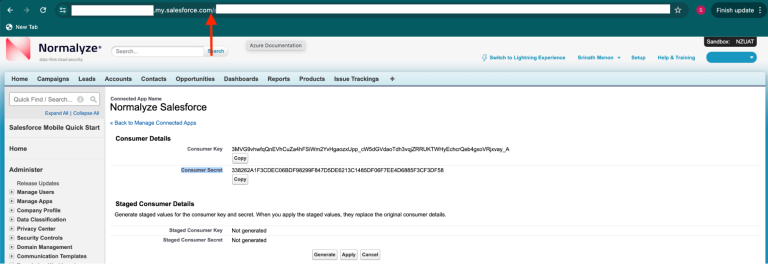
- From the browser address bar copy value for the domain as detailed below:
For eg: if the url is https://salesforce-demo-sandbox.my.salesforce.com
In your domain, copy the value before “.my” in the url.
Here the value salesforce-demo-sandbox - will be passed for my_domain along with the Consumer key and Consumer Secret from Step 16 for generating the Add Salesforce Credentials to AWS Secrets Manager or Add Salesforce Credentials to Azure Key Vault Secret.
Close the browser tab for the Connected App Details.
-
Navigate to the Salesforce Portal and from the left side blade select Platform Tools - Apps - Manage Connected Apps. From this select the Connected app created for DSPM in Step 7.
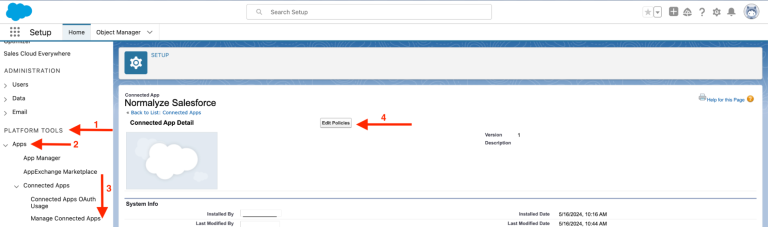
- Select Edit Policies from the UI (marked 4 in the above screenshot)
-
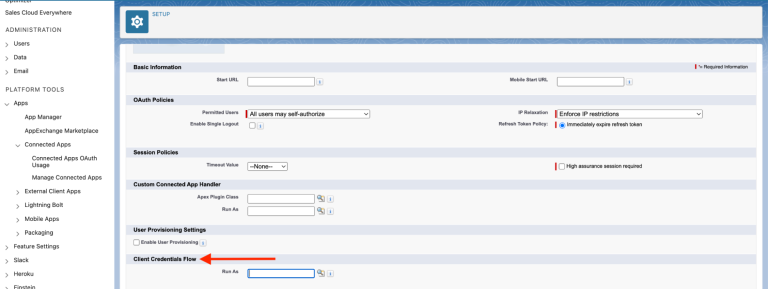
Scroll down the section to “Client Credentials Flow”
-
From Run As select the user to be assigned the role. The user selection can be done from the magnifying glass icon .
Once the desired user is selected, select Save to make the changes effective.
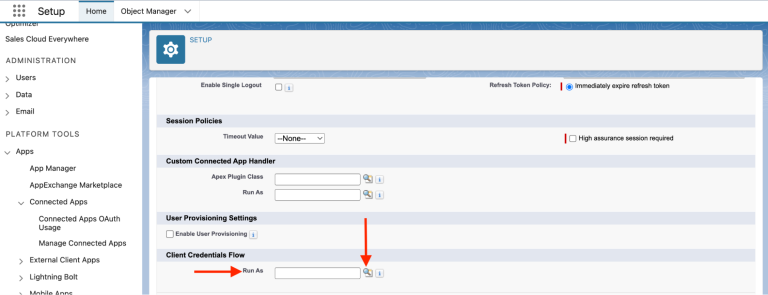
This step once completed will then return the access token on behalf of the selected user. This is used for accessing the files from Salesforce during the discovery operation by DSPM.
-
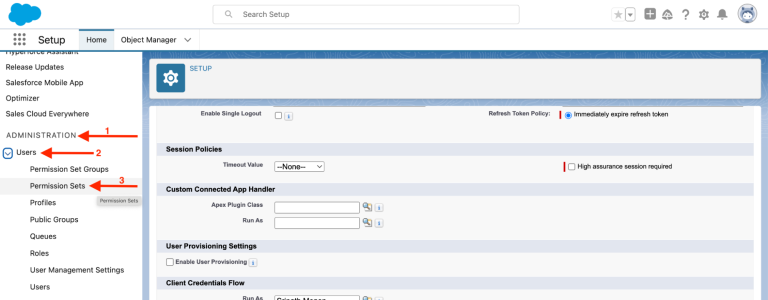
From the left hand navigate to Administration - Users - Permissions Set
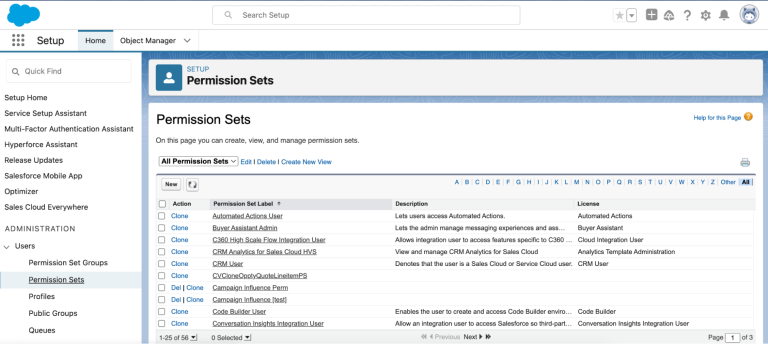
-
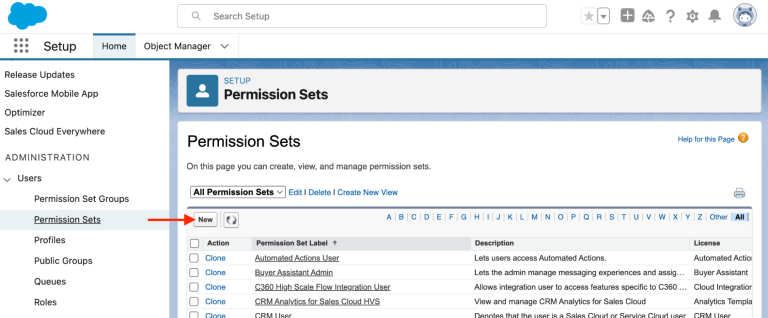
Select “New” to start creating a new Permission set.
-
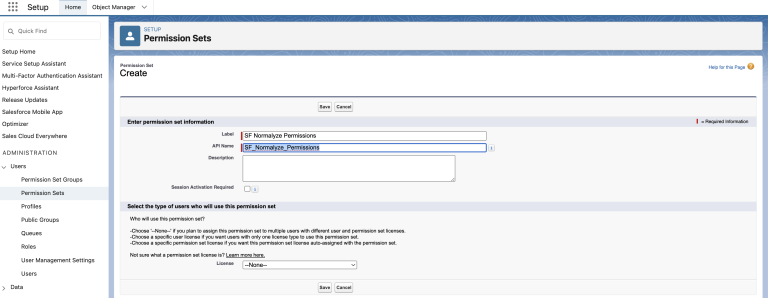
Provide the values for the following fields:
- Label: Provide a value that can be identifiable and relatable to DSPM. This is the searchable name listed from the UI.
- API Name: The field by default takes the value of Label but can be modified as needed.
- Description: Set the description as required.
- License: From this drop-down select the “None” as the value.
Once these values are set, select “Save” to commit the configuration.
-
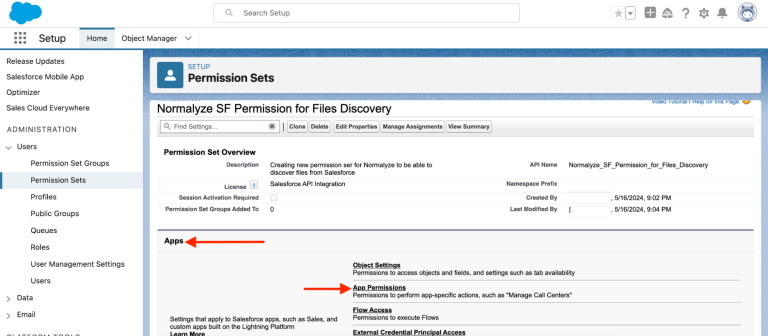
Select the newly created “Permission Set” in the above step and scroll down to Apps section and select App Permissions
-
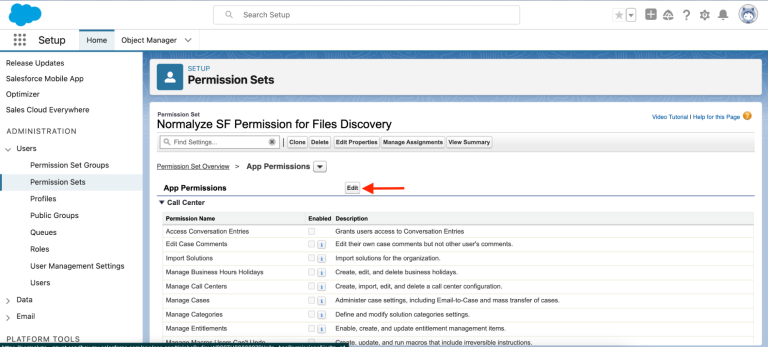
Select “Edit” option listed besides “App Permission” section
-
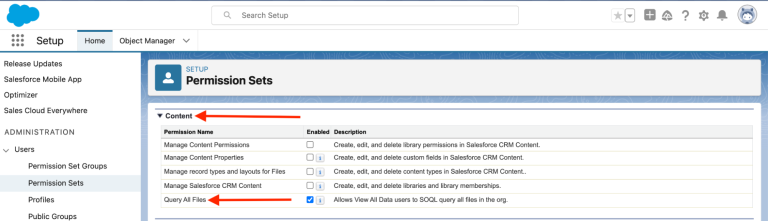
Scroll down to “Content” section and Enable the option for “Query All Files” Permissions. This will enable View All Forecasts permissions as well.
-
After selecting the aforementioned Permission, select Save. This will show up a pop-up which details the permissions and it’s associated operation details.
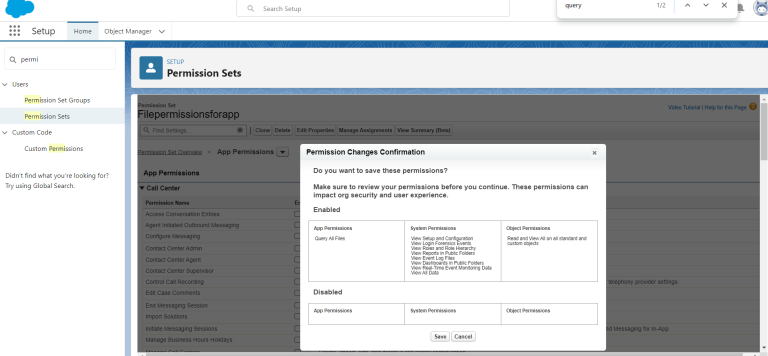
-
Scroll down to System and select System Permissions.
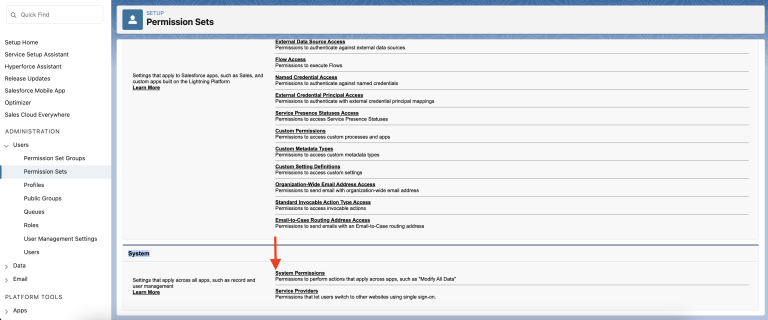
-
Select Edit Permissions from the System Permissions section
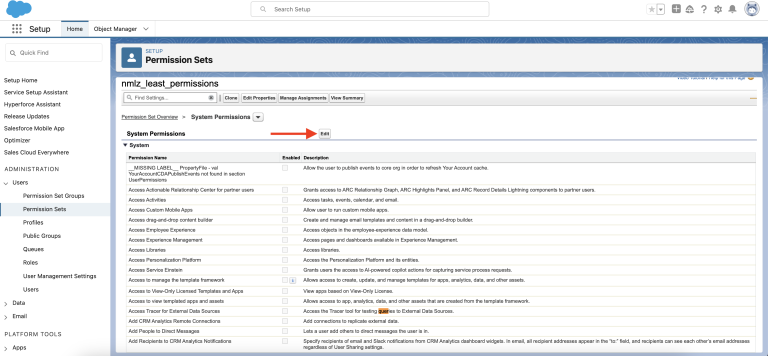
-
Select only the following set of permissions from this section
- API Enabled
- Api Only User
- View All Users
- View All Data - on selecting this Permission, it will enable following 5 permissions
- View Dashboards in Public Folders
- View Event Log Files
- View Reports in Public Folders
- View Roles and Role Hierarchy
- View Setup and Configuration
Apart from the aforementioned System Permissions rest all the other permissions can be unchecked.
- Select Save to confirm the changes.
-
From the left side blade navigate to Administration - Users - Users . Select the user which will be used for connecting from DSPM to discover the files.
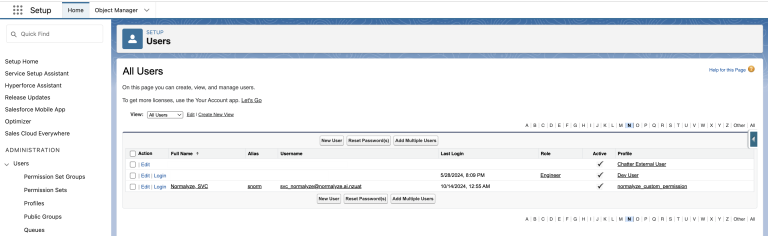
This would be the same user which has been used (added to Run As) in Step 23
- Select the user from the list (in the above screenshot it would the one with Alias snorm).
-
From the User Details UI for the specific user, scroll down to the “Permission Set Assignment” and select “Edit Assignments” option.
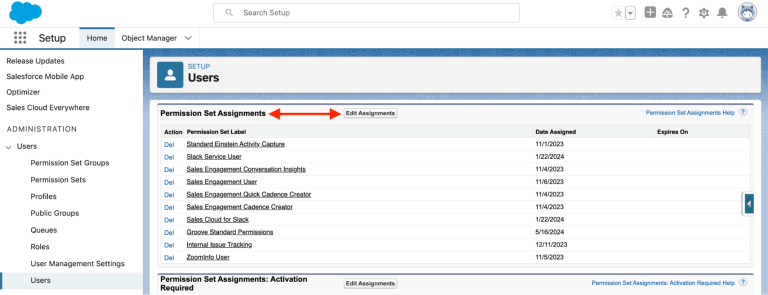
-
From the Available Permissions section select the Permission Set created in Step 26.
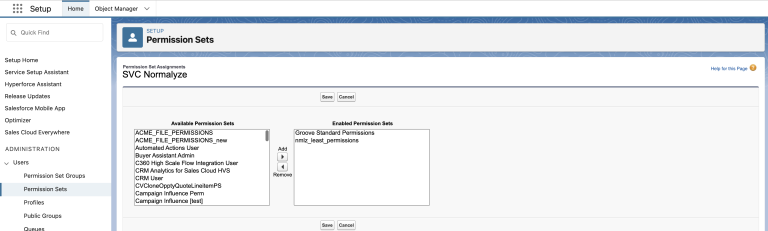
Move the new permission set to “Enabled Permission Sets” and select Save the changes.
-
To review the permissions that are assigned to the user - select the User name - select View Summary
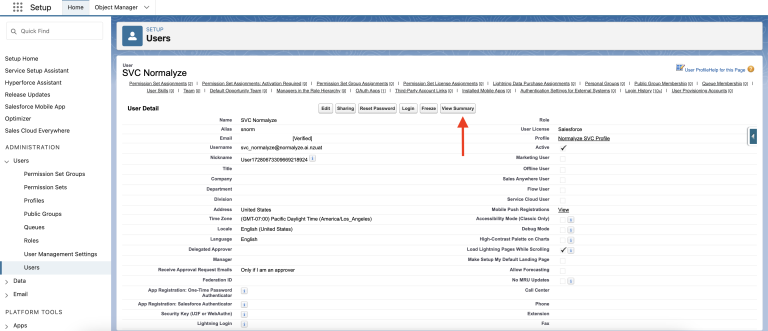
-
This will display the list of permissions that are available for the user. Review the permissions from the User Permissions and Object Permissions section to validate.
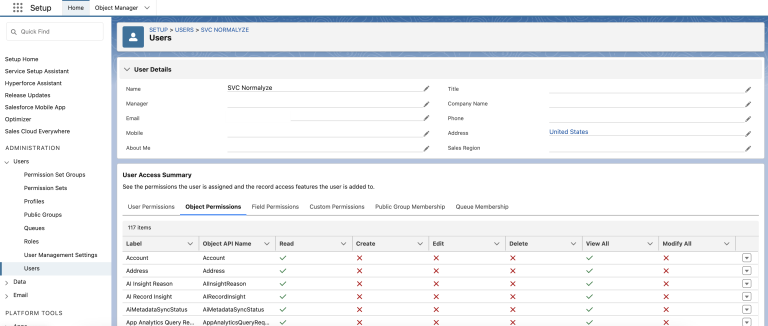
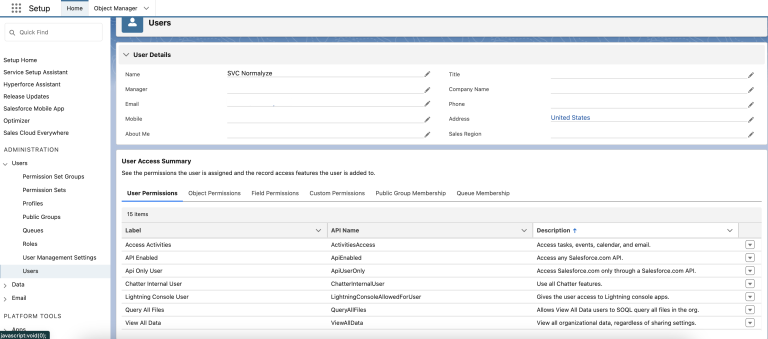
- This completes the configurations required on Salesforce.
Step 2. Sidecar Configuration
Saleforce can be onboarded on DSPM with either AWS or Azure as the sidecar. Based on the cloud provider which is being used as sidecar, the steps specific for them are detailed below.
AWS as Sidecar
Configure AWS Secrets Manager
The values copied in Step 1. Salesforce Configuration need to be added to the AWS Secret manager, which then is used by DSPM to connect to Salesforce.
Add Salesforce Credentials to AWS Secrets Manager
The following values from Step 1. Salesforce Configuration will be used here:
Consumer Key - Step 16
Consumer Secret - Step 16
Domain value (my_domain) - Step 17
- Login to the AWS management console and navigate to Secrets Manager
- Select the option for ‘Store new Secret’
- Under Secret Type - select “Other Type of Secret”
-
Under Key / Value Pairs - add the following details:
client_id : <value of the Consumer Key>
client_secret : <value of the Consumer Secret>
my_domain : <Domain value>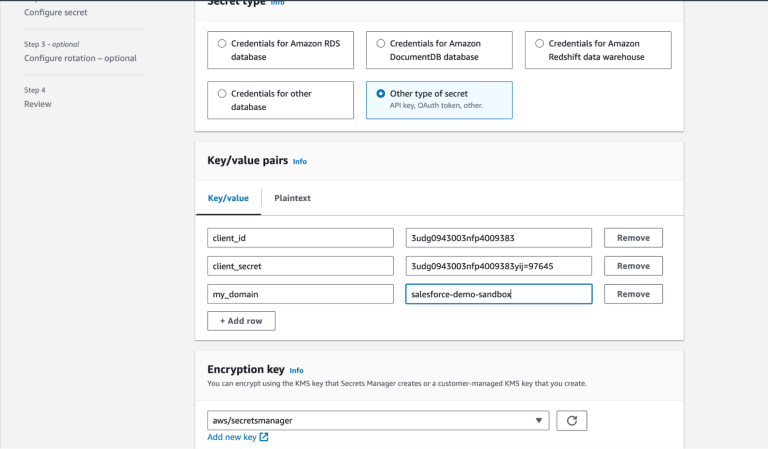
- Leave the Encryption key to default aws/secretsmanager and select Next.
- Set the name under Secret Name and some details under Description respectively.
-
Under Tags section, set the following values:
Key : Name
Value : Normalyze - Leave the other sections with the default values and select Next.
- Select default values for this and the Next section.
- Store the secret.
-
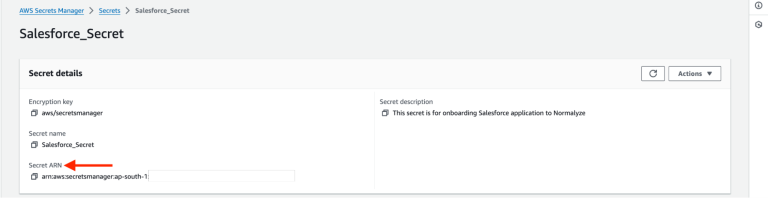
Select the “secret” from the list and copy the Secret ARN value for it. This is the value that will be used for onboarding from the DSPM platform.
Azure as Sidecar
Configure Azure Key Vault Secret
Prerequisites:
- The Azure account being used as sidecar should ensure that option “Use as Sidecar” is selected. If this has not been enabled on the Azure account which is already onboarded to DSPM then follow the steps in Azure Onboarding Version Upgrade. Ensure that step 3 is completed from the aforementioned section that will mark the Azure account as sidecar enabled.
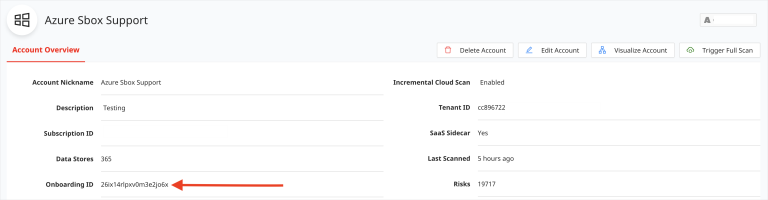
The Azure Key Vault must be created in the in the Resource Group created by DSPM during the onboarding of the Azure account. The resource group for the Azure account is in the following format: normalyze-<Onboarding-id>-<Region>. The <Onboarding-id> for the account onboarded on DSPM can be captured from the Account Details section as shown in the screenshot below:
Make note of the <Region> being selected, this will need to be passed on the DSPM platform while onboarding the Salesforce application.
Search for the Resource Group based on the aforementioned format to note the one to be used.
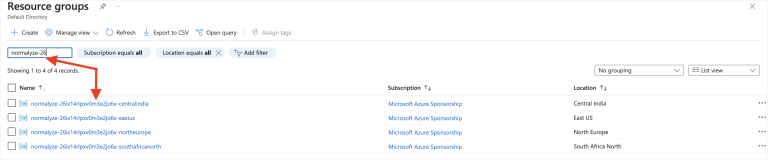
-
The following values from Step 1. Salesforce Configuration will be used here:
Consumer Key - Step 16
Consumer Secret - Step 16
Domain value (my_domain) - Step 17
Paste the aforementioned key and values in the following format:{
"client_id" : "<value of the Consumer Key>",
"client_secret" : "<value of the Consumer Secret>",
"my_domain" : "<Domain value>"
}
Add Salesforce Credentials to Azure Key Vault Secret
- Login to Azure Portal for the subscription which is enabled for sidecar use.
-
Search for Key Vault from the Azure search box and select “Key Vaults” from the result.

-
Select Create New from the Key Vaults section.

-
Search for the Resource Group pertaining for the Azure account’s onboarding id.
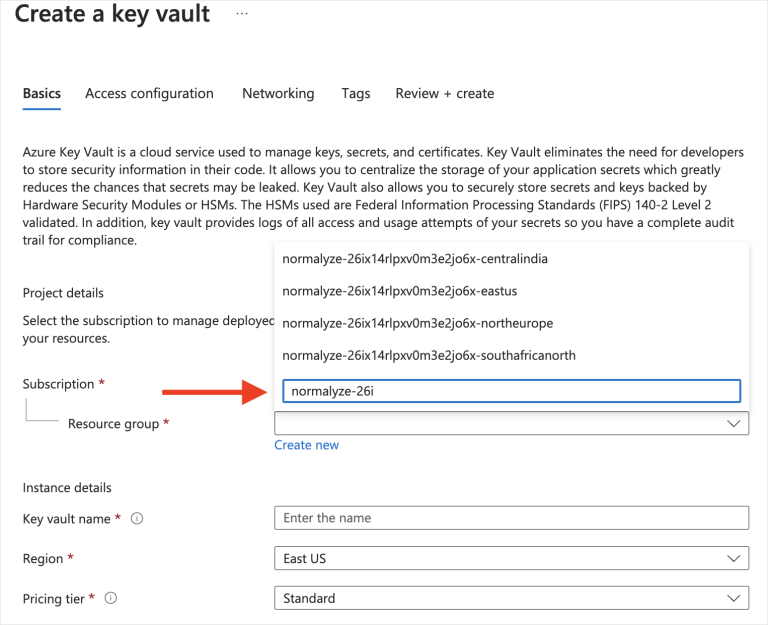
-
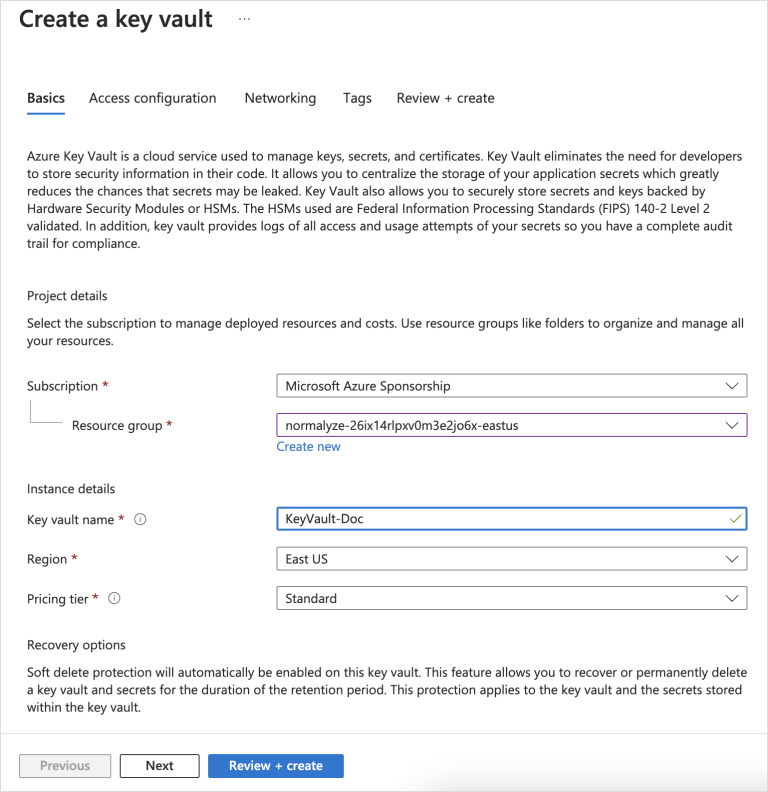
Provide a Name for the Key Vault, set the Region to the required one and the Pricing Tier to Standard respectively. Note the Region used in this step, it will be used later during the onboarding on DSPM platform.
Select Next after configuring the above mentioned details.
- Select Next on the Access Configuration section (no changes required in this section)
-
In the Networking section ensure that Enable Public Access is checked (selected) and the Allow access from is set to All Networks.
Select Next after the above configurations are completed.
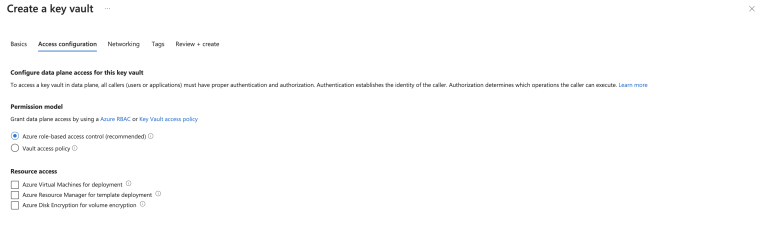
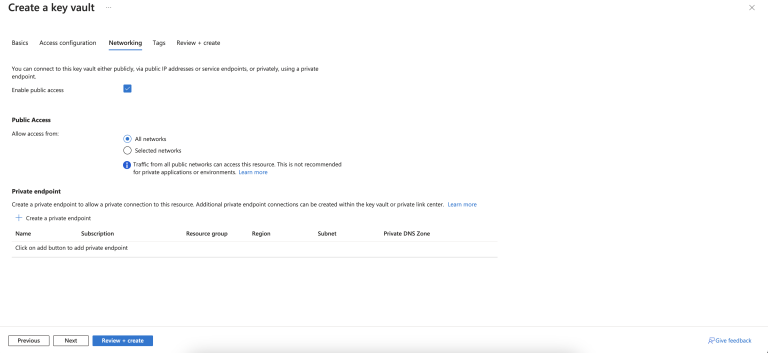
- In this section adding a Tag is optional. Select Next.
- Review the configuration detail and once it is completed select “Create”. Wait for the creation task to complete.
-
Select the Key Vault created and from the left fireblade, select “Access control (IAM)” and then “Role assignments” tab.
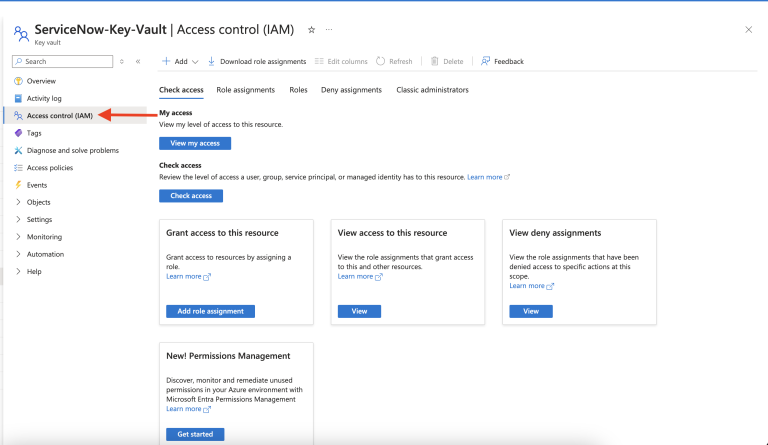
-
Click on “+ Add” drop-down and select “Add role assignment”.
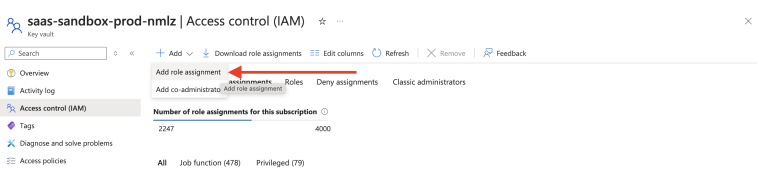
-
Search for the “Key Vault Administrator” option and select it (it gets highlighted). Click on Next.
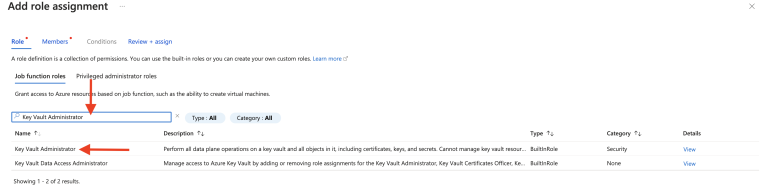
-
Under Members, click on “Select members” (marked 1 in the screenshot) and add the requisite user (same user who created the Key Vault) by selecting (marked 2 and 3 in the screenshot) and clicking Select (marked 4 in the screenshot) at the bottom.
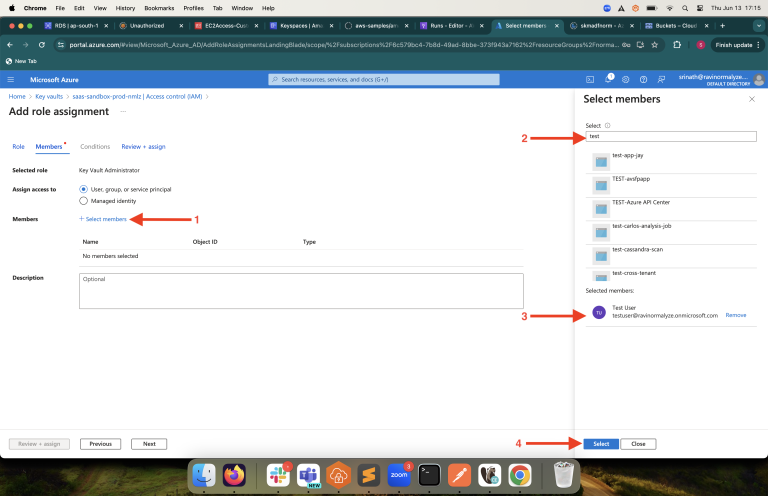
- Click on “Review + assign”. This will assign the selected user with the “Key Vault Administrator” role.
-
Select the Key Vault created in Step 9 and from the left fireblade - select “Secrets” and then select “Generate/Import”.
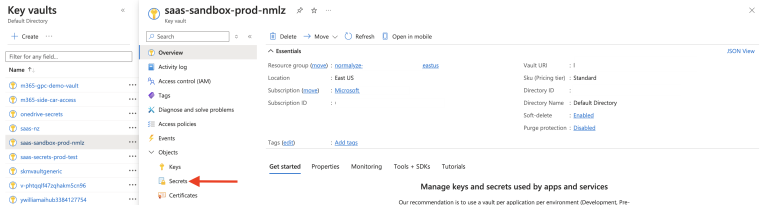
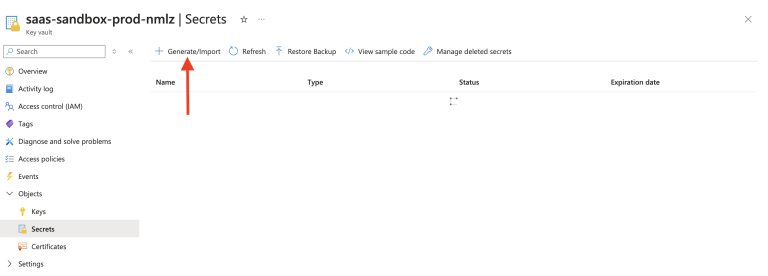
-
Enter the details for the respective fields as follows:
Name - Provide the name for the Secret as per the naming convention used for other entities.
Secret Value - Input the value which was saved in step 3 from Configure Azure Key Vault Secret.Copy the entire value including the braces and input it in this field.
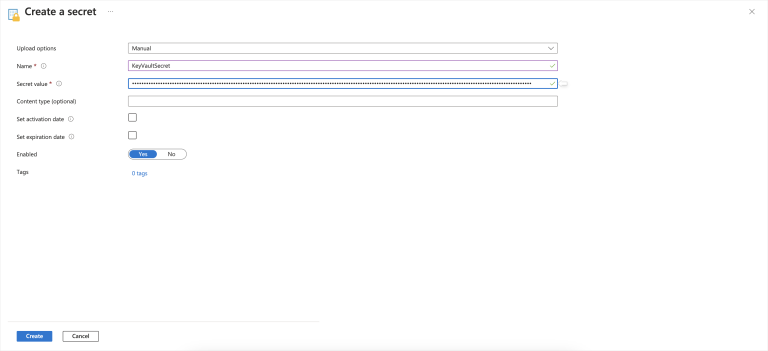
- Leave the rest of the values / options as default. Click on Create.
-
Once the Secret is created successfully, select it and Click on the value listed under column “Current Version”.
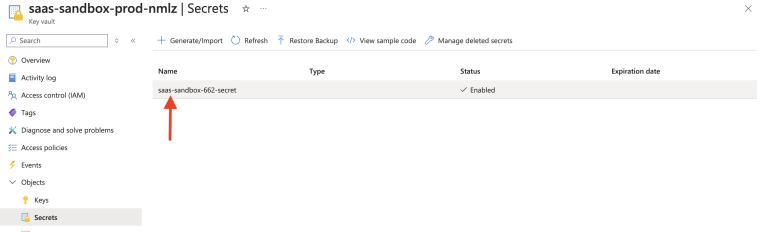
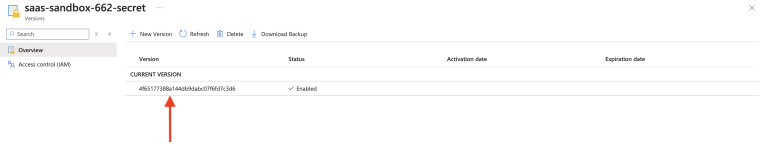
-
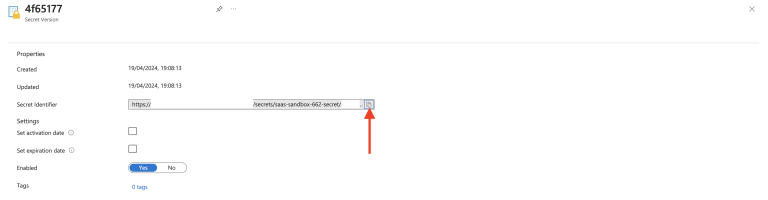
Copy the URL for the Secret Identifier column. This will be used as input for Step 3. Onboard Salesforce to DSPM.
Step 3. Onboard Salesforce to DSPM
-
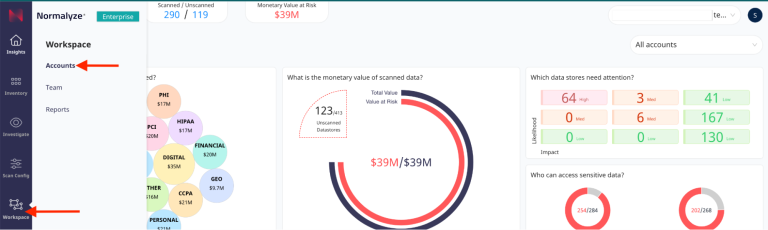
Login to DSPM and Navigate to Workspace - Account - select Onboarding and select Salesforce.

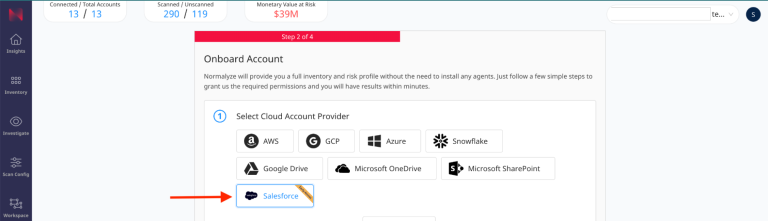
-
Scroll down to the Section 3 - Enter your Salesforce account info
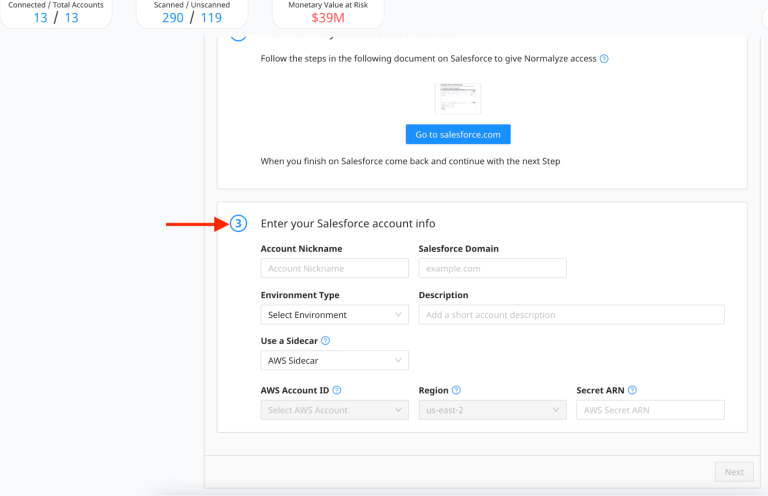
-
Provide the values for the respective fields as follows:
- Account Nickname - provide the value to identify this as a Salesforce account.
- Salesforce Domain - This is the full domain of your Salesforce instance, found in step 17 of Step 1. Salesforce Configuration.
- Environment Type - select the appropriate value from the dropdown
- Description - Provide some additional information for the account.
-
From the Use a Sidecar drop-down select the provider which will be used as sidecar viz AWS Sidecar or Azure Sidecar.
-
Based on the selection done in Step 3, the details to be provided for the respective sidecar provider are as follows:
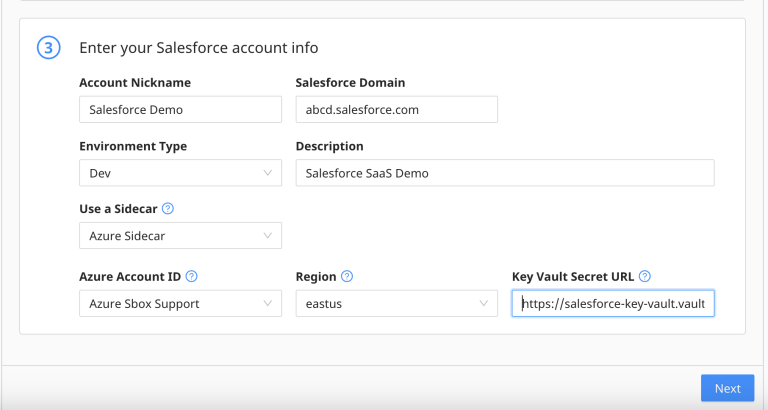
- If Azure Sidecar is the option selected then provide the details as follows:
- Azure Account ID: from the drop-down select the Azure account which is configured to be used as sidecar (step 1 of Configure Azure Key Vault Secret) prerequisites.
- Region: select the same Region (step 5 of Configure Azure Key Vault Secret) where the Key Vault is created on the Azure subscription.
- Key Vault Secret URL: paste the Secret url copied in step 19 of Configure Azure Key Vault Secret.
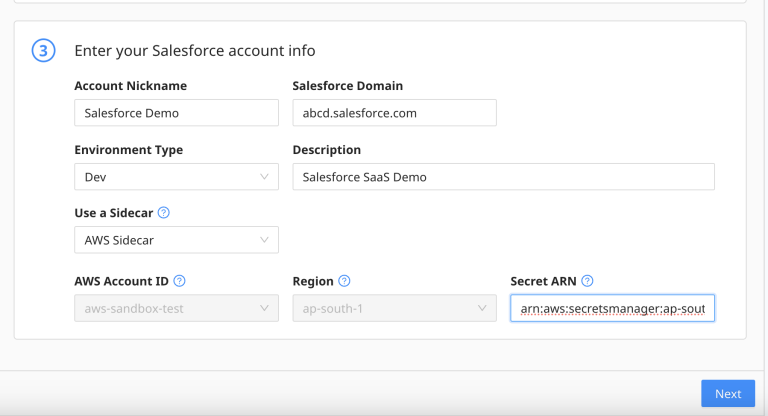
- If AWS Sidecar is the option selected then paste the Secret ARN copied in step 11 of Configure AWS Secrets Manager into the “Secret ARN” field.
It will populate the Account ID and the Region fields from the Secret ARN value which is input.
- If Azure Sidecar is the option selected then provide the details as follows:
- Select Next to complete the onboarding process on DSPM.
- On selecting Next, the Cloud Scan operation is triggered which will discover the data store on the Salesforce domain configured. This is denoted with a “Green Dot” against the Salesforce account onboarded on the UI.
-
Once the scan is completed successfully, the Connection Status would show “Connected” and the “Scan Status” will show with a green tick mark The value under “Datastores” column would show 1 - denoting the data store is successfully discovered.
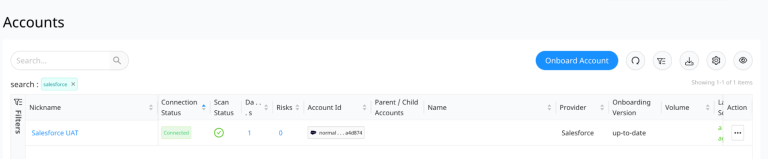
-
Select the number (1) under the Datastores column (which is a hyperlink) that would show the discovered data store. The value under “Type” column for the data store will be displaying “salesforce”.
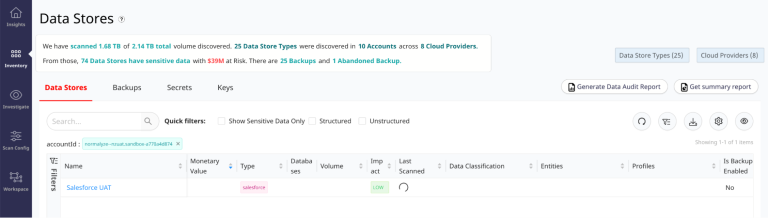
This completes the steps for Onboarding Salesforce to DSPM successfully.
Configuring Data Scan for Salesforce
- Navigate to Scan Config - Scan Scheduler
- Provide the name for the Scan Profile - to identify it for the Salesforce data stores.
- From the Account drop-down - select “Scan Only the Selected Accounts”
-
From the the Accounts selection box type the name of the Salesforce Account which is onboarded.
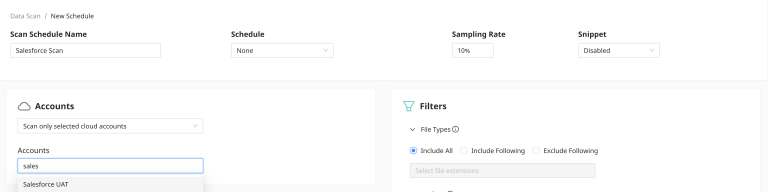
-
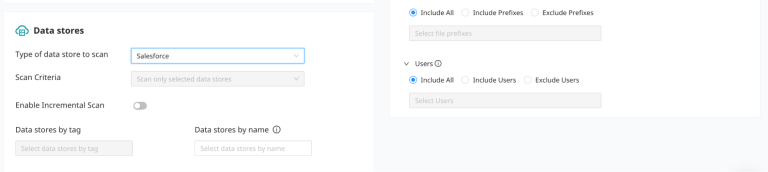
Once the account is selected, scroll down to the Datastores section - Type of data store to scan - from the Drop-down select “Salesforce”.
-
On selecting the Datatore type value, the “Data stores by name” gets populated with the Salesforce data store name.
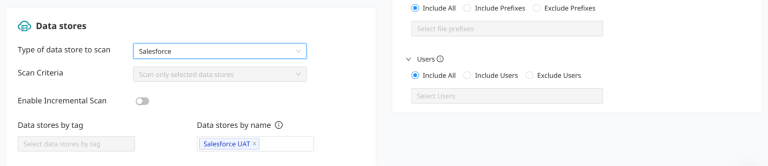
- This completes the data scan configuration. Save the configuration by selecting the “Save” button.
-
If the data scan has to be run for a targeted set of Salesforce users then before selecting the “Save” option - navigate to Filters on the right hand side - Users
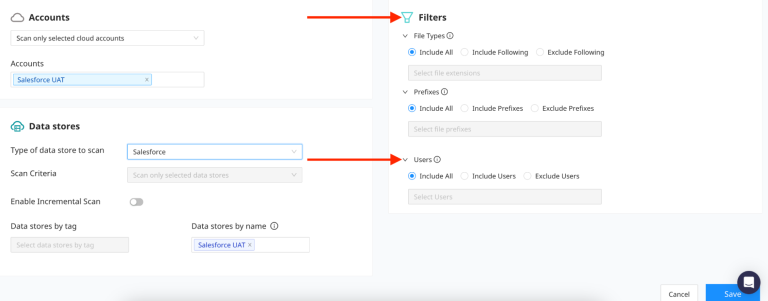
-
Select the list of users that need to be included in the Data scan by selecting “Include Users”. On selecting this option, from the Select Users text box - type the user name to be included and it will list there (type-ahead). Follow this to add the desired set of users.
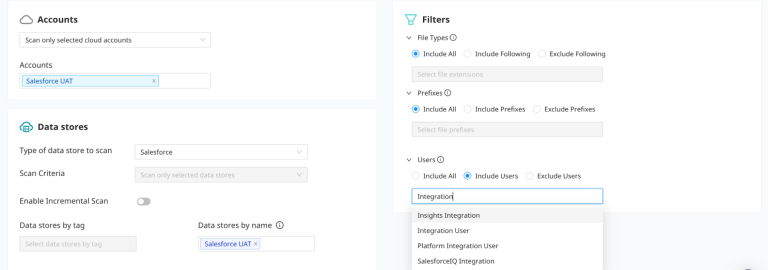
- Once these filters are set, Save the scan profile.
-
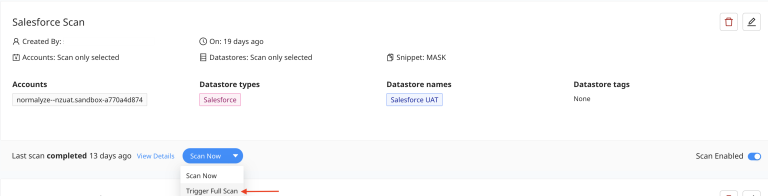
From the Scan Profile - drop-down and select “Trigger Full Scan”.