Onboarding an GCP Project to DSPM requires the deployment of either a Terraform template or creating the necessary objects on the cloud provider using the Onboarding Script. This is done to set the required permissions for DSPM to discover Data Stores and Assets and deploy Data Scanners within the account.
The user running the Onboarding script / Terraform should have the following roles:
Organization Administrator
Organization Policy Administrator
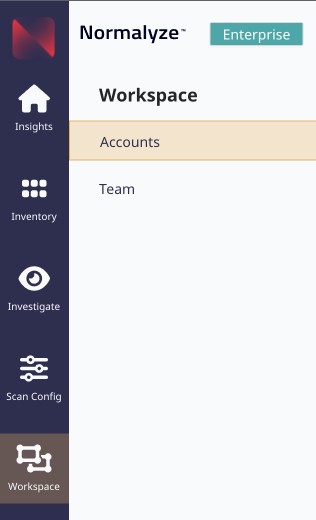
To start, log in to DSPM and go to Workspace on the main menu, then select “Accounts”.
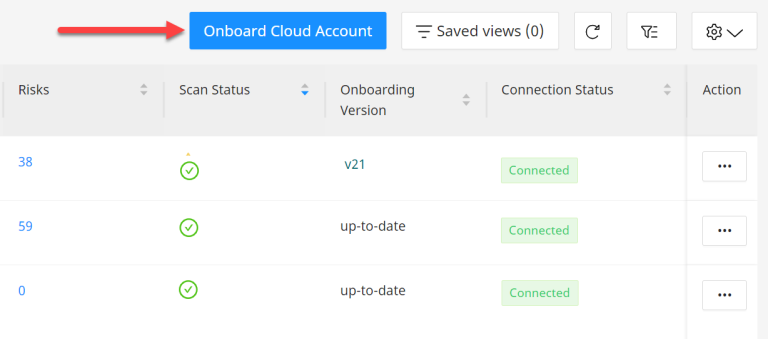
Now select “Onboard Cloud Account”.
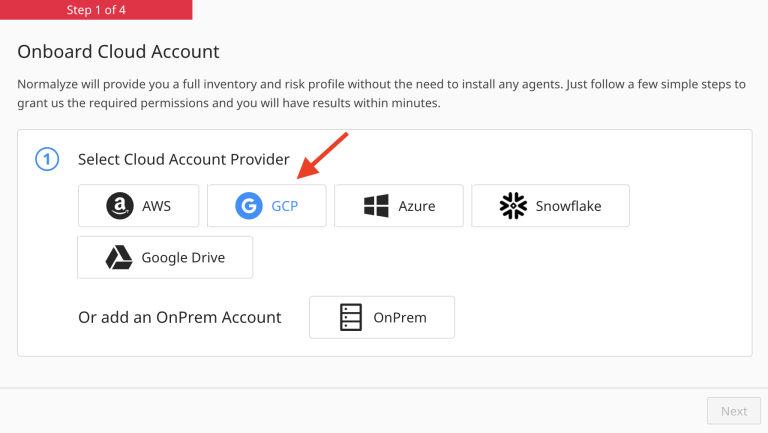
Step 1: Select Cloud Account Provider
Select GCP and the form will update to the GCP Onboarding process.
Step 2: Onboarding Type Selection
Select the “Onboarding Type” from this section where Organization based onboarding or Single Project based onboarding option can be select.
DSPM recommends Organization based onboarding for GCP Accounts. This option is selected by default.
-
To onboard the GCP Projects under a specific Organization (parent) Project, select the “Organization” option.
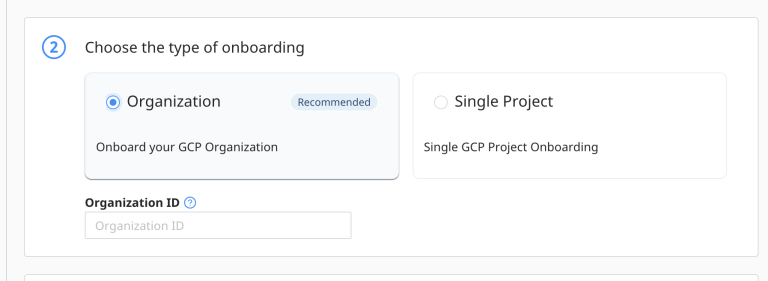
Under the “Organization ID”, enter the GCP Org ID which needs to be onboarded. The ID from GCP account can be captured by navigating to GCP Console - IAM and Admin - Organization. The following screenshot shows the navigation steps:

Organization type generates an Onboarding script by default.
-
To onboard a specific / single GCP Project, select the “Single Project” option
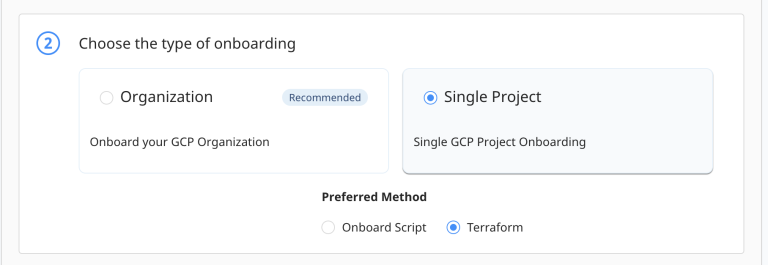
On selecting the single project type option, the onboarding method option will be displayed. Here, one can select if the resource creation on GCP should be done using “Onboard Script” or Terraform.
Step 3: Project Details and Configurations
In this section, the GCP Project ID is provided for DSPM to create the Service account which will be used to run all the operations like data store discovery, scanning, etc.
Apart from that an additional configuration that will used as the deployment architecture by DSPM for resource creation on GCP account is also available which is as follows:
Deployment Option :
Administrators can configure to deploy the storage and compute resources created by DSPM in a single Project with the Single Project Compute and Storage Deployment option.
By enabling this option, the resources created by DSPM are deployed only in the Project Id that is input here and not across all the projects under the Organization defined.
This makes it easier for the administrators to manage and monitor the DSPM related resources since it need monitoring of only the specified Project ID.
The resources that are deployed under the specified Project Id is then used by DSPM platform to access all the data stores across the different projects under the Organization for all the Scan related operations / tasks.
Single Project Compute and Storage Deployment is only applicable when Organization type is selected.
Single Project Compute and Storage Deployment is enabled by Default.
Not enabling (toggle is off) the option for “Single Project Compute and Storage Deployment” DSPM would create the compute and storage resources in all the child Projects under the defined Organization project ID.
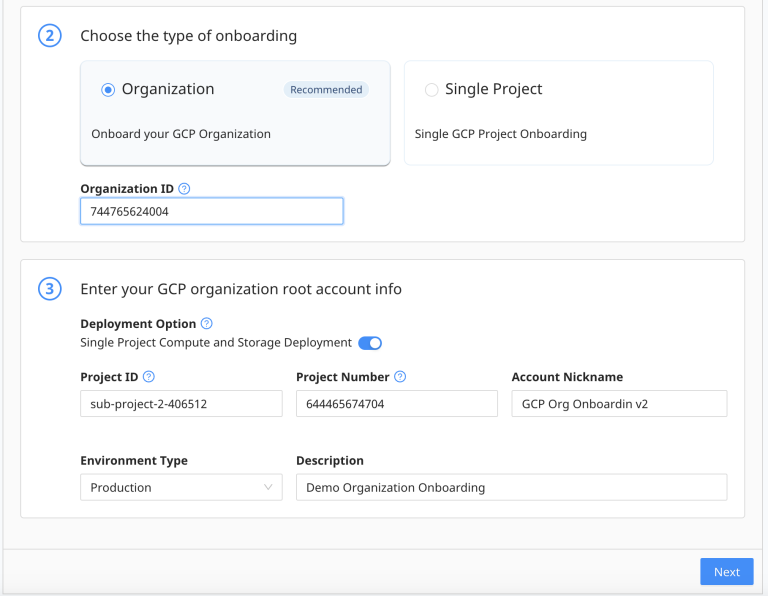
The details to be provided for each of the options under this section are as follows :
-
Project ID - Enter the GCP Project ID for the target account. Under this Project the service account will be created. If “Single Project Compute and Storage Deployment” is enabled then the storage and compute resources too will be created under this Project.
Service account is an identity to which you can grant granular permissions instead of creating individual user accounts. More details about Service Account can be referenced here: https://cloud.google.com/iam/docs/service-account-overview
If the “Single Project” option is selected in the previous section, then “Deployment” option is not applicable and it will not be displayed.
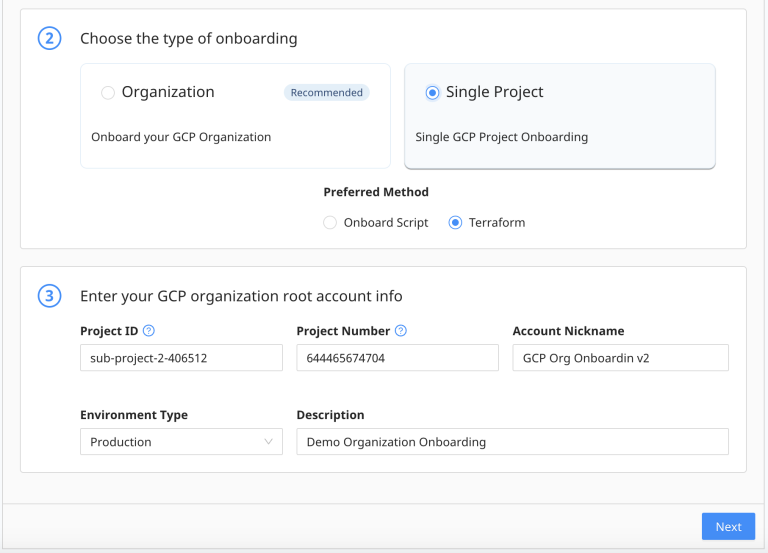
-
Project Number - Enter the Project Number of the target account corresponding to the Project ID used in step 1.
To locate your GCP Project information, please refer to GCP’s documentation:
https://cloud.google.com/resource-manager/docs/creating-managing-projects#identifying_projects -
Account Nickname - Set the Nickname for this account.
The nickname you assign will show next to the Project number in the DSPM UI. This provides an easy way for you to identify which account you are viewing.
- Environment Type - Select the type of environment from the dropdown list.
- Description - Add a Description for this Project for information.
Based on the above selections, DSPM dynamically generates an Onboarding Script or Terraform script (for single project option only) based on the selection done that includes the associated permissions for the service account.
Select Next once the above details are completed.
Step 4: Credentials Configuration
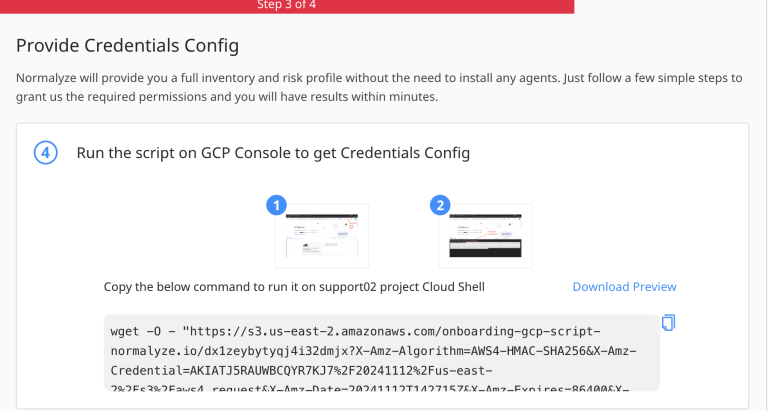
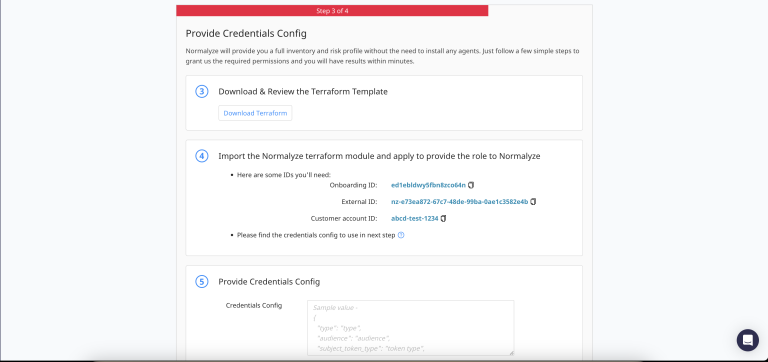
In this section, based on the details and configurations selected in the previous sections, Onboarding script will be generated (for Organization type) - for Single Project type if “Onboarding Script” option was selected and Terraform file if the “Terraform” option was selected - which needs to be run on the GCP Project which is specified in Step 3: Project Details and Configurations.
Terraform option is not supported for Organization Onboarding type. It is supported for Single Project type onboarding.
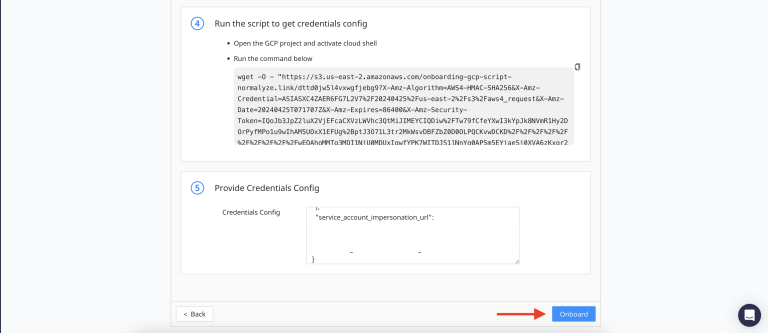
Follow the steps detailed in Step 4 and once it is completed, copy the ‘Credentials Config’ from the GCP cloud shell.
The following screenshot shows the Step 4 UI for Onboarding Script option (default for Organization type onboarding and selected for Single Project type onboarding)
The following screenshot shows the Step 4 UI when for Single Project type onboarding Terraform is selected as the option:
If the user running the onboarding script does not have the “Organization Policy Administrator” role assigned following error would be displayed:
ERROR: (gcloud.resource-manager.org-policies.disable-enforce) [<userid>] does not have permission to access projects instance [support02:setOrgPolicy] (or it may not exist): The caller does not have permission. This command is authenticated as <userid> which is the active account specified by the [core/account] property failed to disable iam.disableCrossProjectServiceAccountUsage constraint
In either of the onboarding option used viz Script or Terraform for creating the resources on the GCP project the final output would display the Credentials Config on the terminal.

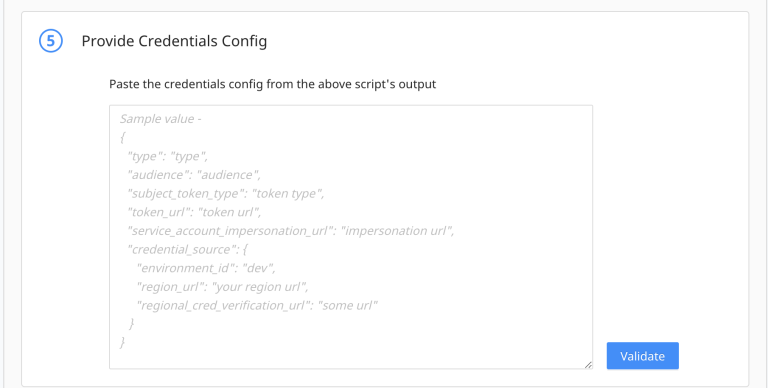
Copy the credentials config value and input it the text box under Step 5 and select “Validate”.
This will launch the Validation task for connectivity from DSPM to GCP project based on the Credentials Config value. If it is successful (as shown in the pop-up) - select Close.
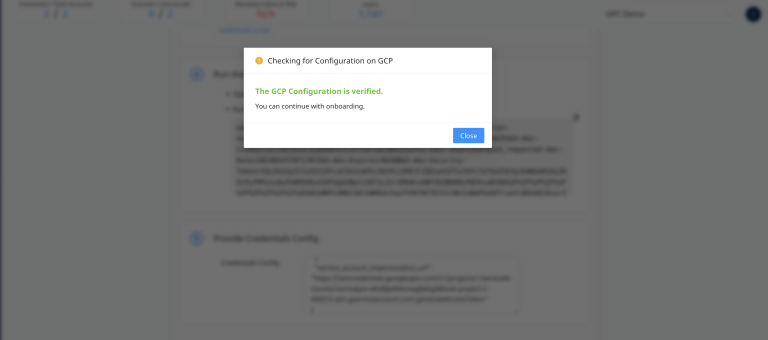
Once the validation is completed successfully as shown above, the next step to be followed will be based on Onboarding Type selected in Step 2: Onboarding Type Selection, which is as follows:
If the “Single Project” type was selected then select “Onboard” option would be enabled which on being selected would start the onboarding process.
If “Organization” onboarding type was selected then “Project Selector” will get enabled where the following options are available for selecting Projects based on the requirement:
All - On selecting this,all the projects that are hosted under the Organization Project Id provided in Step 3 will be onboarded.
Include a Subset - If the requirement is to onboard specific set of Projects and it’s sub-projects, then select this option which will display the list from which selection can be made based on the requirement.
Exclude a Subset - If the requirement is to onboard all the projects except some specific ones, then select this option. From the list of Projects, the ones that are selected (checked) will not be onboarded and the rest of them would be onboarded.
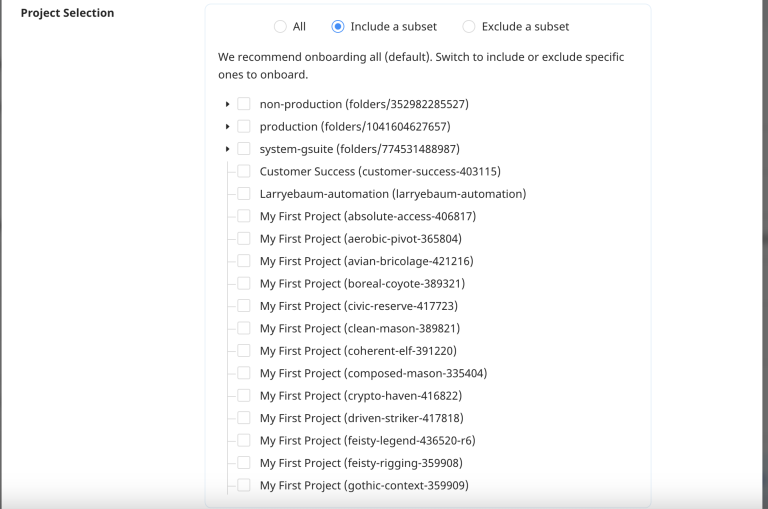
After selecting the options based on the requirement, “Onboard” option would be enabled which on selection would start the onboarding operation for the accounts (selected).
It is during this stage that the task for discovery of data stores and assets are run as well.
Discovery Process
DSPM will now begin the process of discovering data stores and assets within your GCP Project(s).
If you elected to use a GCP Organization Project, the first Project will be Onboarded, and we will automatically Onboard and scan the other Projects.
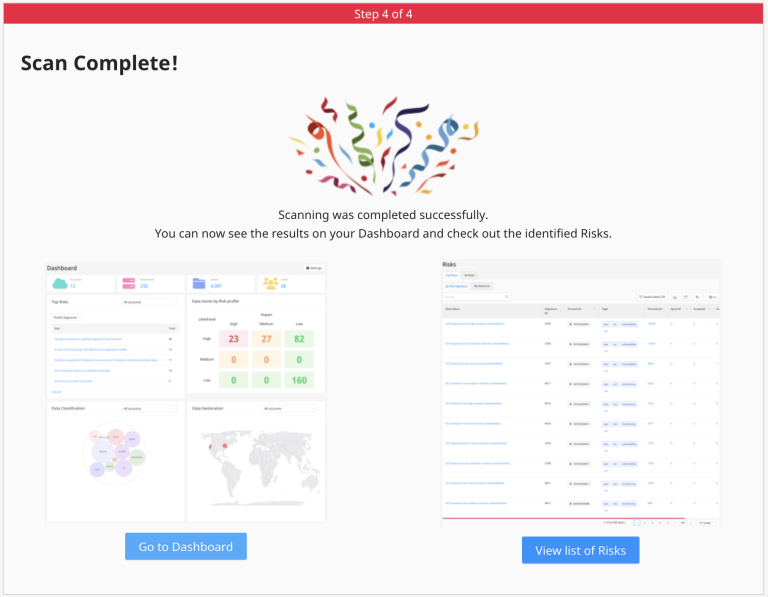
Once all the entities from the GCP Projects are discovered, you will see the success message below. Links to navigate to the Dashboard and View Risks sections are shown for the administrator to begin reviewing the what security risks were found.