How to upgrade the version of Azure Account to latest version
-
Navigate to Workspace > Accounts and click on the blue warning triangle next to the Azure Account Connector in question.
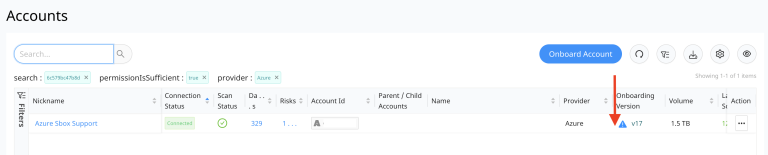
- This will bring up the “Update Template” page.
- Select the option “Use as SaaS Sidecar” (marked 1 in the below screenshot) if the account is going to be used as a sidecar for other SaaS applications like Microsoft OneDrive and Sharepoint.
-
Based on whether the sidecar option is selected or not, select “Generate Script” (marked 2 in the below screenshot) to build the script for update operation. This will include the necessary configurations for sidecar operation if the “Use as SaaS Sidecar” option is selected.
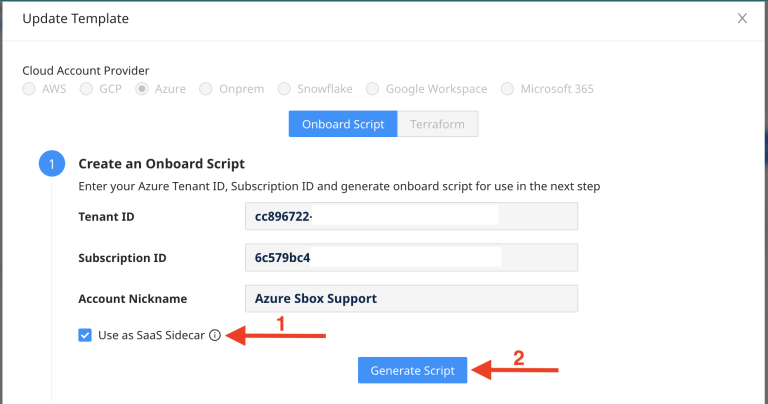
If the account is already enabled to be used as sidecar viz the option “Use as SaaS Sidecar” is already selected then it should not be unchecked during further version update operation.
-
Select “Download” option in case the update script has to be reviewed or included in deployment pipeline.
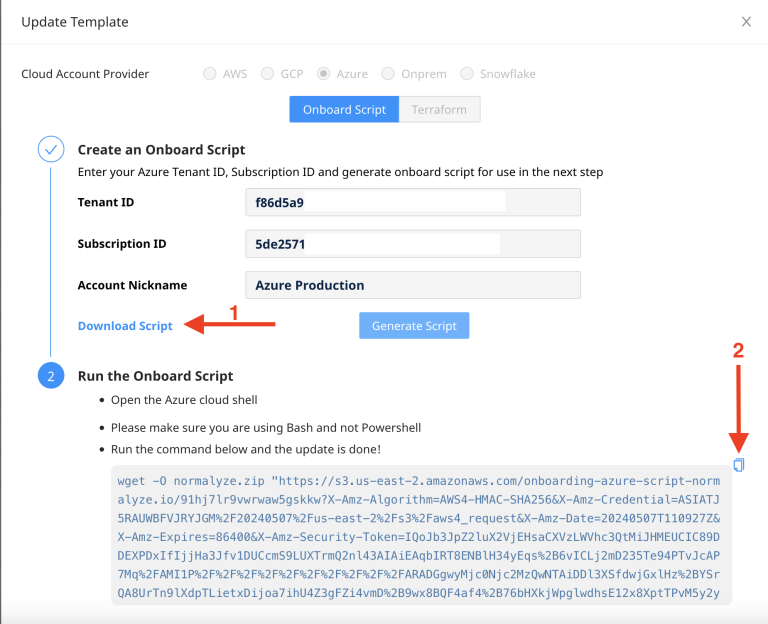
- Copy the script provided (marked 2 in the above screenshot) and run it from Azure CLI with a user that has Global Administrator privileges role assigned to it.
-
Once it is completed, copy the Credentials config generated and input that in the “Credentials Config” section.
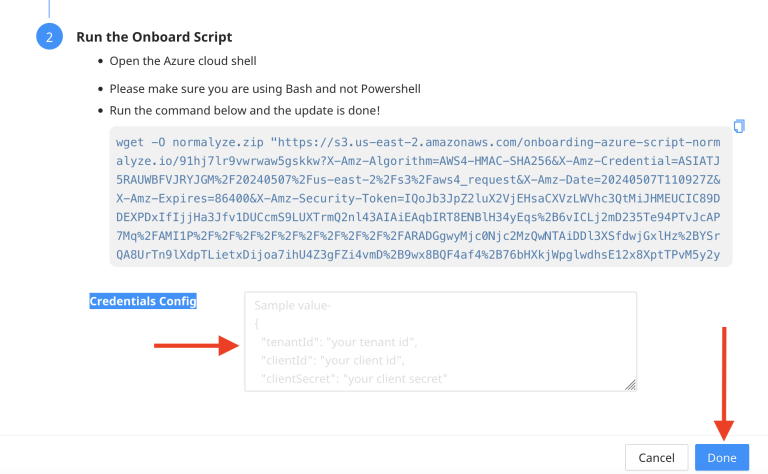
- Select Done to complete the update of the Azure account version on DSPM platform.
- After the Cloud Scan for the Azure account is completed, the version will be updated and showing the latest version information.
For Organization based accounts, the above steps need to be done on the Parent Azure account level and the version for all the child accounts would be updated to latest during their respective cloud scans.