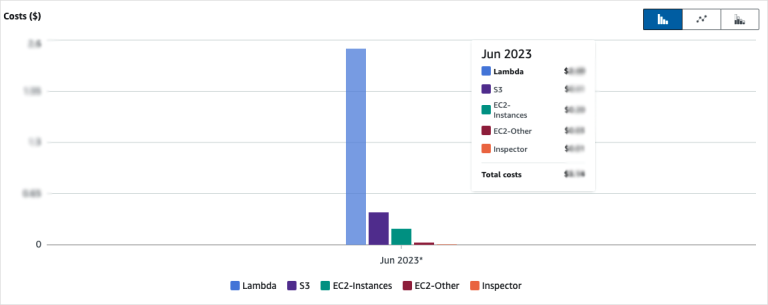
Overview
You can use AWS cost allocation tags to identify costs related to the resources deployed by DSPM during scans of your AWS environment.
Cost allocation tags allow you to track costs on a detailed level, using the tags assigned to resources from DSPM scanners.
Enable Cost Allocation Tags
- Log into the AWS Management Console.
- Navigate to My Billing Dashboard > Cost Allocation Tags.
- In the User-Defined Cost Allocation Tags section, select the project tag and click Activate.
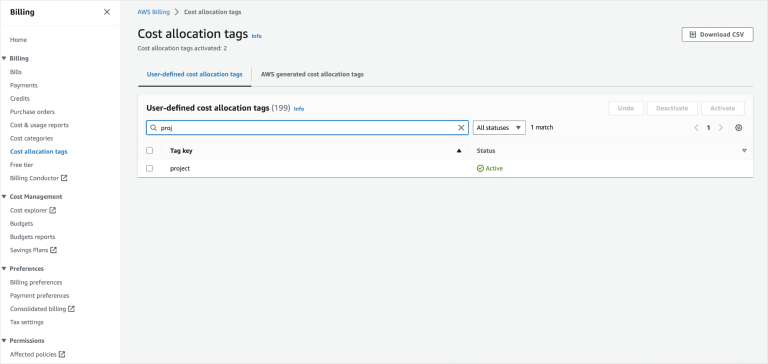
Cost allocation tagging is managed via the master billing account at the root of the AWS organization. If an account is part of an organization, you will have to contact the account administrator to enable the cost allocation tags, otherwise you will receive an error message such as:
Once the project tag is activated, it will take around 24 hours for billing data to appear under this tag.
Check Billing and View the Costs
- Log into the AWS Management Console.
- Navigate to My Billing Dashboard > Cost Explorer.
- Click View in Cost Explorer.
- In the Filters section, click the Tag filter, then select the project tag.
- Select the tag value that will be used to filter cost by the project. Search for the tag value starting with normalyze. The value should be a string such as normalyze-XXXXXXXX.
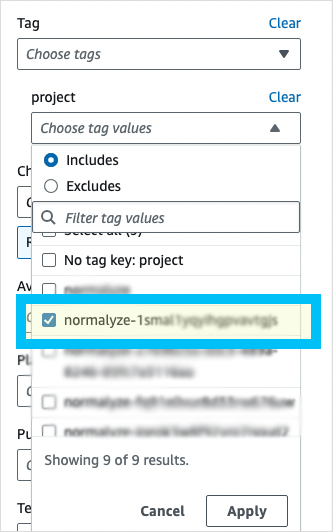
- Click Apply to apply the filters.
In the Cost Explorer, you will now be able to view exactly how much each project is costing per day (or month, if selected).