Inline DLP Enforcement for Claude Prompts for Data Security for AI
Proofpoint supports real-time DLP enforcement on Claude prompt events through Anthropic's Inference Hooks integration. When enabled, Claude prompts are routed to Proofpoint's DLP before inference proceeds, allowing Proofpoint to inspect prompt content and return an allow or deny verdict within Anthropic's enforcement window.
Inference Hooks are currently in Beta for Anthropic. Contact your Anthropic representative.
This feature will be available as GA for Proofpoint Data Security for AI. Contact your Proofpoint representative.
Organizations adopting Claude for enterprise use face a blind spot: sensitive data entered into Claude prompts — credentials, PII, confidential business information — can reach Anthropic's inference infrastructure before any DLP control has a chance to act.
This capability closes that gap by positioning Proofpoint as the inline enforcement point in the prompt lifecycle. It requires no agent or proxy deployment, and it uses the same DLP scanning and rule evaluation engine customers already rely on for cloud, email, and endpoint coverage.
How it works
Inference hooks let an organization check a Claude interaction against its own security policy before the model processes it, and block the prompt if it violates that policy.
Inference hooks apply to what employees send in — the check runs on the prompt itself, before the model processes it.
This enables real-time blocking when a prompt matches a configured policy.
When enabled, Claude prompts are routed to Proofpoint's DLP before inference proceeds, and Proofpoint returns an allow or deny verdict within Anthropic's enforcement window.
If a prompt is blocked by a detector, removing the flagged content and resubmitting in the same conversation may still result in a block. Anthropic sends the full conversation transcript with each request, so earlier flagged content can still trigger a deny even if the new message is clean. It is recommended that you start a new conversation instead of continuing the blocked one.
What's supported
Inference hooks are supported across Claude Enterprise products, including:
-
Claude chat
-
Claude Cowork
-
Claude Code
-
Additional Claude Enterprise surfaces
Notes:
-
Custom detectors and AI Classifiers and EDM are currently not supported, due to latency requirements.
-
Prompt verdict timeout is configurable from 1–9,000 ms. Proofpoint's SLA for returning a verdict is 5,000 ms.
Inference Hooks and Cloud Rules
Cloud DLP data rules support Inline Rules for Data Security for AI, which use inference hooks to enforce policy in real time. With an inline rule, you define detection criteria and a remediation action that is enforced before the prompt activity completes.
For more information about Inference Hooks and Security for Data AI, see Inline DLP Enforcement for Claude Prompts for Data Security for AI.
You can define Inline rules with the following:
Activity: AI Prompt Submit and AI Response Activity
Criteria: Custom detectors and AI Classifiers and EDM are currently not supported.
Setting Up Inline Rules
Prerequisites
Before creating an inline rule, you must:
Onboard Claude (Anthropic) to Proofpoint and make sure to enable Inline Enforcement.
For detailed onboarding steps, see the Application Guide | Claude (Anthropic).
Inline Enforcement
-
In Proofpoint Data Security, from Administration app, navigate to Integrations > Cloud Applications.
-
From Connected Apps tab, select Claude and click Inline Enforcement.
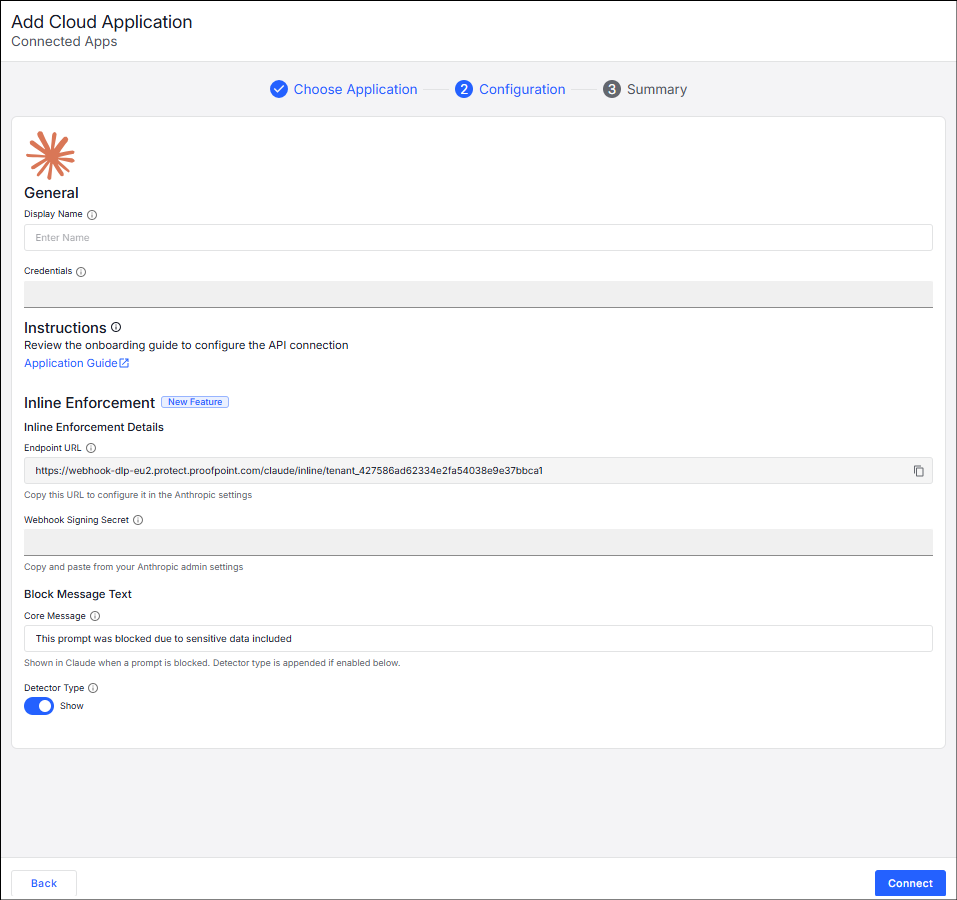
The Inline Enforcement panel displays. At the top of the panel, you can see the Status letting you know if Inline Enforcement is configured.
-
Complete the following fields:
-
Display Name: A friendly name for this connector.
-
Endpoint URL: Automatically generated.
-
Credentials: Generate by Anthropic. Compliance API key and Admin API key, with a space between the two values.
-
Webhook Signing Secret: Generated by Anthropic when you onboard.
-
Block Message Type: Text for the message you want to display when the message appears.
-
Detector Type: Enabling Show lets you see the Detector types that triggered the block.
-
-
Click Save.
Creating an Inline Rule
-
From the Administration App, select Cloud > Cloud Rules, then click +Rule to add a new rule.
-
From the left panel, select Data, then click +Data Rule to add a new custom data rule.
-
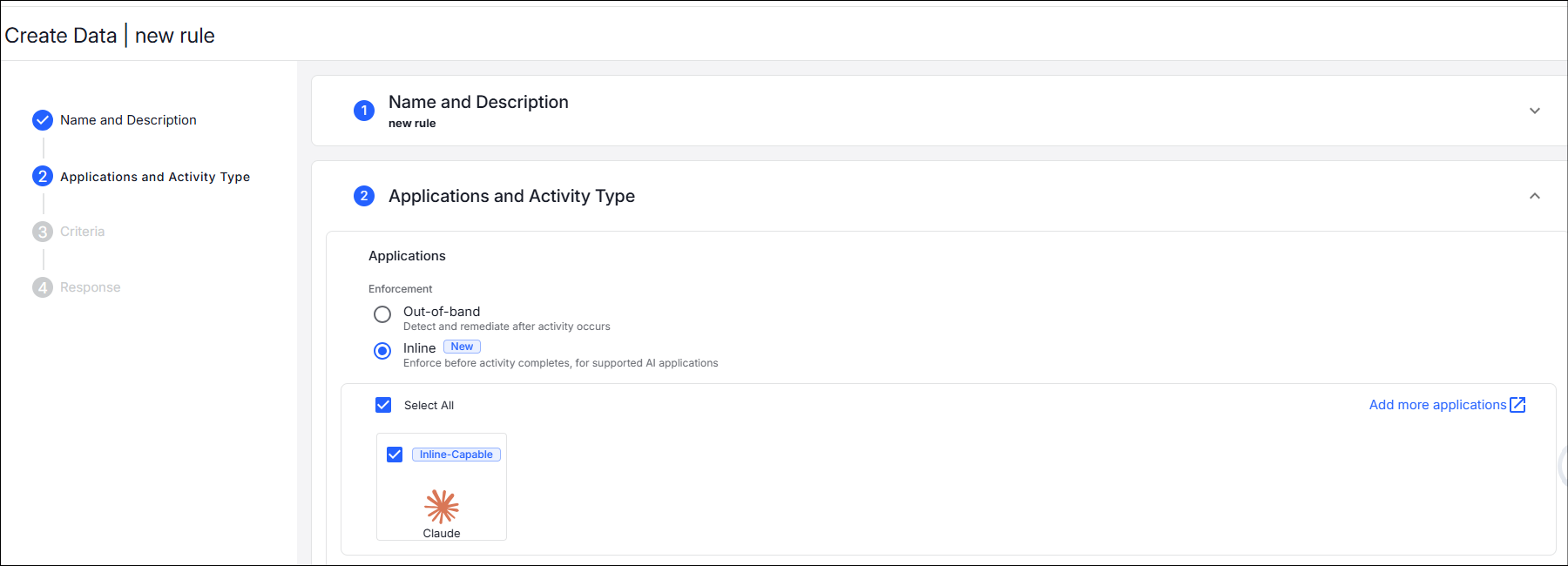
In the Applications section, select Inline, then select Claude Inline.
-
In the Activity section, use the dropdown and select the relevant activity. Currently AI Prompt Submit is supported.
-
In the Attributes section, select the detectors you want the rule to evaluate against.
-
In the Response section, select the Remediation action to apply when the rule matches. By default, the remediation action is Block Activity.
-
Once saved, the rule is enforced inline: matching prompts are blocked before they reach Claude for inference.
Related Topics: