The User Remediation Time Limit feature allows you to define a time period, after which rule-based user remediation actions will not be performed.
This feature applies to the following remediation actions:
-
Suspend User
-
Force Password Change
-
Revoke Session
-
Invalidate Password
-
Reset MFA Device
By default, this feature is set to perform remediation during the 24 hours following the user activity.
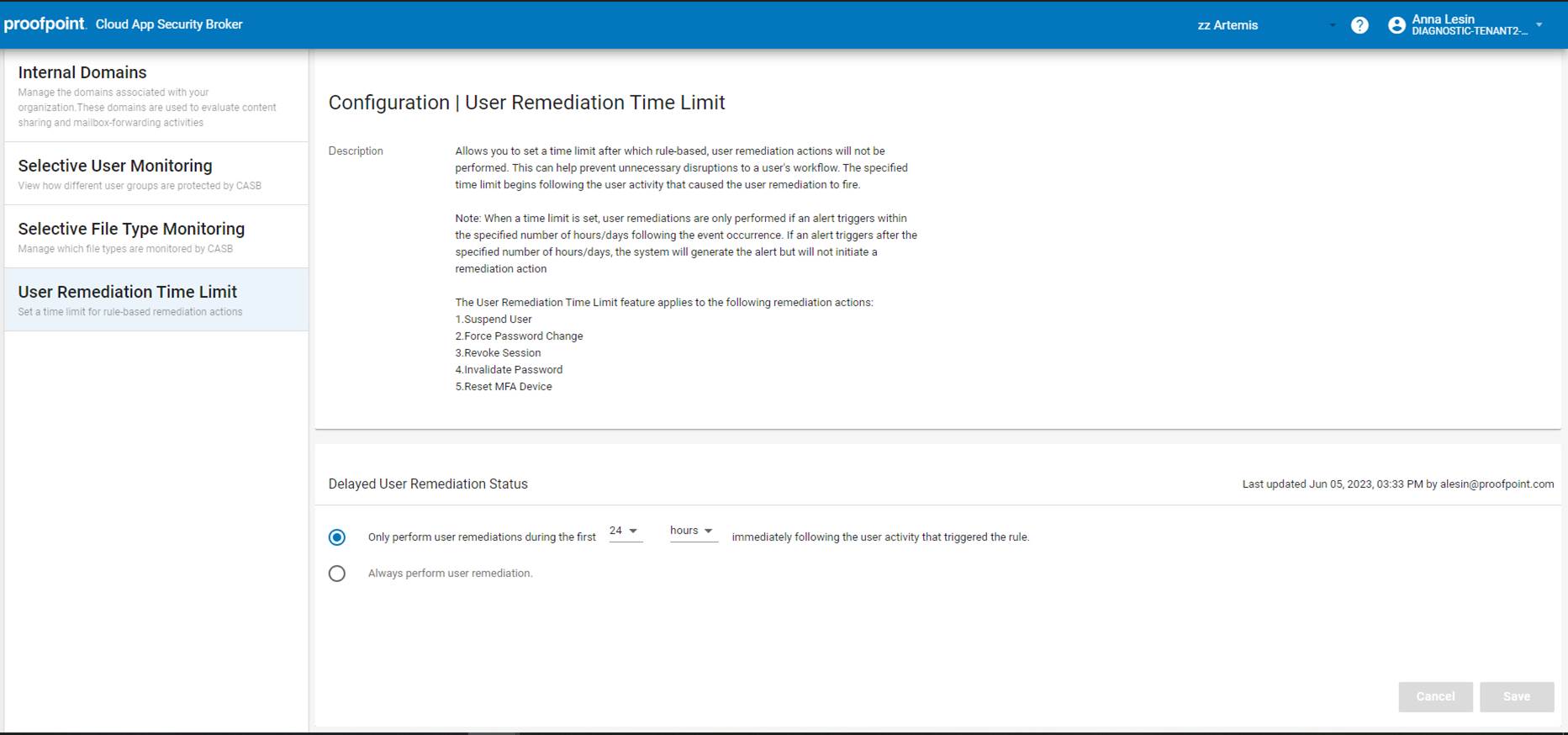
Some customers do not want remediations performed after a significant period has elapsed, as delayed remediations can sometimes impact productivity. For example:
-
Retrospective Suspicious Login event – For this type of event, a CASB rule-based remediation may not be executed until several days after the original login activity (due to newly discovered intelligence.)
Consider the unique security and productivity needs of your organization to determine what setting is needed.
To select a setting, click the radio button next to the desired option, set a time limit (if needed), and click save.
Option 1: Only perform user remediations during the first [days] [hours] immediately following the user activity that triggered the rule.
-
Use the Counter (1-30) and Time Period (days, hours) drop down menus to specify the time limit.
-
The specified time limit begins immediately following the user activity that caused the user remediation to fire.
-
User remediations are only performed if an alert triggers within the specified number of hours/days following the event occurrence.
-
If an alert triggers after the specified number of hours/days, the system will generate the alert but will not initiate a remediation action.
-
When this option is enabled and applied, the status of any remediation action that did not occur (due to being outside the defined time limit) will show as being “canceled” in the event’s Remediation Actions section.

When a user remediation time limit is set, customers are still able to perform manual remediation as needed.
Option 2: Always perform user remediation
For this option, user remediations are performed indefinitely.