The Quarantine Center is the configuration page used to manage quarantining, tombstoning, and file restoration.
It also allows you to configure the Quarantine Space, which is the storage location for quarantined and shadow copied files.
The quarantine space is created automatically the first time a remediation action requires quarantining. By default, it is named Proofpoint Quarantine.
Accessing the Quarantine Center
Quarantine Space Configuration page is accessed from the Administration application > Integrations > Cloud Applications. Select the Configurations tab.
Select Quarantine Center.
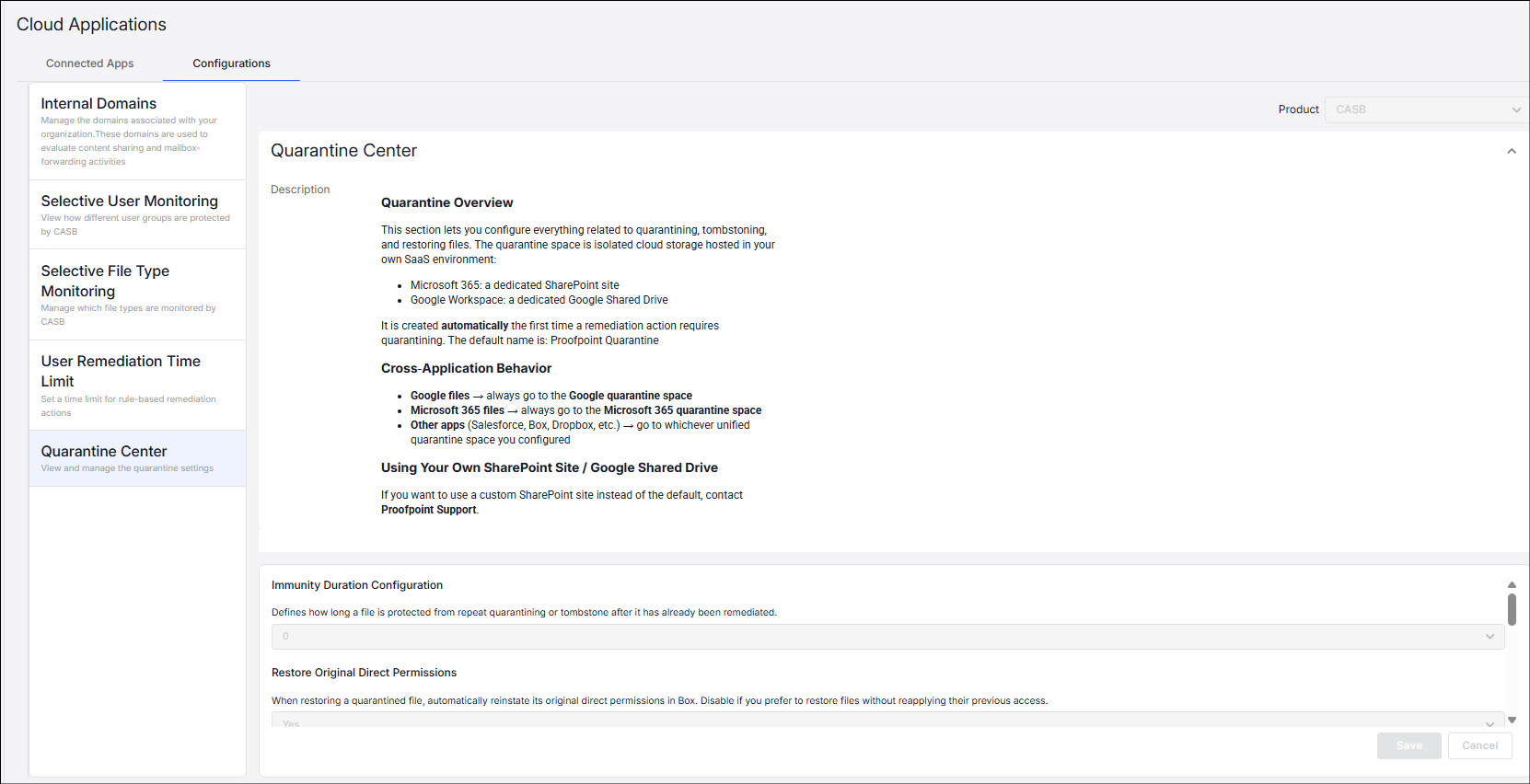
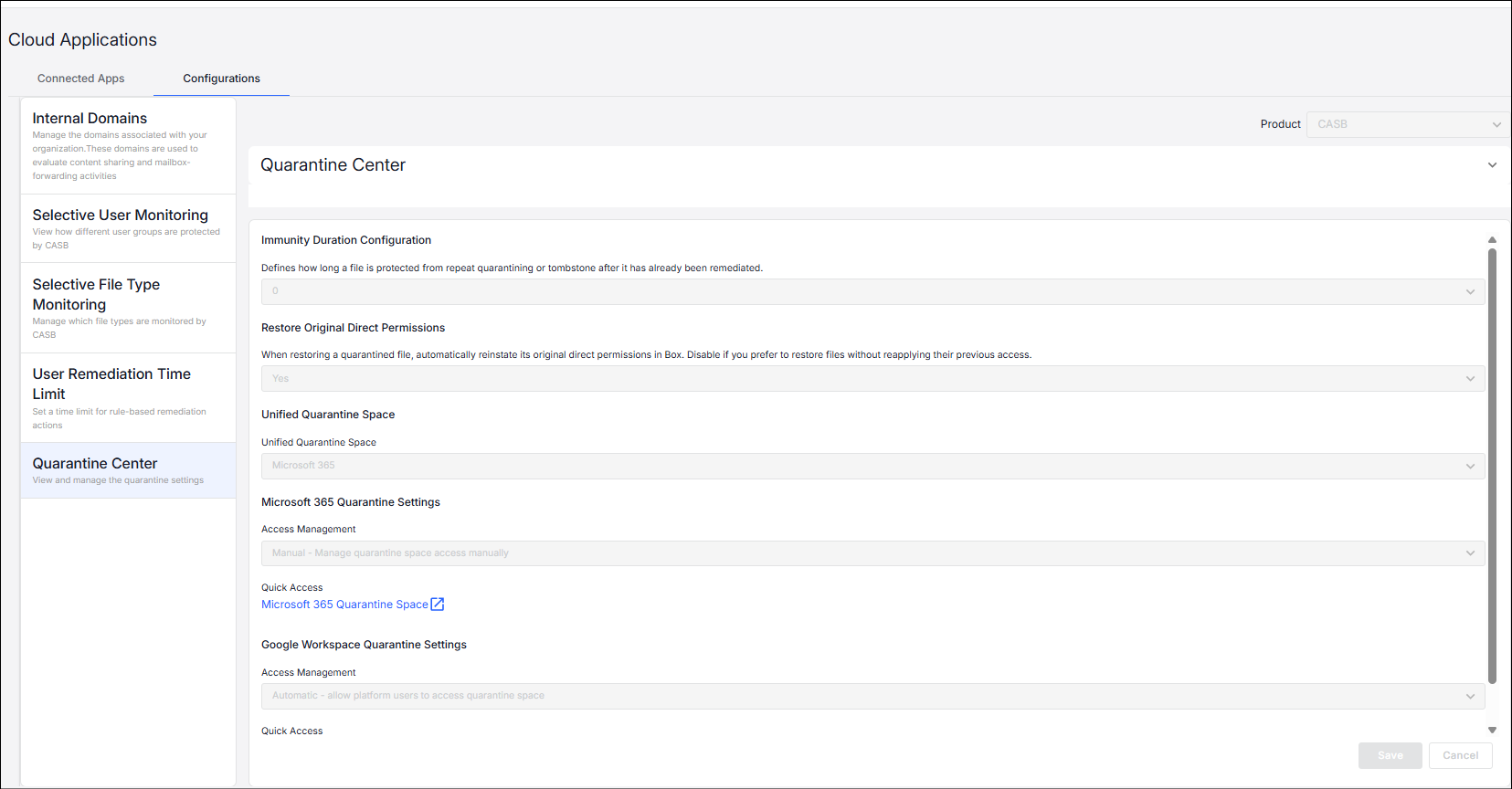
From the Quarantine Center, you can configure:
Immunity Duration Configuration
Immunity Duration Configuration defines how long a file is protected from being re-quarantined or tombstoned after it has been restored. After a file is restored, it enters an immunity window, during which remediation actions (Quarantine, Tombstone, or both) are skipped.
Alerts and events are still generated during this period.
Immunity applies only to Quarantine, Shadow Copy, and Tombstone. All other remediation actions can still be performed..
Default value is 0 days for no immunity and maximum value is180 days. (Options are 0, 7, 30, 60, 90, 180 days)
Restore Original Direct Permissions
Restore Original Direct Permissions determines whether original direct permissions are reinstated when restoring a quarantined file.
This setting allows organizations to balance usability and security:
-
Enable it to fully restore access for business continuity
-
Disable it to enforce stricter access control after restoration
For users explicitly granted access in Box, when enabled, the system restores the file’s direct collaborators based on a snapshot taken before remediation.
When disabled, the file is restored without reinstating direct permissions, and only inherited permissions apply.
By default this setting is enabled.
The Quarantine Space stores quarantined and shadow copied files and is accessible only to authorized users.
Unified Quarantine Space
You configure which cloud provider hosts the quarantine space. Based on the SaaS applications connected to CASB, the quarantine space can be hosted on:
-
Microsoft 365 (SharePoint site)
A dedicated SharePoint site named Proofpoint Quarantine is created. All quarantined files are copied to this site. An email notification is sent to group members when they are added to the quarantine group.
-
Google Workspace (Shared Drive)
A dedicated shared drive named Proofpoint Quarantine is created, and quarantined files are stored there.
Quarantined or shadow copied files across connected applications are stored in this unified quarantine space.
For example, if you use Microsoft 365 and Salesforce, quarantined Salesforce files are copied to the Microsoft 365 quarantine space.
If both Microsoft 365 and Google Workspace are connected, you can choose which platform hosts the unified quarantine space via the configuration page.
Important:
This selection applies only to non-Microsoft 365 and non-Google Workspace files.
Microsoft 365 files are always quarantined or shadow copied within Microsoft 365.
Google Workspace files are always quarantined or shadow copied within Google Workspace.
Access Management
For the selected cloud provider, you configure Access Management. You can select either automatic or manual.
Automatic Access
Access is automatically granted based on user roles and permissions, including:
-
Full Administration
-
Full View
-
Activity Exploration
-
CASB Application Full Administration
-
Activity Unredacted Snippet View
-
Activity Snippet View
If users are removed from the platform or their permissions change, their access to the quarantine space is automatically revoked.
Manual Access
Lets you define who can manage the quarantine space from the Quarantine Space Configuration page.
Depending on your configuration, original direct permissions may also be reinstated.
File Remediation for Non-Microsoft 365 or Google Workspace Applications
File remediation is supported for additional applications to help mitigate data risks.
-
Box: Files are quarantined or shadow copied to the unified quarantine space
To use this feature, you must have either Microsoft 365 or Google Workspace connected.
Remediated files are copied to the unified quarantine space.
Quarantined File Review
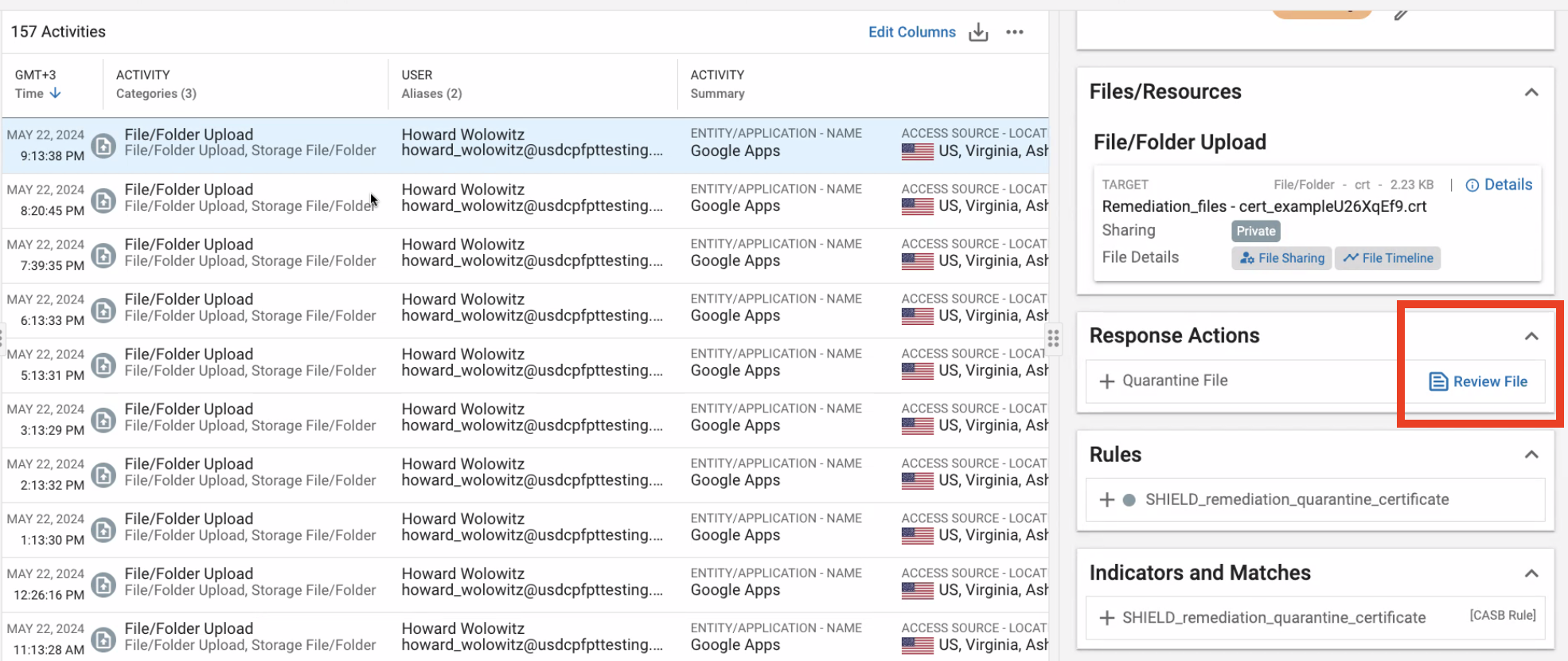
You can review a quarantined or shadow copied file by using a dedicated link provided directly in the Data Security Workbench > Alerts.
When you quarantine or shadow copy a file, the Review File control is available to open the file in a Google Workspace online viewer.
Restore Quarantined File
You can manually restore quarantined, tombstoned, or shadow copied files to their original location.
Unlocking enhanced remediation workflows while minimizing false positive concerns.
Limitations:
-
Direct permissions are restored only for Box, not for Google and Office. Inherited permissions by the folder will be reinstated.